1
Appendix B
Setting up Console Redirection
Appendix B:
Setting up Console
Redirections
Console redirection lets you monitor and configure a
system from a remote terminal computer by re-directing
keyboard input and text output through the serial port.
This following steps illustrate how to use this feature.
1. Connect one end of the console cable to console port
of the system and the other end to serial port of the
Remote Client System.
2. Configure the following settings in the BIOS Setup
menu for the device: Please refer to the Remote Access
Settings on Chapter 4 BIOS Settings.
BIOS > Advanced > Remote Access Configuration >
Serial Port Mode > [115200, 8 , n ,1 ]
3. Configure Console Redirection on the client system.
The following illustration is an example on Windows
platform:
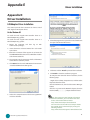
a. A. Click the start button, point to Programs >
Accessories > Communications and select Hyper
Terminal.
b. B. Enter any name for the new connection and
select any icon.
c. Click OK.
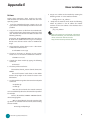
d. From the “Connect to”. Pull-down menu, select the
appropriate Com port on the client system and
click OK.
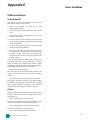
e. Select 115200 for the Baud Rate, None. for Flow
contorl, 8 for the Data Bit, None for Parity Check,
and 1 for the Stop Bit.
Network Application Platforms
39