1
Menu Options
Menu Options
Sound
Analyze
CountyDam has realistic sound when used with an
MCI compatible sound card. Refer to “Configuring
the Software for Sound” in the chapter entitled
“Installation and Setup” for instructions on how to use
sound in CountyDam.
Animate Results
After CountyDam has been setup for sound, use this
option to temporarily turn off the sound while the
program is running. This option is useful because in
some cases turning off the sound may speed some
tasks, such as placing block. To turn the sound on
again, select this option once more.
Copy to Clipboard
Select this option to copy the grid area to the
Windows’ clipboard. You can then paste a picture of
the dam into a report or a set of your own notes. This
is useful for keeping records on what worked and
what didn’t.
__________________________________________________
8-7
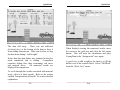
This option uses animation to illustrate the results of
the analysis. After selecting this option, the sky
darkens and it rains. Eventually the rain that fell
comes down from the hills through the creek beds into
the river where your dam was constructed. The water
level behind the dam rises. If the truck speeds off,
watch out!
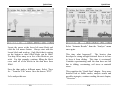
After the animation, the numerical results are shown
at the top of the window. You should start to see a
correlation between the type of collapse and the shape
of your design. To return to the design mode, locate
the cursor somewhere on the grid and click the left
mouse button.
Calculate Only
This option skips the animation described above and
directly displays the numerical results. To return to
the design mode, locate the cursor arrow somewhere
on the grid and click the left mouse button.
__________________________________________________
8-8