1
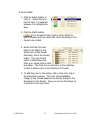
To find a match
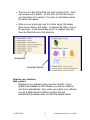
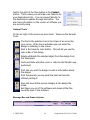
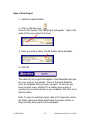
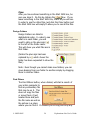
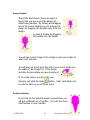
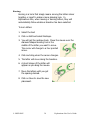
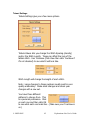
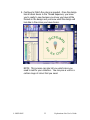
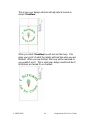
1. Click the Select button of
Color 2. Notice that you
can tell Color 2 is selected
because it is highlighted in
blue.
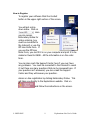
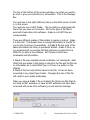
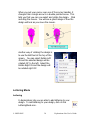
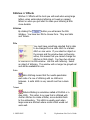
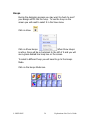
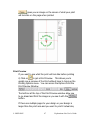
2. Click the Match button.
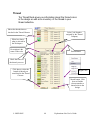
The Thread Chooser section will go blank for
just a moment and then resort the colors according to the
closest color match.
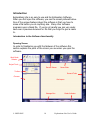
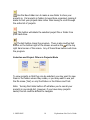
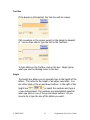
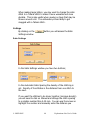
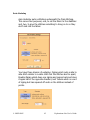
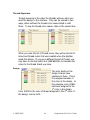
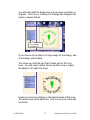
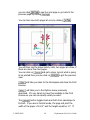
3. Notice that the first color
listed in the Match is the
actual color of the thread.
Obviously, this is the closest
match. The next closest
match is listed below but
there is no check mark in that
box either. The third box is one that is in the collection,
so that is closest color in the collection of threads.
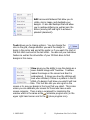
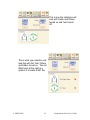
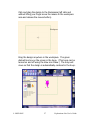
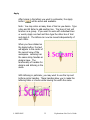
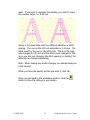
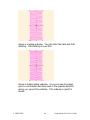
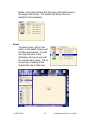
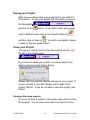
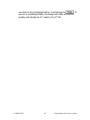
4. To add this color to the design, click on the color chip in
the Description column. The color will immediately
change in the Thread Sequence as well as change in the
Workspace in the design. Now you can see the design as
it will look in the new colors.
© OESD 2005
54
Explorations Lite User’s Guide