1
20.1. TABLE VIEW DEFINITIONS
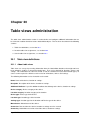
Search table view Specifies the maximal length of the path if path is selected as table column.
See also section 20.3.
6. Select the desired “Kind”. This specifies whether the table view will display settings, devices or
locations.
7. Click Create.
8. Please refer to Section 20.1.4 for more information on adding columns to the table view.
20.1.3
Edit a table view
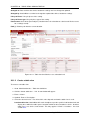
To edit a table view:
1. Go to Administration tab > Table view definitions.
2. Click the desired table view.
3. Edit the fields as desired.
4. Click Submit.
20.1.4
Manage columns in a table view
To add, edit or delete the columns:
1. Go to Administration tab > Table view definitions.
2. Click the desired table view.
3. To add new columns:
(a) Under the Columns tab, click Add. A new record will appear which will represent a column
in the table view.
(b) Under “Caption”, enter a desired header name for the table view column.
(c) Under “Field type”, select the desired type which this table view column would represent.
(d) If the “Field type” is selected as an “Additional attribute”, then choose the desired attribute
from “Additional attribute container / Attribute name”. Otherwise, leave it blank.
(e) Click Submit.
4. To edit existing columns:
(a) Under the Columns tab, edit the columns as desired.
(b) Click Submit.
5. To delete existing columns:
(a) Under the Columns tab, click
next to the record that you would like to delete.
6. To change the display order of existing columns:
(a) Under the Columns tab, click
to move the record one position up the list, or
the record one position down the list.
DIgSILENT StationWare 4, User Manual
to move
153