1
10.2. WORKING WITH THE HISTORY MODE
10.2
Working with the history mode
10.2.1
Accessing the history mode
To access the history mode in StationWare:
1. Login. For more information on logging in refer to Section 5.1.1.
2. Click the History tab at the top of the page. The history mode login screen will appear.
3. Enter a date. There are two ways to do this:
(a) Type a date according to the date that you wish to login to the system. Note you can enter
a full date and time of the format DD/MM/YYYY HH:MM:SS (the format whether DD/MM, or
MM/DD depends on your browser date preferences), or a date of the format DD/MM/YYYY
with no time. In the latter case, the login time will be 00:00:00.
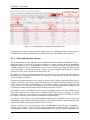
(b) Click the
button. A new window will appear with a calendar view.
i. Click the date that you wish to use.
ii. Optional: Enter the specific time that you wish to login in the text box.
iii. Click Submit to save the date and time.
4. Click Login. The screen colours will immediately change to greyscale indicating that you have
entered history mode.
10.2.2
Exiting the history mode
To exit the history mode and return to the normal (current) StationWare view, click the Start tab. The
StationWare colour scheme will return to normal.
DIgSILENT StationWare 4, User Manual
71