1
Tutorials
Working with Constructs
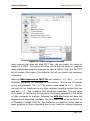
ated with it. These comments can be used to store important information
about the construct and can be searched using the Search Files capability of
GCK (Tutorial 8: “Finding Comments and File Searching”, page 2-39). We
will talk more about this dialog box later (Tutorial 7: “Chronography – Tracking Cloning History”, page 2-31). For now just press the Cancel button – you
don’t want to make any changes.
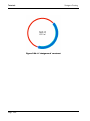
8. You should still have the T7 promoter selected as shown in Figure 2.4,
page 2-5. If you do not, then select it again by double-clicking on the segment. First, let’s change the line thickness by choosing Format > Lines > and
choose the third line down to change the width of the selected DNA segment
to 3 pixels. Next add an arrowhead pointing in the clockwise direction by
choosing Format > Lines > and choosing the rightward pointing arrow in the second section of the Lines menu.
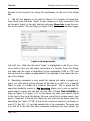
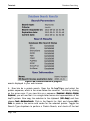
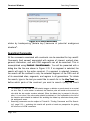
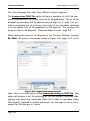
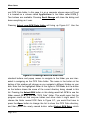
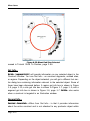
9. The last step is to adjust the arrowhead size. This is done by choosing
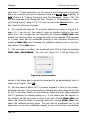
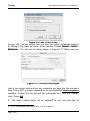
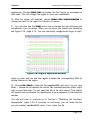
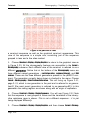
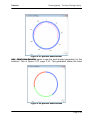
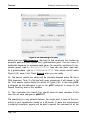
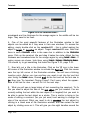
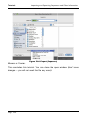
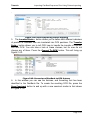
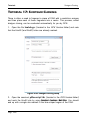
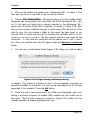
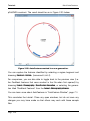
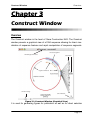
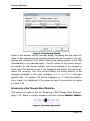
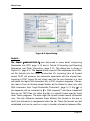
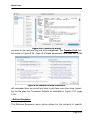
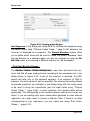
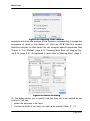
You will see Figure 2.6. Click and drag the
Format > Lines > Size Arrowhead….
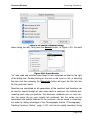
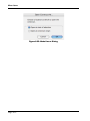
Figure 2.6: Size Arrowhead
mouse in the dialog box to resize the arrowhead to be approximately what is
shown in this figure. Click OK.
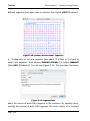
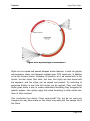
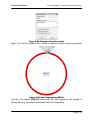
10. We now need to adjust the T3 promoter segment to point in the counterclockwise direction. This can be done by following the same steps we just did
for the T7 promoter. Briefly, do the following: Select the lower green segment
(the T3 promoter) by double-clicking on it. If you cannot see this segment in
the window, use the scroll-bars to bring it into view. Choose Format > Lines > and
select the third line down to change thickness, choose Format > Lines > and
select the leftward pointing arrow. This will add an arrowhead that is the
same size as the last arrowhead created so you should have symmetrical
Page 2-6