1
qooxdoo Documentation, Release 1.6.1
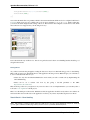
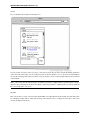
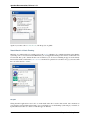
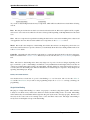
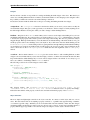
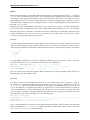
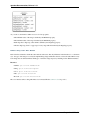
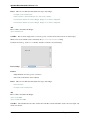
The minus button removes the currently selected lines from the test case.
The slider controls the delay between individual commands when playing back a test case. In some cases, e.g. clicking
a button that opens a new window, it will be necessary to set this to a higher value to make sure the application finishes
rendering before the next command executes.
The play button executes selected test commands. If no commands are selected, the will all be run.
While the record button is active, a new line will be added whenever a new widget is selected in the Inspector.
The import/export button opens a new window containing the current test case in Selenese format. To import a
Selenese test case, paste it into the text field and click Import.
The options button opens a dialog where external script paths can be configured.
Test Commands
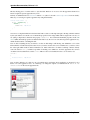
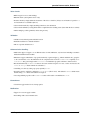
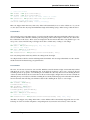
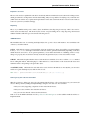
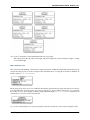
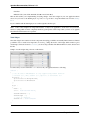
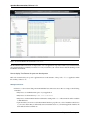
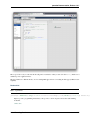
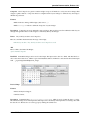
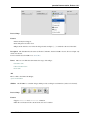
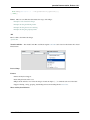
The table underneath the toolbar lists the commands in the current test case. Select one or more rows to execute
their commands using the play button. Commands, locators and parameters can be edited by double clicking. Editing
commands will display a combo box listing all commands supported by Selenium Core.
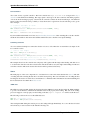
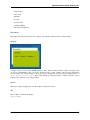
Log The log area displays any messages generated by Selenium Core while running commands.
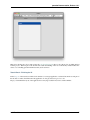
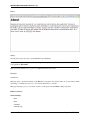
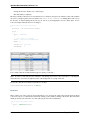
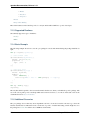
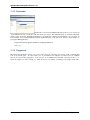
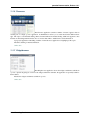
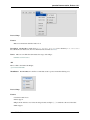
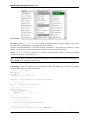
Selenese window
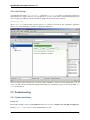
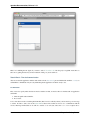
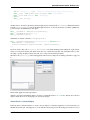
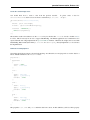
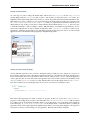
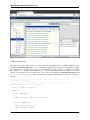
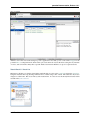
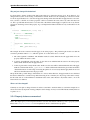
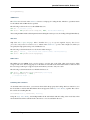
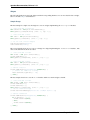
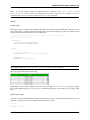
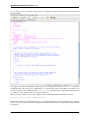
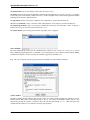
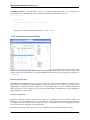
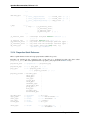
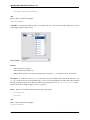
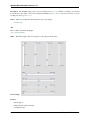
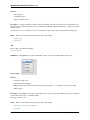
Opened by clicking the Import/Export button in the toolbar, the Selenese window displays the current test case in
Selenese format. This can be copied and pasted into a file, e.g. to be run by Selenium RC. Selenese import is also
supported by pasting the contents of a Selenese file in the text area and clicking Import. This will replace any
commands in the current test case with those from the pasted Selenese.
378
Chapter 11. Standard Applications






![Tester Bench [BETA] User Manual](http://vs1.manualzilla.com/store/data/005798606_1-651c3b6b51a13c0d6f27995a84bd9cc4-150x150.png)