1
qooxdoo Documentation, Release 1.6.1
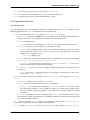
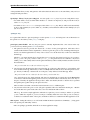
to define a tabIndex on widgets which should be reachable in a static hard-coded way. It is not advisable to use
this feature too much. The automatic handling works quite well out of the box without hard-wiring every widget to a
specific tab position.
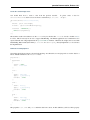
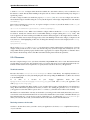
To make a widget focusable just enable the property focusable (API) on it. For most widgets, this will also
means that the widget is reachable using the Tab key, but this depends on the widget’s implementation of the method
isTabable().
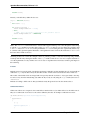
Every widget can function as a focus root. To register a widget as a focus root just call the method addRoot() of
the FocusHandler like this:
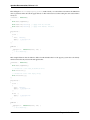
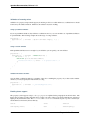
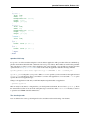
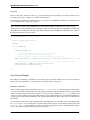
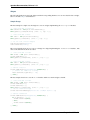
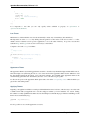
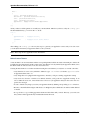
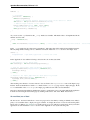
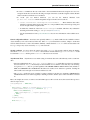
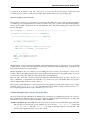
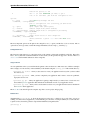
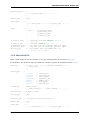
qx.ui.core.FocusHandler.getInstance().addRoot(myWidget);
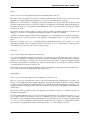
Activation is related to focus. While focus is limited to widgets which are marked as focusable, any widget can
be activated. Usually, the activation moves around while clicking on widgets (during the mouseup event). The
focus is applied to the next focusable parent while the activation directly happens on the widget that was clicked on.
Activation is mainly used for keyboard support (key events start bubbling from the active widget). Compared to the
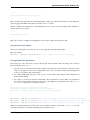
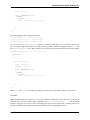
focus, there is no visual highlighting for this state. To change the currently focused or active widget just call focus()
or activate():
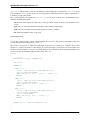
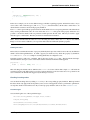
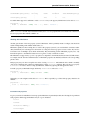
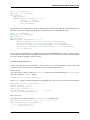
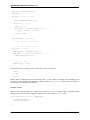
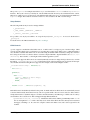
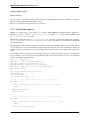
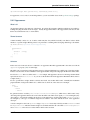
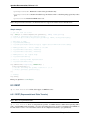
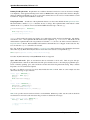
myInputField.focus();
The properties keepFocus and keepActive are targeted more towards advanced users and developers of custom
widgets. Both prevent the focus or active state from moving away (from the widget that currently has it) to the
widget which has the specified property disabled. This is appropriate for complex widgets like a ComboBox where
the activation should be kept on the ComboBox itself when selecting items from the dropdown list.
5.2.4 Resources
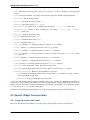
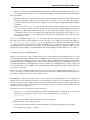
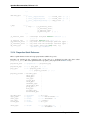
Resources comprise images, icons, style sheets, Flash files, helper HTML files, and so forth. The framework itself
provides many icons and some other useful resources you can use right away in your application without any customization. This article however explains how to specify and use custom resources for your application.
Technical overview
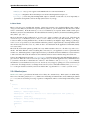
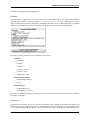
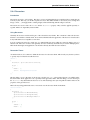
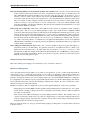
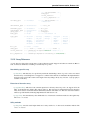
Resources live in the source/resource/<namespace> subtree of each library. You explicitly reference a resource in your application code by just naming the path of the corresponding file under this root (This is also referred
to as the resource id).
So
if
there
is
a
resource
in
your
“myapp”
application
under
the
path
myapp/source/resource/myapp/icons/tray.png you would refer to it in your application code
with myapp/icons/tray.png.
To find the corresponding file during a build, qooxdoo searches all those paths of all the libraries your application is
using. The first hit will be regarded as the resource you want to use. (During the generation of a build version of
your app, these resource files will be copied to the build folder, so your build version will be self-contained).
The libraries are searched in the order they are declared in your config.json file. This usually means that your own resource folder comes first, then the framework’s resource folder, and then the resource folders of all further libraries you
have included. This way, you can shadow resources of like names, e.g. by adding a file qx/static/blank.gif
under your source/resource folder you will shadow the file of the same resource id in the framework.
Declaring resources in the code
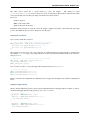
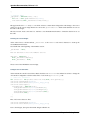
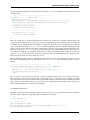
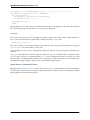
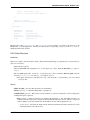
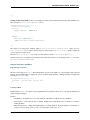
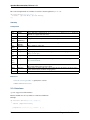
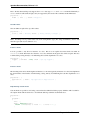
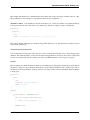
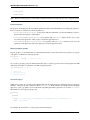
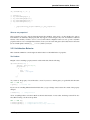
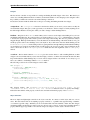
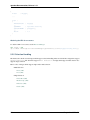
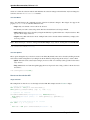
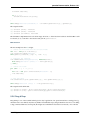
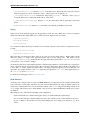
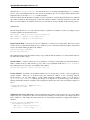
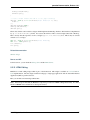
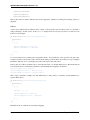
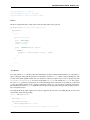
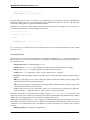
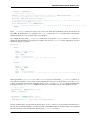
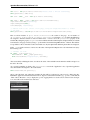
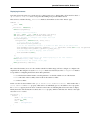
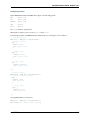
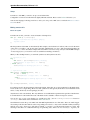
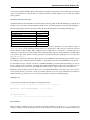
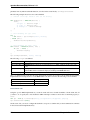
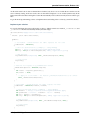
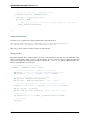
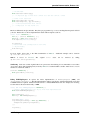
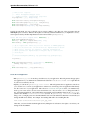
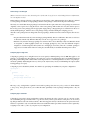
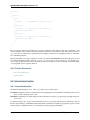
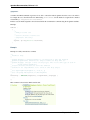
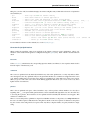
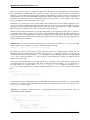
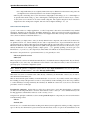
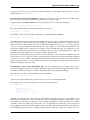
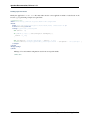
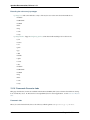
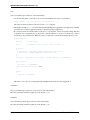
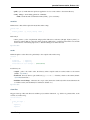
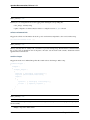
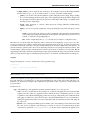
You have to declare the resources you wish to use in your application code in an #asset compiler hint near the top
of your source file.
150
Chapter 5. GUI Toolkit
















![Tester Bench [BETA] User Manual](http://vs1.manualzilla.com/store/data/005798606_1-651c3b6b51a13c0d6f27995a84bd9cc4-150x150.png)