1
Contents
Main Screen
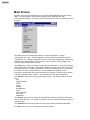
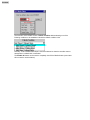
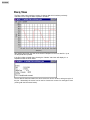
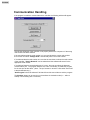
Normally, the first screen displayed upon running the ER3000 software is the main screen
(Note - If communication is not functioning another screen will display first. See
Communication Handling.) The main screen consists solely of a menu for accessing various
functions.
The "File" menu item contains three submenus: "Save Configuration", "Change
Configuration" and "Quit". "Save Configuration" will save the tuning parameters from the
controller to a file. "Change Configuration" will open a file containing previously saved tuning
parameters and download them to the controller. "Quit" is used to exit the program and
close any other windows which are open.
The "Node" item is used to change the node being communicated to. It has two submenus:
"Node Select" and "List Nodes". "Node Select" allows the user to enter a new node number
to communicate with. "List Nodes" produces a list box of all nodes which are connected to
the network; the user can then select one. See Communication Handling for more
information. Note that the node number with which the program is currently communicating
is shown in the Main Screen's title bar. This corresponds to the data in all windows.
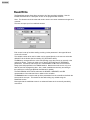
The "Window" item is used to open various other screens. See specific sections for each
item:
Plot
Signal Generator
Profile
Tuning
Failsafe
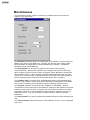
Miscellaneous
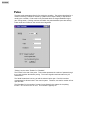
Pulse
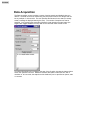
Data Acquisition
Dacq View
Read/Write
The "Refresh" item is used to read up all the parameters from the controller and refresh the
screens which are open. It is usually not necessary to do this unless parameters may have
changed locally.
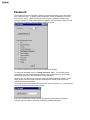
The "Password" item will not be visible if the user does not have password authorization.
The "Help" item is used for accessing this online help system.