1
SDC-15
Pixel Alignment and Fine Adjustment Continued
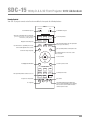
REMOTE CONTROL DUAL USE BUTTONS
Use the [GAMMA] button to select [ADJUST COLOR], i.e. red or blue pixels
Use the [COLOR TEMP] button to change from the [ADJUST PIXEL] to the [ADJUST FINE] operational windows.
Use the [COLOR P.FILE] button to select [ADJUST PATTERN COLOR], i.e. white, green +.
Use the [PIC ADJUST] button to change from [ADJUST WHOLE AREA] to [ADJUST ZONE]
Use the [BACK] button to stop pixel alignment and exit this mode.
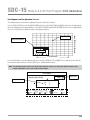
After making overall large scale window adjustments, proceed to fine-tuning. Press the [COLOR TEMP] button on the remote to
change from [ADJUST (PIXEL)] to [ADJUST (FINE)] operational windows. Or from the main menu, set the [ADJUST AREA] to [ALL]
and select [ADJUST COLOR] and [ADJUST PATTERN], then move the cursor to [ADJUST (FINE)] and press the [OK] button, which
will display the pattern and fine tuning operational window. Adjust the horizontal/vertical pixel structure as required. Maximum
deviation here is -31~31.
Next, set the [ADJUST AREA] to [ZONE] to make independent zone fine adjustments. There will be 11x11 smaller sections that can
be independently adjusted. For quick access to this menu press the [PIC ADJUST] button on the remote.
Use the [UP], [DOWN], [LEFT] and [RIGHT] keys to move the cursor to the position you want to adjust. Press the [OK] button to
enter the operation mode. Then use the [UP], [DOWN], [LEFT] and [RIGHT] keys to move and adjust the pixels within that zone, in
the horizontal and vertical directions. Press the [BACK] key to return to the previous screen or exit the alignment window.
Notes on pixel alignment:
(*) It is impossible to match all image pixels on the screen. Due to properties inherent to D-ILA technology, there will always be
some gaps and overlapping structure. Color errors may also result from screen type used and on-axis/off-axis viewing positions.
(*) In case the image is reversed, or upside-down, the horizontal and vertical directions are reversed.
(*) Please perform adjustments on a clear, still image.
(*) When fine tuning, the effects of adjustments may be limited and perhaps difficult to see on certain image types.
12