1
Chapter 1 - Introduction
Starting AlvariSTAR
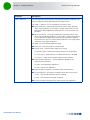
To log in again after logging out
From the Main Menu at the top of the window select System > Login. The Login prompt window will be
displayed, allowing you (or another authorised user) to log in.
To shut down the client:
1 From the main menu select System > Exit, or, use the X icon displayed on the right upper corner of
the main window, or use the Alt+F4 shortcut. A confirmation message is displayed.
2 Click OK to confirm.
1.1.6
Changing the Password
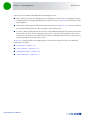
By default, there are no password constraints. By using Change Password, the current logged-in users
can change only their own password.
To change the password:
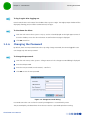
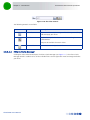
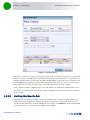
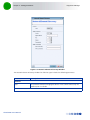
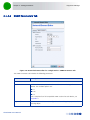
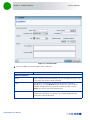
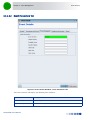
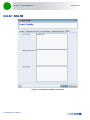
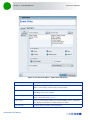
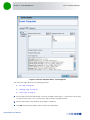
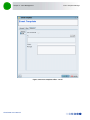
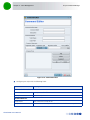
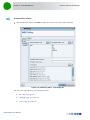
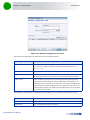
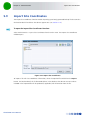
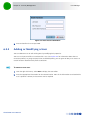
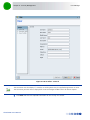
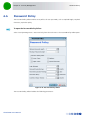
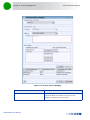
1 From the main menu, select System > Change Password. The Change Password dialog is displayed.
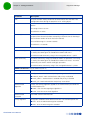
2 Enter the old password.
3 Enter the new password (8-32 characters). Confirm it.
4 Click OK to save the new password.
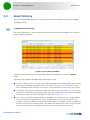
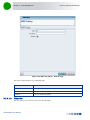
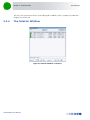
Figure 1-2: Change Password Dialog
Passwords constraints are set from the Security Management > Password Policy menu
The password policy also determines when the user receives a password expiration warning.
AlvariSTAR User Manual
6