1
User manual Version 12.0, October 2014
Shell
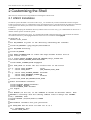
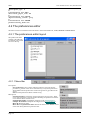
4.2.1.2 The preferences editor Left hand frame
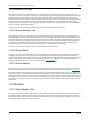
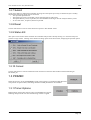
The left hand frame will contain the names of all preferences available to
set. Preferences will be listed under the headings: PRIMER, D3PLOT,
T/HIS, REPORTER and SHELL according to which program they are
applicable to.
These categories can be expanded to reveal their respective
preferences/contracted to hide their preferences by clicking on the box to
the left of the respective category, alternatively, use the edit drop down
menu and select Expand all branches or collapse all branches.
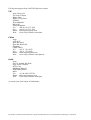
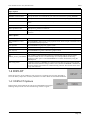
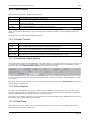
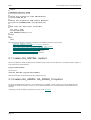
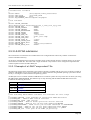
Green
Means that the option has been read from your
$HOME/$USERPROFILE file.
Red
Means that the option has been read from the $OA_INSTALL
file.
MagentaMeans that the option had been read from the $OA_ADMIN
file.
Preferences which aren’t highlighted indicate preferences that haven’t
been set.
Preferences in bold type indicate preferences which haven’t been
assigned the default value.
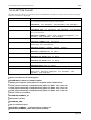
A list of all the preferences available and their default value can be found
in any oa_pref file written by the preferences editor.
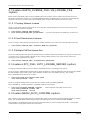
4.2.1.3 The preferences editor Right hand frame
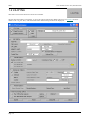
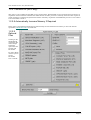
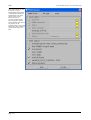
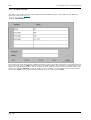
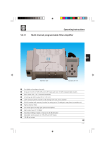
The right hand frame will contain information
about the currently selected preference and
provides the opportunity to edit this preference.
Name: States the name of the currently selected preference.
Type: Specifies the type of variable applicable to this preference.
Default: States the default value of the preference. Description: Provides a brief description of the function
performed by this preference.
Active tab: Highlighted in Green when the preference has been assigned a value. Press this tab to activate/
deactivate the currently selected preference. If the currently selected preference was defined in the general
oa_pref file, deselecting this will bring up an error message as it is not possible to deselect preferences stored in
the general oa_pref file.
Value: States the currently selected value for the preference. Clicking on the arrow to the left of this box brings
up a drop-down menu which lists the possible values this preference can take and allows the user to select one
of these values.
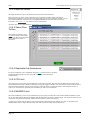
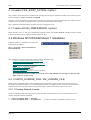
4.2.1.4 Locking Preferences
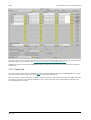
From version 9.4 onwards preferences can be locked. Beside each option in the
preference editor is a padlock symbol. If the symbol is green then the option is unlocked,
if it is red then it is locked. If a preference option has been locked in a file that the user
can not modify then an error message will be generated if the user tries to edit that
option.
Page 4.3