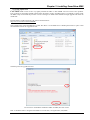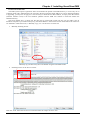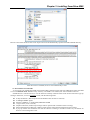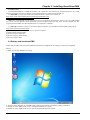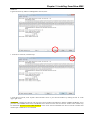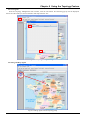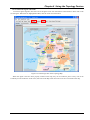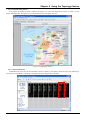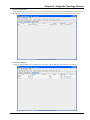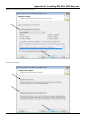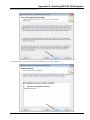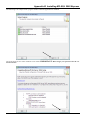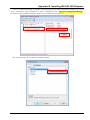
1
Smart View EMS
Element Management System
LEGAL
The information in this publication has been carefully checked and is believed to be entirely accurate at the time of
publication. CTC Union Technologies assumes no responsibility, however, for possible errors or omissions, or for any
consequences resulting from the use of the information contained herein. CTC Union Technologies reserves the right to
make changes in its products or product specifications with the intent to improve function or design at any time and
without notice and is not required to update this documentation to reflect such changes.
CTC Union Technologies makes no warranty, representation, or guarantee regarding the suitability of its products for
any particular purpose, nor does CTC Union assume any liability arising out of the application or use of any product
and specifically disclaims any and all liability, including without limitation any consequential or incidental damages.
CTC Union products are not designed, intended, or authorized for use in systems or applications intended to support or
sustain life, or for any other application in which the failure of the product could create a situation where personal injury
or death may occur. Should the Buyer purchase or use a CTC Union product for any such unintended or unauthorized
application, the Buyer shall indemnify and hold CTC Union Technologies and its officers, employees, subsidiaries,
affiliates, and distributors harmless against all claims, costs, damages, expenses, and reasonable attorney fees arising
out of, either directly or indirectly, any claim of personal injury or death that may be associated with such unintended or
unauthorized use, even if such claim alleges that CTC Union Technologies was negligent regarding the design or
manufacture of said product.
TRADEMARKS
Windows® is a registered trademark of Microsoft® Corporation
HyperTerminal™ is a registered trademark of Hilgraeve Inc.
CORBA® is a registered trademark of Object Management Group, Incorporated
Oracle and Java are registered trademarks of Oracle and/or its affiliates.
Other names may be trademarks of their respective owners.
CTC Union Technologies Co., Ltd.
Far Eastern Vienna Technology Center (Neihu Technology Park)
8F, No. 60, Zhouzi St.
Neihu, Taipei, 114
Taiwan
Phone: +886-2-2659-1021
FAX: +886-2-2799-1355
SmartView EMS
(Element Management System).
Software Version 2.54 and above
User Manual
Version 2.54 September 25, 2013
This document is a continually evolving manual. Please check CTC Union's website for any updated manual or contact
us by E-mail at [email protected]. Please address any comments for improving this manual or to point out
omissions or errors to [email protected]. Thank you.
Please view the 'Product_Support.PDF' file on the installation CDROM or included in any upgrade for details of
supported products matrix and their required versions.
It is very important that the products that will be managed by this version of EMS have the required prerequisite
firmware versions or there could be errors managing those devices or inability to connect SNMP to them.
©2007~2013 CTC Union Technologies Co.,Ltd.
All Rights Reserved
The contents of this document are subject to change without any prior notice.
Table of Contents
Chapter 1 Introduction .......................................................................................................................................................9 1.1 Using This Manual....................................................................................................................................................9 1.2 The SmartView EMS system ....................................................................................................................................9 1.3 SNMP Management Systems and Network Devices ..............................................................................................10 1.4 Element Management System.................................................................................................................................10 Chapter 2 SmartView EMS Functional Specifications ....................................................................................................13 2.1. General Description ...............................................................................................................................................13 2.2. Acronyms ...............................................................................................................................................................13 2.3. Requirement ...........................................................................................................................................................13 2.4. The Architecture of EMS Server............................................................................................................................13 2.4.1. Basic architecture ............................................................................................................................................13 2.4.2. Module definition............................................................................................................................................14 2.5 Functional Description of EMS Server ...................................................................................................................15 2.5.1. Functions of Broker Agent Driver...................................................................................................................15 2.5.2. Functions of Agent Group Driver ...................................................................................................................15 2.5.3. Functions of Database Driver..........................................................................................................................15 2.5.4. Functions of CORBA-servant .........................................................................................................................15 2.5.5. Functions of Database .....................................................................................................................................15 2.5.6. Functions of SNMP stack................................................................................................................................15 2.6. Functions of CORBA.............................................................................................................................................17 2.7 Network Structure ...................................................................................................................................................18 2.7.1. Agents .............................................................................................................................................................18 2.7.2. CORBA Server ...............................................................................................................................................19 2.7.3. Broker server...................................................................................................................................................19 2.7.4. SQL Server......................................................................................................................................................19 2.7.5. Workstation-Clients ........................................................................................................................................19 Chapter 3 Installing SmartView EMS..............................................................................................................................21 3.1 Installation Description ...........................................................................................................................................21 3.2 Basic Requirements for EMS..................................................................................................................................21 3.2.1. Basic knowledge and prepare to start..............................................................................................................21 3.3 Setup EMS ..............................................................................................................................................................22 3.3.1 Introduction......................................................................................................................................................22 3.3.2 Autorun ............................................................................................................................................................22 3.3.3 Install Screen....................................................................................................................................................23 3.3.4 Install Java Run Time Environment.................................................................................................................23 3.3.5 SQL Server Install............................................................................................................................................24 3.3.6 Install EMS ......................................................................................................................................................25 3.3.7 Setup Tool ........................................................................................................................................................26 3.3.8 Using Update Tool ...........................................................................................................................................29 3.3.9 Uninstalling SmartView EMS..........................................................................................................................33 3.3.10 Serial Number File .........................................................................................................................................34 3.3.11 Evaluation Version EMS................................................................................................................................35 3.3.12 Resources .......................................................................................................................................................36 3.4 Startup and shutdown EMS.....................................................................................................................................36 Chapter 4 Admin Console Operation ...............................................................................................................................39 4.1 Introduction.............................................................................................................................................................39 4.2. Modify the Broker..................................................................................................................................................40 4.2.1 Edit Polling Driver ...........................................................................................................................................41 4.2.2 Add Polling Driver...........................................................................................................................................42 4.3 User Administrator..................................................................................................................................................43 4.4 Agents Administration ............................................................................................................................................44 4.4.1 Using Discovery to find agents ........................................................................................................................44 4.4.2 Manually Setup Agents ....................................................................................................................................46 4.4.3 Adding Agents to Polling.................................................................................................................................46 4.4.4 Removing Agents from Polling........................................................................................................................47 4.4.5 Manually Restarting Broker Server..................................................................................................................48
i
Table of Contents
4.5 E-Mail and SMS Filter Administrator .................................................................................................................... 49 4.5.1. E-Mail Setup................................................................................................................................................... 49 4.5.2. SMS Setup...................................................................................................................................................... 50 4.5.3. Delivering SMS and SMTP Setup.................................................................................................................. 51 4.6 Viewing and Clearing the User Log ....................................................................................................................... 52 4.7 Viewing and Clearing the Action Log.................................................................................................................... 52 4.8 Storage (Log and Performance Database Management) ........................................................................................ 53 4.8.1. Storage Database Backup ............................................................................................................................... 53 Chapter 5 Using the Element Management Console....................................................................................................... 55 5.1. Run EMC as Local Client ..................................................................................................................................... 55 5.2. Setting Up a Remote Client................................................................................................................................... 56 5.2.1 Introduction ..................................................................................................................................................... 56 5.2.2 Check for Java JRE ......................................................................................................................................... 56 5.2.3 Copy Files ....................................................................................................................................................... 56 5.3. Introduction to the EMC GUI Interface ................................................................................................................ 59 5.4.Organization of the Console Tree........................................................................................................................... 60 5.4.1 Adding Trees ................................................................................................................................................... 60 5.4.2 Adding Tree Nodes ......................................................................................................................................... 61 5.4.3 Adding Agent Nodes ....................................................................................................................................... 61 5.4.4 Example Agent Nodes..................................................................................................................................... 62 5.5. Monitoring and Provisioning via EMC ................................................................................................................. 64 5.5.1 Provisioning example via EMC....................................................................................................................... 64 5.5.2 Alarm Handling............................................................................................................................................... 65 5.5.3 Major Alarm Handling .................................................................................................................................... 66 5.5.4 Alarm Log ....................................................................................................................................................... 67 5.5.5 Traps................................................................................................................................................................ 67 5.5.6 Real Time Traps .............................................................................................................................................. 68 5.5.7 Performance..................................................................................................................................................... 69 5.5.8 PM Graphs....................................................................................................................................................... 70 Chapter 6 Using the Topology Feature ........................................................................................................................... 71 6.1 Introduction ............................................................................................................................................................ 71 6.1.1 Starting Topology Manager............................................................................................................................. 71 6.1.2 Topology Manager Default Screen.................................................................................................................. 71 6.2 Add a New Topology ............................................................................................................................................. 72 6.2.1 Import a Map Image ........................................................................................................................................ 72 6.2.2 Save Configuration file.................................................................................................................................... 73 6.2.3 Get Agents....................................................................................................................................................... 74 6.2.4 Drag and Drop Agents..................................................................................................................................... 74 6.2.5 Connect the Agents with Links ....................................................................................................................... 75 6.2.6 Troubleshooting Alarms.................................................................................................................................. 76 6.2.7 Connect with HTTP......................................................................................................................................... 76 6.2.8 Group Summary .............................................................................................................................................. 77 6.2.9 Node Summary................................................................................................................................................ 77 Chapter 7 Using the Inventory Feature ........................................................................................................................... 79 7.1 Introduction ............................................................................................................................................................ 79 7.2 Export..................................................................................................................................................................... 80
ii
Table of Contents
Appendix A Installing JAVA™ Runtime Environment ...................................................................................................83 A.1 Introduction ............................................................................................................................................................83 A.2 Acquiring JAVA™ JRE Software.........................................................................................................................83 A.3 Installing JRE .........................................................................................................................................................83 Appendix B Installing MS-SQL 2005 Express ................................................................................................................85 B.1 Introduction ............................................................................................................................................................85 B.2 SQL Express Software Installation.........................................................................................................................85 Appendix C Installing MS-SQL 2008 R2 Express ........................................................................................................101 C.1 Introduction ..........................................................................................................................................................101 C.2 SQL Express Software Installation.......................................................................................................................101 Appendix D Installing MS-SQL 2012 Express..............................................................................................................111 D.1 Introduction ..........................................................................................................................................................111 D.2 SQL Express Software Installation ......................................................................................................................111 Appendix E Vista and Windows 7 Permissions.............................................................................................................121 E.1 Take ownership of EMS Folder............................................................................................................................121 E.2. Enable Administrator Account ............................................................................................................................123 E.2.1 Enable using Command .................................................................................................................................123 E.2.2 Enable Administrator Account Using Control Panel .....................................................................................124 Appendix F Troubleshooting Database Connection Issues............................................................................................127 iii
Table of Contents
This page left blank intentionally.
iv
Chapter 1 Introduction
Chapter 1 Introduction
1.1 Using This Manual
This manual contains all of the information you will need to install and begin using CTC Union's Element Manager
System (EMS). The format of the manual includes the following:
Chapter 1 Introduction
Provides an outline of this manual's structure and introduces the product.
Chapter 2 The Smart View EMS Functional Specifications
An Overview of Element Manager System, provides a more in-depth look at some of the application's features and
enhancements, and describes some general functions of the software platform such as configuring options, backing up
data files, customizing the toolbar, and printing.
Chapter 3 Installing Smart View EMS
Step by step procedure for installing the EMS system on a single PC platform.
Chapter 4 Configuring the EMS Service
Explains how to setup the EMS Service
Chapter 5 Using the Element Management Console
Configuration of the manager client for EMS.
Chapter 6 Using the Topology Feature
Provides some details for maintenance and troubleshooting problems with the EMS
Chapter 7 Using the Inventory Feature
Provides the details for inventory and accounting management of physical assets.
Appendix A: Installing JAVA™ Runtime Environment
Provides a step by step instruction for installing JRE.
Appendix B, C, D and E: Installing MS-SQL2005 Express, SQL2008 Express and SQL2012 Express
Provides a step by step instruction for installing Microsoft's SQL for use with SmartView EMS.
1.2 The SmartView EMS system
There are two opposing points of view for management systems
Management systems designed for general enterprises
+Suitable for large networks
-Difficult to implement vendor specific functions
Vendor specific management systems
-Unsuitable for large networks
+Easy to implement vendor specific functions
This is why customers need to implement both system types. The integration of these systems is not an easy task.
New requirements for NMS
In order to meet the customer demands for both large network management and vendor specific management, CTC
Union has developed the Smart View Element Management System (EMS) to combine the two attributes of pure
management systems producers and Telecommunication equipment vendors, specifically for CTC Union products.
Growing networks requires more Network Elements
Network Elements are becoming more complex and the collection of trap information and performance monitoring
results in allot of data. Traditional vendor's NMS cannot support huge networks, nor can they capture and store the
devices data for later analysis. To meet this element management challenge we developed our own EMS.
9
Chapter 1 Introduction
Design considerations for modern management systems
In combining our vendor specific management features with those of large network management, we can
summarize the major requirements for a management system. It must be:
-
Distributed
Database driven
Platform independent
Vendor optimized
Secured
User friendly
Open
Other vendors planning for or already deploying new generation of management systems
-
CISCO
Alcatel-Lucent
RAD
Huawei
1.3 SNMP Management Systems and Network Devices
SNMP agent for Network Device
-
MIB structure
Basic functions
Vendor specific features
SNMP based management systems integration
-
SNMP agent with HP OpenView®
SNMP agent with CA Unicenter®
SNMP agent with SNMPc
SNMP agent with IP Switch What's Up or Orion
Limitations
Universal management systems cannot fully present vendor specific features of Network Devices. One of EMS's
benefits is that the system can run transparently next to any SNMP based management system and both types of
systems can complement one another.
1.4 Element Management System
Overview
The objective of an Element Management System is to provide five major functions (FCAPS) for
telecommunication operators:
-
Fault Management (FM)
Configuration Management (CM)
Accounting Management (AM)
Performance Management (PM)
Security Management (SM)
10
Chapter 1 Introduction
Project design
The EMS design is based on the following considerations that comply with new requirements for management
systems
- JAVA based
EMS is pure a JAVA project. The benefits of this technology including multi platform support, modular design,
and client-server architecture and portability.
- Event driven
Using events as primary objects for communication minimizes network loading, increases performance and
allows for including a given quantity of Network Devices with predictable CPU and RAM loading, depending
on this quantity.
- Data integrity
All data is located in one place. User profiles are stored and loaded from one source. User created objects may
be stored and loaded remotely and/or locally. There are well-defined procedures for backing up and restoring
the configuration, topology, alarm, performance and user data.
- Database support
Support for any SQL server (Oracle, Informix, Microsoft etc.) Flexible SQL interface design for server. Client
optimization by customer. (initially, only MS-SQL Server Server is supported).
- Standard SNMP and CORBA support
Design has no restrictions to any one CORBA vendor. Tested with different Object Request Brokers.
- Open architecture
Provides API and IDL files for integration with upper layer systems.
Broker Service (BS)
This is a CORBA service, responsible for registering new agents and clients and delivering events between
them. CORBA is the acronym for Common Object Request Broker Architecture, a vendor-independent architecture
and infrastructure that computer applications use to work together over networks. Using the standard protocol IIOP,
a CORBA-based program from any vendor, on almost any computer, operating system, programming language,
and network, can interoperate with a CORBA-based program from the same or another vendor, on almost any other
computer, operating system, programming language, and network. One of its most important, as well most frequent,
uses for CORBA is in servers that must handle a large number of clients, at high hit rates, with high reliability.
Specialized versions of CORBA run real-time systems, and small embedded systems. As a part of Broker Service,
CORBA supports a set of special clients. There are databases, properly installed and connected to the Broker
Service. All information for each Network Device in EMS can be stored or loaded from their database.
Embedded Agent (EA)
This is the major element for EMS. The Embedded Agent utilizes standard protocols (Simple Network
Management Protocol) to interact with the Broker Server. To ensure security, only the Broker Server has direct
access to the Embedded Agent. It is also possible to use a direct connection from client to device at the same time
as a backup solution. The design of the Embedded Agents guarantees that even in the direct access case, all
changes of the Embedded Agent structure and alarm messages will be delivered to the registered Broker Server. A
protocol, supported by the Embedded Agents depends on the product and can be changed in the future if necessary.
Right now the Embedded Agents fully support SNMP protocol with trap notification.
EA provides all necessary functions for Fault Management (FM), Performance Management (PM),
Configuration Management (CM), and Security Management (SM).
Depending on marketing demand, a set of other protocols can be implemented in EA and BS to achieve better
performance, reliability and to simplify integration to the customer's network infrastructure. These are protocols
such as CORBA or JMX. Implementing new protocol in all components of EMS can be easy due to modular design
and open architecture.
11
Chapter 1 Introduction
Desktop Security (DS)
This is major administration tool for securing permissions and restrictions in the Broker Server. It allows
administrators to setup different user access to the BS service. Users may have personal desktop(s) stored in
database or in his client computer and/or shared desktop(s) with a different kind of permission. For example, node
administrators may have permission to change the property of any object, located in his node and lower level nodes
or only manage given nodes and their devices. At the same time, another user may have permission to overview all
network structure and get notification messages about structure changes.
Element Management Console (EMC)
This is the client user interface. It helps users to identify themselves to the BS, get all permissions to work with
network configuration and start the management session. This session allows users to represent their network
segment in a map view and/or tree view, name network objects, organize groups, regions, nodes according to actual
structure of the given network and monitor status of chosen objects as well as change their properties or settings.
The Element Management Console also may be used to start other EMS tools.
The EMS provides a text mode version of Management Console. This helps the system administrator to
quickly test Network Devices operation and/or make some routine operation through shell scripts (batch files).
Transaction Service (TS)
This tool will prepare, check, execute and review the results of user transactions. This means the user can
define sets of property changes for a predefined set of network objects (including node structure and permission
changes). In the boundary conditions, a single set of properties can be treated as the smallest transaction.
Alternately, all network structure changes can be represented as a transaction with a huge amount of commands
inside. Both cases are under the control of the Transaction Manager if the user invokes a transaction and are
guaranteed a detail report about each command (by user definition it may be only a failure condition for all
commands or at least one command failed). The user can define the type of transaction such as "stop after first
fault" or "process all commands" at will. As a transaction, ideally it is possible to rollback transactions on some
conditions, mentioned above, or by user request. Transactions can be loaded from and stored to the database. This
means that for some standard operations, the user can have a set of "predefined" transactions. It is possible to add
parameters in these predefined transactions to allow the user to execute the same set of property changes on
different instances of network objects. This can be recognized as an extension of the "copy profile" action. If
necessary, this tool can start other network tools like Instantaneous Decision or Cross Connect.
Alarm Console (AC)
This is a list of current alarms that have occurred in network devices. Each alarm message is stored in the main
database. At any time, the user can request all previous alarms of a specified type from a defined source for the
given period, print this report, or save it in the database as personal data.
Alarms are presented as list with colors defining each alarm severity level.
Instantaneous Decision (ID)
This is the tool to make decisions about changes of chosen properties. For example, when the user is setting up
SN Alarm Threshold value, he can invoke the Instantaneous Decision tool to get an immediate history of SN
parameters for the given period and by referencing this information can make a decision regarding the new setting
value (too low level will cause unnecessary alarms generating, too high level prevent the device from sending
alarm at all).
Cross Connect (CC)
This tool allows controlling data flows in the network. Especially designed for telecommunication devices, it
gives the user the ability to mark endpoints such as a "port" or "time slot group" and prepare appropriate transaction
for TM optimized by given criteria (quantity of cross connect nodes, price (if it depends on path), reliability if
backup operation defined for nodes). Before the user executes the transaction, it is possible to store this data with a
given name and use it for billing or other purposes (implemented by user).
Node Describer (ND)
This tool helps users to make associations to node customer specific properties. For example map, organization
name, phone number etc.
12
Chapter 2 SmartView EMS Functional Specifications
Chapter 2 SmartView EMS Functional Specifications
2.1. General Description
This chapter is intended to describe the software design specification for the SmartView EMS Server software
for CTC Union Network Devices (ND). The EMS Server is designed to provide all the configuration and
maintenance functions for the network device. The method to access EMS Server functions is via CORBA protocol
according OMG CORBA Specification. When a user loads EMS Client software and sets up a link to the EMS
Server it will be possible to monitor and control Network Devices via CORBA actions. The EMS Server uses
SNMP Protocol to monitor and control Network Devices via SET, GET and TRAP SNMP actions. The issues
inside the mechanism described above are the scope of this chapter.
2.2. Acronyms
Sl No.
1
2
3
4
5
6
7
8
9
10
11
12
Acronyms
EMS
EMC
API
ND
CORBA
SNMP
HW
IP
OS
SW
TCP
UDP
Description
Element Management System
Element Management Console
Application Interface
Network Device
Common Object Request Broker Architecture
Simple Network Management Protocol
Hardware
Internet Protocol
Operating System
Software
Transmission Control Protocol
User Datagram Protocol
Remark
2.3. Requirement
-
H/W: IBM Compatible PC (minimum Pentium 4, >2.8G, 2G RAM, 20G Disk Space)
OS: JAVA enabled Windows XP(32), 2K3(32/64), Vista Business & Ultimate(32/64), Windows 7
Professional & Ultimate(32/64), 2008 Server(64)
Network: IP over LAN/WAN
2.4. The Architecture of EMS Server
This section describes the software architecture of the EMS Server, including the functional block diagrams and the
relationships between blocks.
2.4.1. Basic architecture
Since CORBA is used as the communication protocol, the system will be compatible with all implementations of
CORBA client software. Obviously, you can use any SNMP browser to monitor and control the Network Devices.
However, the advantage of using an EMS Server is that it offers continuous monitoring of all registered SNMP Agents
and records in a database all system activity.
Only the version of SNMP Agent needs to be compatible with the EMS Server in terms of configuration and alarm
Traps. To make an initial setup (IP address, SNMP agent Groups, polling policy etc.) the user can use the Admin Tool.
EMS Broker is a persistent software agent with following functions:
-
interaction of all modules with database (DBMS).
interaction via SNMP protocol with Object (or agent, Network Device)
interaction via CORBA with client applications (Management Console)
The communication protocol between the management EMS Server and managed network devices is SNMP, which
is a standard network management protocol. For details regarding SNMP, please refer to RFC1157. Figure 2-1 presents
the relationship between management server and managed devices.
13
Chapter 2 SmartView EMS Functional Specifications
Figure 2-1 Communication between SNMP browser and device
The tasks performed by EMS Server are:
-
Collect configuration information from SNMP Agents via SNMP protocol and send to the agents control
commands to change their state
Guarantee storage of all information in external database server
Transfer control and configuration data to and from client software via CORBA
Organize and maintain control objects in the database and client configuration constructions, which
describe the system; also provide role access to above mentioned objects
2.4.2. Module definition
The EMS Server works in close connection with the following external modules:
1.
2.
Tnameserv - CORBA Name Service supplied with JRE1.6.x Standard Edition from Oracle
(previously SUN Microsystems).
Database Server - MS SQL 2005/2008/2012 Server from Microsoft Corp.
All of these components can be distributed over a network (installed in different hosts), or they may be
started in the same host (in this case it is necessary to be concerned about the host's performance when starting
several powerful tasks).
The EMS Server is a multithreaded JAVA-application and interacts with the SNMP Agents via SNMPTRAP and Get/Set SNMP protocol, which it receives asynchronously.
There are five basic modules:
-
Agent Driver
Agent Group Driver
Database Driver
CORBA-servant
Database
Figure 2-2 The EMS will be linked to various COTs over a Data Communication Network.
14
Chapter 2 SmartView EMS Functional Specifications
2.5 Functional Description of EMS Server
2.5.1. Functions of Broker Agent Driver
The AD performs SNMP-interaction with the SNMP Agents, having active thread monitoring, and observes SNMP
Agent's working status via polling. There are as many Agent Drivers as there are SNMP Agents.
2.5.2. Functions of Agent Group Driver
These Group Drivers control the Agent Driver threads and also at predefined intervals initiate configuration
collection from all of his SNMP Agents. It is possible to have several Group Drivers. Group Driver configuration are
setup by the system Administrator and stored in the database. Each GD has his own thread(s).
2.5.3. Functions of Database Driver
The Database Driver performs interaction with the database server; It has no active thread.
2.5.4. Functions of CORBA-servant
Realize CORBA-object to interact with clients SW. Performs client registration message sending to clients and all
SW calls from client SW. There is only one active thread.
2.5.5. Functions of Database
Database itself as data schema and procedure interface.
2.5.6. Functions of SNMP stack
SNMP daemon starts in root() OS entry point with priority 90.
SNMP Architectures
Network management system contains two primary elements: a manager and an agent. The Manager is the SNMP
browser through which the network administrator performs network management functions. The agent is the entity that
interfaces to the actual device being managed. All managed objects include device configuration, all kinds of module
parameters, cross connect information, and so on. These are arranged in what is known as a virtual information database,
called a management information base or MIB. SNMP allows managers and agents to communicate for the purpose of
accessing these objects.
SNMP protocol stack will provide the whole operation function for network device management. The
necessary requirement will involve the followings:
-
Query current running parameter
Get response from agent
Set variable in agent
Acknowledge asynchronous trap event from agent
SMI and OID
In the Manager/Agent paradigm for network management, managed network objects must be logically accessible.
Logical accessibility means that management information must be stored somewhere, and the information must be
retrievable and modifiable. SNMP actually performs the retrieval and modification. The Structure of Management
Information (SMI) is given in RFC 1155. We give a class SMI in package com.zzz.snmp to realize the SMI.
The SMI states that each managed object must have a name, syntax and an encoding. The name, an object identifier
(OID), uniquely identifies the object. The syntax defines the data type, such as an integer or a string of octets. The
encoding describes how the information associated with the managed objects is serialized for transmission between
agent and manager. In our EMS package, OID is realized as class com.zzz.snmp.OID.
The syntax used for SNMP is the Abstract Syntax Notation One, ASN.1. The encoding used for SNMP is the Basic
Encoding Rules, BER. The names used are object identifiers.
Each object represents a characteristic of one device, and must have a name by which it can be uniquely identified.
That name is the object identifier. It is written as a sequence of integers, separated by periods. For example, the
sequence 1.3.6.1.4.1.4756 specifies the private OID root of CTC Union. The sequence 1.3.6.1.4.1.4756.xx represents
the managed OID of some SNMP Agent.
15
Chapter 2 SmartView EMS Functional Specifications
SNMP operation model
SNMP is based on a master/slave model. SNMP includes a limited set of management commands and responses.
The management system issues Get, GetNext and Set messages to retrieve single or multiple object variables or to
assign the value of a specified variable. The managed agent sends a Response message to complete the Get, GetNext or
Set command. The managed agent sends an event notification; called a trap to the management system to notify the
occurrence of conditions such as major/minor alarm occurs. In short, there are only five primitive operations:
-
Get (retrieve operation)
Get Next (traversal operation)
Get Response (indicative operation)
Set (alter operation)
Trap (asynchronous trap operation)
SNMP Message structure
Each SNMP message has the format shown below. For details please refer to class SnmpMessage.
- Version Number
- Community Name
- SNMP PDU
Each SNMP PDU, realized by class SnmpPDU, has the following format:
-
request id - request sequence number
error status - zero if no error otherwise one of a small set
error index - if non zero indicates which of the OIDs in the PDU caused the error2
list of OIDs and values - values are null for get and get next
Trap PDU realized by class TrapPDU has the following format:
-
enterprise - identifies the type of object causing the trap
agent address - IP address of agent which sent the trap
generic trap id - the common standard traps
specific trap id - proprietary or enterprise trap
time stamp - when trap occurred in time ticks
list of OIDs and values - OIDs that may be relevant to send to the NMS
UDP communication protocol
SNMP assumes that the communication path is a connectionless communication sub network. In other words, no
prearranged communication path is established prior to the transmission of data. As a result, SNMP makes no
guarantees about the reliable delivery of the data. However, in practice, most messages do get through, and those that do
not can be retransmitted. The primary protocols that SNMP implements are the User Datagram Protocol (UDP) and the
Internet Protocol (IP). SNMP also requires Data Link Layer protocols such as Ethernet or Token Ring to implement the
communication channel from the management to the managed agent.
SNMP's simplicity and connectionless communication also produce a degree of robustness. Neither the manager
nor the agent relies on the other for its operation. Thus, a manager may continue to function even if a remote agent fails.
When the agent resumes functioning, it can send a trap to the manager, notifying it of its change in operational status.
The connectionless nature of SNMP leaves the recovery and error detection up to the NMS (Network Management
Station) and even up to the agent.
Agents listen for messages from the manager on UDP port 161, and the manager listens for trap messages from the
agent on UDP port 162.
16
Chapter 2 SmartView EMS Functional Specifications
ASN.1 and BER
ASN.1 is used to specify many RFCs, for example the Internet standard MIB and SNMP. ASN.1 is used widely in
OSI for specification purposes. ASN.1 used for defining SMI and MIBs is a subset of the ASN language given by OSI.
Please refer to the ITU-T X.208 specification.
ASN.1 modules contain module name, linkage and ASN.1 declarations. ASN.1 Macros are used to extend the
standard ASN.1 notation. All comments begin with "--" and will extend to the end of this line. Their declarations
specify types and permissible values. The types are listed below:
Simple types
-
integer - 0 to (2**1008) - 1
octet strings - values between 0 and 255, i.e. 8 bit fields
object identifiers - object name
null
Constructed types
- sequence - ordered list of elements of differing types (RECORD)
- sequence of - ordered list of elements of same type (ARRAY)
- Tagged types - for "carrying type" information in message useful for creating own types
Other types
-
choice - between alternatives
any - non specified ...
BER is the common name for the Basic Encoding Rules of ASN.1. BER is defined in ITU-T Recommendations
X.209 and X.690. BER is one set of rules for encoding ASN.1 data to a stream of octets that can be transmitted over a
communications link. Other methods of encoding ASN.1 data include Distinguished Encoding Rules (DER), Canonical
Encoding Rules (CER), and Packing Encoding Rules (PER). Each encoding method has its application, but BER tends
to be the encoding method most commonly used for SNMP.
BER defines
-
Methods for encoding ASN.1 values.
Rules for deciding when to use a given method.
The format of specific octets in the data.
2.6. Functions of CORBA
CORBA is the acronym for Common Object Request Broker Architecture, Object Management Group's open,
vendor-independent architecture and infrastructure that computer applications use to work together over networks.
Using the standard protocol IIOP, a CORBA-based program from any vendor, on almost any computer, operating
system, programming language, and network, can interoperate with a CORBA-based program from the same or another
vendor, on almost any other computer, operating system, programming language, and network.
CORBA is useful in many situations. Because of the easy way that CORBA integrates machines from so many
vendors, with sizes ranging from mainframes through minis and desktops to handheld and embedded systems, it is the
middleware of choice for large (and even not-so-large) enterprises. One of its most important and most frequent uses is
in servers that must handle large number of clients, at high hit rates, with high reliability. CORBA works behind the
scenes to allow systems using different hardware, operating systems, and programming languages to communicate.
Specializations for scalability and fault-tolerance support these systems. But CORBA is not used just for large
applications; specialized versions of CORBA run real-time systems, and small embedded systems.
17
Chapter 2 SmartView EMS Functional Specifications
The Common Object Request Broker Architecture (CORBA) is an emerging open distributed object computing
infrastructure being standardized by OMG. CORBA automates many common network programming tasks such as
object registration, location, and activation; request demultiplexing; framing and error-handling; parameter marshalling
and demarshalling; and operation dispatching.
The goal of CORBA is to allow the interactions between those systems to be defined in a platform-independent way,
giving the system a set of well-defined interfaces to be connected to one another. This allows applications to be split
into pieces (fine grained client/server applications) where components may be running on different parts of a network,
on different kinds of computers, perhaps with components written in varying computer languages.
Make systems talk with each other
The key point of CORBA is that it provides a way for two programs to communicate information. The CORBA
mechanism allows these two programs to be running on different machines and written in different programming
languages while safely (and portably) exchanging data. They also could be running in the same program, on the same
machine, in which case the process of communication is much quicker as CORBA recognizes that it does not need to
open any communication channel. The CORBA mechanism is ideal for classic client/server applications, say a
graphical client GUI communicating to a database server. All of these concepts have been translated into a tool that
makes our lives easier. That tool is actually an architecture that is called CORBA.
Client and Servers
In CORBA, any invocation involves a caller and a callee. In CORBA terminology, they are referred to as the client
and the server, respectively. Note, though, that the client and server roles may change in later calls. CORBA supports
peer-to-peer communication and any node on the network may choose to be a client, server, or both. To be a client, the
program makes invocations on objects elsewhere in the network. To be a server, a program must create objects and
make them known to the rest of the network via the ORB (Object Request Broker).
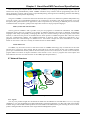
2.7 Network Structure
INMS
DB
CORBA Server
Server
polling
for PM
LAN
or
WAN
Broker
Server
Client
LAN
or
WAN
Client
notification
SNMP
polling
Agent
Figure 2-1 The block diagram of the network
2.7.1. Agents
The very first product brought into the SmartView EMS was the FMUX01A. The FMUX01A is a 1U (1.75") high
standalone or 19" rack mountable E1/T1/Data/LAN Bridge 16 channel multiplexer over fiber link, built upon a highly
modular design. Other SNMP enabled products have been added to the EMS with the goal of having all of CTC Union's
products managed under the umbrella of this single Element Management System.
18
Chapter 2 SmartView EMS Functional Specifications
2.7.2. CORBA Server
CORBA Name Service provides the ORB (Object Request Broker) central component of CORBA. It encompasses
the entire communication infrastructure necessary to identify and locate objects, handle connection management,
deliver data and is responsible for communication of requests.
2.7.3. Broker server
The Broker Server collects the information data from the specified SNMP agents and keeps updating it to the SQL
server database via the JDBC (Java DataBase Connectivity) driver. Broker server is synonymous with EMS Server.
2.7.4. SQL Server
The SQL Server is the place where data is stored as the Broker collects data from SNMP agent drivers; the database
will keep Alarm Traps and all performance information.
2.7.5. Workstation-Clients
The Workstations act as clients in the CORBA architecture. They utilize a JAVA applet GUI to monitor and control
the Network Devices at the far end, and also receive the Alarm Traps from the corresponding SNMP agents. Multiple
workstations are allowed in this server/client topology. The client may reside on the same physical machine as the
server or it may be run remotely and use a network connection to the server.
19
Chapter 2 SmartView EMS Functional Specifications
20
Chapter 3 Installing SmartView EMS
Chapter 3 Installing SmartView EMS
3.1 Installation Description
This chapter will describe in detail the installation procedures for the Smart View EMS (Element Management
System).
3.2 Basic Requirements for EMS
This document has been arranged in such a way, that some of the major steps such as installing SQL Server and
Java Runtime Environment have been separated and detailed into separate appendices for clarity. It is hoped that this
'modular' approach will reduce the complexity of this basic installation chapter. Please refer to the other specific
appendices when instructed and then return here for the continued setup of the EMS system.
3.2.1. Basic knowledge and prepare to start
Before starting, please confirm that all Workstations, Servers and SNMP agents can communicate with each without
problem, e.g. using ICMP ping command to diagnosis IP routes have been setup properly. EMS has been integrated into
four components, the Broker Server, the SQL Database Server, the CORBA Name Service and multiple workstation
Clients running EMCs (Enterprise Management Console). Each component has its own task and purpose. You can place
each of these components on different hardware or all on one high-end computer to handle all those tasks.
EMS has been developed under the JAVA environment; therefore you could have it running on different OS
platforms. However, in its current form, the EMS relies on the MS-SQL database and therefore at least the database
server must be running in a MS-Windows environment. The following section will describe how to setup your EMS on
MS-Windows.
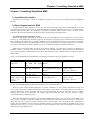
Table 3-1 lists the Hardware recommendations and Software programs necessary for EMS Server/Client.
EMS Component
EMS Server &
name server
Hardware
Software
Operating System
P4 2.8G or higher, 1024 JAVA JDK or JRE.
Windows, Linux, BSD
MB RAM, HD >2GB EMS Kit.
(free).
SQL database Server P4 2.8G or higher, 2GB MS-SQL Server 2005, 2008 or Windows 2003/2008 Server,
RAM, HD >10GB (free). 2012, including Express Edition Windows XP Pro
EMS Kit.
Vista, Win 7, Win 8 **
Workstation-Clients PIII 800 or higher, 128MB JAVA JRE.
Windows, Linux, BSD
RAM, HD >1GB.
EMS Kit.
All-In-One
Core Duo or higher, 2GB JAVA JRE, EMS kit, MS-SQL Windows 2003/2008 Server,
(EMS, name & SQL RAM, HD >20GB (free) Server, ODBC Driver
Windows XP Pro,
Server
on
one
Vista, Win 7, Win 8 **
machine)
Table 3-1 Hardware & Software requirements for EMS components
** Note: Recommended EMS run under administrator account (required for Win 8)
With any of the chosen hardware platforms, do routine maintenance to the systems. Download and apply any
service packs and security updates. Perform disc scans and file system checks. Do de-fragmentation on the discs to
increase performance. Ensure all cooling fans are clean and operational and that any heat sinks are free of debris.
Maintain the systems in a temperature and voltage controlled environment. UPS for power stability is highly
recommended on any computing system.
We recommend dedicating hardware just to running the EMS and no other services. If you only run the EMS and no
other services, a Pentium 4 2.0G CPU should show CPU utilization around 10%. If the server's CPU is always busy
doing other jobs, then it won't have time to properly poll the network agents. You can check the CPU's utilization by
opening the 'Task Manager' and view the CPU utilization graph. You can then also shutdown the EMS server to see if
utilization drops to zero, or you can see what other processes are taking up CPU resource when EMS is not running, and
shutdown those unneeded processes.
21
Chapter 3 Installing SmartView EMS
3.3 Setup EMS
3.3.1 Introduction
Starting with the release of EMS 2.34, the installation procedure has been further streamlined with a GUI
installation shell and unattended installation of MS-SQL 2008 Express. The preferred method of installation is by using
the EMS CD-ROM. The CD will either be shipped in a full shrink wrapped package or the ISO image can be
downloaded and then burned to a blank CDR. A ZIP file may also be downloaded, upzipped locally and run from local
disk. The installation process will follow these basic steps:
1. Autorun the CD-ROM or from the unzipped files run the "EMSInstaller.exe" program
2. Install Java Runtime Environment
3. Install MS-SQL Database Server (single click un-attended installation)
4. Setup MS-SQL through SQL Server Configuration Manager (optional)
5. Install EMS
6. Apply any upgrade patches and re-initial database (if required)
7. Install license or manually copy your authorized SN.txt file
3.3.2 Autorun
Insert the CDROM into your PC's CD/DVD/BD drive. If Autorun is enabled, the installation screen will
automatically start. If not, open the CD folder and double-click the "EMSInstaller" icon. Optionally, if you have
downloaded and unzipped the installation set to local disk, double click the EMSInstaller program.
1. CD Distribution
The CD is designed to be Autorun. It includes the latest Java Runtime Environment and Microsoft's free MS-SQL
Server 2008 Express in English, Traditional Chinese and Simplified Chinese. If Autorun is disabled on your PC, open
the CDROM folder and double-click the "EMSInstaller" icon.
2. Download
The download file is a ZIP file (a folder of the original CD but for English only). Use extraction software, such as 7Zip (or WinZip™), to extract the file to the local drive. After being unzipped the installer can be run directly from those
extracted files.
Installation folder, ready to install EMS.
22
Chapter 3 Installing SmartView EMS
3.3.3 Install Screen
The installation is available in English or Chinese language via the Language pull-down selector.
3.3.4 Install Java Run Time Environment
The EMS Broker and Client are written in JAVA™ programming language. In order to run the EMS, the server and
client machines must have the JRE (JAVA Runtime Environment) installed. Please refer to the details in Appendix A
for installing the JRE on Windows. Our EMS CDROM contains the latest version of Java JRE, which at the time of
this writing is Version 6 Update 37. Click the “Install JAVA Runtime Environment” just once.
23
Chapter 3 Installing SmartView EMS
3.3.5 SQL Server Install
®
The EMS relies on Microsoft MS-SQL database to store all information. Starting with EMS version 2.34,
unattended installation is now supported. This means only "one click" is required to install any prerequisites, install
SQL server and have it configured, ready for EMS. Please refer to the detailed instructions in Appendix B, C, D, or E,
for manual installation of SQL Express 2005, 2008, or 2012. Refer to your Microsoft documentation when installing
your own SQL Server. Note: For MS-Server 2008, please download the 64bit SQL Express version from Microsoft.
Click on "Install Microsoft SQL Server 2008 Express Edition" just one time.
During the unattended SQL Server installation, the screen will flash several times as files are first extracted, the
setup prerequisite files installed and finally the SQL server application is installed. Just wait for the SQL Server
installation to complete. This might take more than 10 minutes, so go grab a coffee.
Following successful installation, the installer will ask if you want to keep the default SA password of '0000' (four
zeros). If you do not wish to change the password, answer "n" or "N". If you wish to change, answer "y" or "Y" and
then enter the new password when prompted. Finally, press any key to finally exit the SQL installation batch program.
24
Chapter 3 Installing SmartView EMS
3.3.6 Install EMS
Now we are ready to install the EMS program itself. Click Install EMS just once.
The default installation path will place the EMS in the system root's "Program Files" folder. On a 64bit OS
computer (WOW), the folder should be "Program Files (x86)". Start installation by clicking the "English" button.
25
Chapter 3 Installing SmartView EMS
We recommend that EMS be installed in the default 'Program Files' folder of the PC. The exception to this is when
EMS will run on Win 7/8 under a user other than 'administrator'. Installing EMS into the user's space will avoid
directory ownership and User Account Control (UAC) issues that would otherwise require manual correction.
EMS is a 32 bit program, so make sure it installs in 'Program File (x86)' on a 64 bit OS platform. There is the option
to change the install directory by clicking the "Browse" button. This portion of the install will copy the required files to
the PC, setup the desktop start icons for server and client, and start the EMS SetupTool.
3.3.7 Setup Tool
The Setup Tool is written in JAVA. If there is a problem with the JAVA installation the tool will not be able to run.
Please refer to Appendix A for installation of the Java Runtime Environment.
1
2
3
4
5
6
7
8
9
10
The Setup Tool
1. Since this is an initial installation, we need to "Install Server and Tools", therefore click the radio button for "Install
Server and Tools" if not already selected. If after installation any of the configuration items need modifying (such as
changing the IP address of the server, please select "Install/Modify Server Management Tools". If installing only the
remote "Client" software, select the "Install/Modify Client Management Tools".
2. The Java path should be automatically detected based on the environment settings in Windows. The Setup Tool
would not run if this information were not correct, so please DO NOT change it unless you have multiple installations
of Java and need to point to a different version.
3. The "Database Server IP" is the IP address where EMS server will find the SQL server. The "Local" setting means
that EMS will connect to the Database server via localhost (127.0.0.1). This is the recommended setting if the EMS
server and Database server are on the same physical machine. This provides the best performance as well as allows
EMS to Database connections to exist even if the physical server changes IP address or if the LAN cable is
disconnected. For remote database server connection, select the 'Remote' radio button and enter the SQL server's IP
address.
4. The SQL "Database User" is the name granted authority over creating and accessing the database. The default
administrator user for MS-SQL is "sa" and EMS requires that the SQL server must be installed with mixed-mode
authentication. Unless an administrator has created another user with authority to create a database, please use the "sa"
user during this installation. If SQL server was installed from the EMS CDROM using default settings, the password for
'sa' will be four zeros (0000).
5. The default SQL "Database name" for the database created by the setup tool is "ems". Change it here if you wish to
use a different name. We recommend you leave it "ems".
26
Chapter 3 Installing SmartView EMS
6. The "Server IP Address" can be selected from either "Default" or "Static" settings. The EMS server's "Default" uses
the first network interface in the server hardware. If the server has multiple NIC or multiple IP addresses, select the
"Static" radio button and enter the static IP address the EMS server will use. This is the setting that would be required if
a laptop were being used to "demo" the EMS. Laptops typically have both a LAN interface and a WiFi interface. So, in
order for EMS to know its own address, we would use the static IP address of the LAN port.
7. The "Server Service Port" can be selected from either "Default" or "Static" settings. When set to "Default" the port
numbers uses will be random. This will only be a problem if the EMS Client is separated from the EMS Server by a
firewall. In this case, select the "Static" radio button and assign a fixed port number for the EMS Server's service. Then,
open that port in the firewall to allow outside clients to connect to the server.
8. The default CORBA "Name Service Port" connection port is '900'. For Windows clients connecting to the EMS
server, this is not a problem. But for EMS Clients running on UNIX/Linux, ports under 1024 are restricted to only root
user. An acceptable alternate port for a normal user on UNIX/Linux would be '1050'. The port setting for the name
server is made here.
9. The "Memory Usage" parameters typically do not require modification unless there are large numbers of Network
Devices (ND) being polled. The default EMS Client memory usage is configured at 384MB. This number would need
to be increased, for example, if many ND were being managed. The recommended memory requirement to manage an
FRM220 chassis is 2MB. If the network had 200 FRM220 chassis being managed, we would need 400MB. When
increasing the memory usage, add memory in multiples of 128MB. When increasing from 384MB we could enter 512,
640, 768, 896 or 1024. The physical memory in the server running EMS is really the most critical for performance, not
the speed or number of processor cores. Processor speed and number of cores are only an advantage when polling with
multiple threads. Multiple polling threads are also a new feature added starting with EMS 2.45.
27
Chapter 3 Installing SmartView EMS
10. When all the settings are correct, click the "Install" button to start the installation.
Click "Yes" to create or overwrite the EMS database for this new installation.
Click the "OK" button after the EMS has been installed successfully and then click "Exit".
Finally, "Exit" the EMS Installer.
28
Chapter 3 Installing SmartView EMS
3.3.8 Using Update Tool
CAUTION: EMS version is also very tightly matched to NMC or other SNMP versions of CTC Union products.
Prior to doing any upgrading of EMS, please ensure all ND are properly upgraded. There is no method to "down grade"
the EMS except to re-install the previous version as changes are made to the database through upgrade and cannot be
rolled back.
Find the latest Upgrade Tool from CTC Union’s download area.
http://www.ctcu.com.tw/download/EMS/
The Upgrade Tool will be distributed as a ‘ZIP’ file. Move it to the EMS server’s desktop and extract in place. Click
into the folder and run the ‘upgrade.bat’ file.
The Setup Tool for Upgrade will start.
First browse to and find the installation folder for EMS, then click "Next".
Hint: it should be either C:\Program Files\EMS or on 64 bit OS, C:\Program Files (x86)\EMS
29
Chapter 3 Installing SmartView EMS
Make sure the Database Server IP, Database user and password and Database name are correct. Make sure the Server IP
address and port are correct. Make sure the Corba name service port is correct. Make sure any client on the local server
is logged out and client has exited. Logout and close 'Admin Console' if it is running. Stop and exit the EMS server.
Then click “Upgrade”.
30
Chapter 3 Installing SmartView EMS
Upgrade completed successfully.
Warning: Under Vista and Windows 7, unless the logged in user is the Administrator, the Upgrade Tool will fail to
write the new files into the protected EMS folder. Refer to Appendix E for a short guide on how to take ownership of
the EMS folder or to change your UAC (User Account Control).
IMPORTANT NOTICE:
For “Evaluation Versions” (running without license), if upgrading from any pre 2.30 version to 2.30 or above, we
need to again run the setup to re-initialize the database. This is because the evaluation licensing was changed in 2.30,
reduced to only 30 days but with full support for up to 25 SNMP agents. Skip these steps if you are licensed.
Browse to the EMS installation folder. Run the “Setup” batch file.
31
Chapter 3 Installing SmartView EMS
a.
b.
c.
d.
Select “Install Server and all Management Tools”
Enter the database sa password
Click “Install”
Ignore any ODBC database error messages.
Version 2.30 and above supports this new evaluation period.
IMPORTANT NOTICE:
If upgrading from any version prior to 2.51, the EMS must first be un-installed, using the CD or extracted files for that
previous version. Then run a new installation with the post 2.51 version installer.
32
Chapter 3 Installing SmartView EMS
3.3.9 Uninstalling SmartView EMS
On occasion, it may be necessary to un-install the EMS prior to installing a new major version. If such an instance is
required or if updating to a newer version fails for any reason, the uninstall methods are outlined here.
1. Perform Uninstall through the Window's Start Menu.
2. Perform a manual uninstall (run with administrator privileges)
a. Delete the EMS installation folder, located in c:\Program Files (x86).
b. Delete the EMS Server and Client shortcuts from the Desktop
c. Delete the Start Menu folder, 'SmartView EMS'.
d. Delete the registry key \\HKLM\SOFTWARE\Wow6432Node\EMSInstaller
33
Chapter 3 Installing SmartView EMS
3.3.10 Serial Number File
The EMS system requires registration and a serial number file placed in the EMS directory or it will only run in
evaluation mode. This "authentication" file is keyed to the host computer's MAC address. If you are changing hardware
or upgrading, you may have to apply for a new serial key to match the new MAC address, or simply move the old NIC
(Network Interface Card) to the new hardware platform and the EMS will continue to find and confirm the
authentication key.
The serial number file is a simple text file that may be opened and viewed with any pure text editor, such as
Windows Notepad. If you maintain many keys, the MAC address is listed at the last line of the SN.txt file. There are
two methods to install the license; 1. Manually copy, or 2. Use the Server Console tool.
1.
Manually installing license
Manually copy the SN.txt key file to the default "Program Files\EMS" folder.
2.
Installing license via the Server Console
Click the ‘Tools’ menu item of Server Console and select the “Import License” item.
34
Chapter 3 Installing SmartView EMS
Browse to and select the SN.txt file. Click "Open" and it will be automatically copied to the EMS installed directory.
After the license is installed, the server will automatically re-start.
3.3.11 Evaluation Version EMS
As of version 2.30 of SmartView EMS, FULL FEATURE evaluation support has been added which allows the EMS
to run in 'evaluation mode' WITHOUT any serial key. The EMS is one software, but with two different actions:
If EMS detects a valid license file, it runs all functions normally within the limits of the license and with no pop-up
messages. Otherwise, it runs in Evaluation mode, with the following limits:
30 days Evaluation. (Run setup and recreate database must be done to continue)
25 Managed SNMP Agents.
All Device Modules. i.e. PDH, FOM, FRM and CWDM
1 Login Client. (local or remote)
Trap Records mask. (random trap messages will be replaced with evaluation license warning)
Alarm and Performance Records. (random records will be replaced with evaluation license warning)
A pop-up window will remind the user that the software is running in evaluation mode every 10 minutes for
both server and management client.
35
Chapter 3 Installing SmartView EMS
3.3.12 Resources
For manual installations of SmartView EMS, CTC Union does not maintain any download links for any of the
auxiliary programs. You must go directly to the appropriate Oracle or Microsoft download site.
For Java JRE, you may go to either the Oracle Download or public Java websites at:
http://www.oracle.com/technetwork/java/javase/downloads/index.html
http://www.java.com/en/download/manual.jsp
Make sure you download only the Java SE Version 6 (or7) Runtime Environment, which is only 16-17MB (28MB
for version 7) in size and has a name format like: jre-6u31-windows-i586-s.exe (this is for Version 6 Update 31). The
larger download of JDK (Java Development Kit) is not required to run EMS.
For MS-SQL evaluation versions or for the free Express editions, go to the Microsoft Download Center page at:
http://www.microsoft.com/download/
In the “Search Download Center” bar, key-in "sql server express".
Valid downloads would include:
SQL Server Express 2005 SP4
SQL Server Express 2008 R2 SP2
SQL Server Express 2012
3.4 Startup and shutdown EMS
Follow this procedure after the normal installation and broker configuration (see Chapter 4) have been completed.
Startup:
1. Make sure the SQL Database is running.
2. Shortcuts to the EMS Server and EMS Client will have been placed on the Desktop during installation.
3. Double-click the "EMS Server" icon to startup the EMS Server Console.
4. Double-click the "EMS Client" icon to start the Element Management Console.
36
Chapter 3 Installing SmartView EMS
Shutdown:
Logout and close any Admin or Management consoles, then:
1. From Server Console, click the 'Stop'.
2. From Server Console, click ‘System’ menu and select ‘Exit’ or just close the window by clicking the red ‘X’ in the
upper right corner.
WARNING: Clicking the "Red X" will close the Console window and effectively kill the CORBA and Broker server
processes. The CORBA Name Server and Broker Server both run in the "Server Console" window. This window may
be minimized. DO NOT CLOSE THIS WINDOW or the server will be terminated. The "Server Console" window must
remain open or EMS Server is terminated.
37
Chapter 3 Installing SmartView EMS
This page left blank intentionally.
38
Chapter 4 Admin Console Operation
Chapter 4 Admin Console Operation
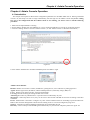
4.1 Introduction
This chapter will explain in detail all the configuration parameters for the EMS Admin Server. Starting with EMS
version 2.45, the Setup Tool will no longer automatically start the login for the Admin Console. If you are coming
here just to do configuration and the Admin Console is not running, you need to start it with the following
procedure:
1. Make sure the SQL Database is running.
2. On the desktop, double-click the "EMS Server" icon to startup the EMS Server Console (if not already running).
3. Click the “Setting” button to start the "Admin Console". (or start Admin Console via Window's Start Menu)
Figure 4-1
Use the "admin" administrator username and default password "0000" to login.
Figure 4-2 Admin Login
Admin Console Window
Brokers: Defines server broker’s names, IP addresses, polling drivers, active and inactive polling agent lists.
Agents: Defines agent name, IP address, and the SNMP parameters (community strings, MIB, etc.).
Users: Defines client login username, password and authority.
User Log: Records client log-in and log-out data time records.
ActionLog: Records every administrative or operation action conducted by any user.
Messengers: When trap alarms occur, they can be sent to those E-mail and SMS account lists according to the filter
conditions.
Event: Administrator is allowed to configure very basic 'north bound' functions for forwarding traps from SmartView
EMS to other network management software and for sending events to a network configured syslog server.
Storage: All functions related to database management are located under this tab
Discovery: This tool helps to find SNMP agents automatically on your network and quickly add to the Agent' list.
39
Chapter 4 Admin Console Operation
4.2. Modify the Broker
Click once to
highlight Broker
Then click
"Edit"
Figure 4-3 The Broker Administrator default startup screen
Select the Broker from the "Broker Pane" and then click the "Edit" button. A popup window will appear to modify
the broker contents. Additional Brokers may be created. Note: Only one Broker may be active at any one time.
Enter the IP
address of the
server, then click
the "OK" button
Figure 4-4 Edit Broker Popup
Normally, this item requires no modification. However, in the event the server's IP address needs to be changed, this
is one of the items that must be manually configured. During normal installation, the broker's IP will already be set to
the server's IP automatically. Starting with EMS version 2.45, when the default is selected during installation, the
server's IP address will be the IPv4 local host address, 127.0.0.1.
40
Chapter 4 Admin Console Operation
4.2.1 Edit Polling Driver
Use this procedure to modify the Polling Driver for the specific Broker.
On the Brokers tab, choose Polling record and press the "Edit" button. Multiple Polling drivers can be created and
specific agents assigned to a specific driver. They all must act under the same Broker however.
Click once to
highlight Driver
Click "Edit"
Figure 4-5 Modify Driver
Explanation of parameters:
1. The "Name" is the common name given to this polling setup.
2. The 'Interval Second' is the delay period between when all network elements have been polled and when the polling
starts again. All network elements are polled, one by one. The equivalent action would be if you accessed each network
element and did an SNMP walk of the entire MIB. The EMS will complete the poll of one network element, before
moving on to the next one, then on and on until all elements have been polled. Then it waits the 'Interval Second' (delay)
before starting to poll all over again. The default is 1 second (1000ms). Increasing this value will increase the 'wait' after
all elements have been polled. It should not be less than 1000 milliseconds, otherwise the server will always be busy
polling agent status.
3. The "Timeout Second" is a heartbeat for all agents registered in this driver. If an agent does not respond with the
Timeout period (default 3 seconds), it will be shown as "disconnected". If polling is done over long distance or over a
WAN connection, the timeout value may need to be increased or elements may be shown as disconnected when in fact
they are not.
4. Starting with EMS version 2.45, the SNMP poller has been updated to allow configuring multiple polling "threads".
The idea of using multiple threads is an advantage when polling a large number of ND (network devices). The polling
cycle for all ND can be reduced significantly. Please note that multiple threads will require both more network
bandwidth, more processing power and more memory from the server. This should not be a problem for servers with
100M or even 1G network connections, multiple CPU cores and expanded memory (more than 4GB).
Figure 4-6 Edit Polling Pop-up
41
Chapter 4 Admin Console Operation
4.2.2 Add Polling Driver
Use this procedure to add a Polling Driver for the specific Broker. This may be done when different groups of
equipment may be WAN connected (requiring longer timeout settings) or if more or less threeads are required to poll
groups of equipment. Upon installation a default polling driver has already been installed and configured.
On the Brokers tab, choose the Polling record, and press the "Add" button.
Click once to
highlight Polling
Click "Add" for
additional drivers
Figure 4-7 Add Polling Driver
Use the dialogue box to enter the timeout parameters for the new driver. The 'Interval Second' is the delay period
between when all network elements have been polled and when the polling starts again. All network elements are polled,
one by one. The equivalent action would be if you accessed each network element and did an SNMP walk of the entire
MIB. The EMS will complete the poll of one network element, before moving on to the next one, then on and on until
all elements have been polled. Then it waits the 'Interval Second' (delay) before starting to poll all over again. It should
not be less 1000 milliseconds, otherwise the server will be very busy polling agent status and network traffic will be
increased unnecessarily.
Enter Polling
Driver name,
Interval seconds,
Timeout seconds
and Threads
Figure 4-8 Add Polling Pop-up
In the above settings, the server will wait 3 seconds after completing a polling cycle. The server will wait 5 seconds
before disconnecting a ND that times out. The server will use 4 concurrent threads to do ND polling.
42
Chapter 4 Admin Console Operation
4.3 User Administrator
Users are the clients that run Element Management Consoles (EMC). The default user "admin" is the super user
with full power. Additional users should be created and given different authorities based on the management needs.
3. the user 's
information
1. select
"User" Tab
2. click "Add"
button
4. Click "OK"
to create user
Figure 4-9 Adding client users
On the User tab, the default user "admin" and all EMC Workstation Clients are shown in the User table. Note that
these users are not SQL Server clients. This EMC Workstation User registry is stored in the SQL database and provides
login security for the user terminals. In addition, RADIUS server can be configured to provide authentication login,
storing user credentials in the RADIUS server. The Broker administrator can add necessary user logins with specific
privileges, from Administrator to Operator and lastly to normal user. The user ID "admin" cannot be deleted and it has
the highest priority. And administrator being authenticated via RADIUS cannot use the "admin" username. The "admin"
account is build-in for EMC Workstation User administrator login only. You may add additional users with other login
names and passwords.
The administrator can select "Edit" to edit existing users or "Add" to setup new user accounts. To delete a user
account, select it with one mouse click, then click the "Delete" button. A confirmation dialogue box will pop up.
Once a user is deleted, it cannot be undone.
43
Chapter 4 Admin Console Operation
4.4 Agents Administration
4.4.1 Using Discovery to find agents
The discovery feature is used to scan a pre-defined range of IP addresses, looking for and finding any SNMP agents
that match the defined community string.
1. Select the
"Discovery Tab
3. Enter the SNMP
R/W community
string
2. Enter the
Search IP range
4. Click the "Start
Search" button
Figure 4-10 Discovery
As agents are discovered during scanning, they will be listed, one-by-one under the "Device Discovered" table. Any
agents found that are already registered would display in the "Device Managed" table. The agents "SysName",
"Location" and "SysDescr" are all taken from the standard MIB-2 system parameters (OID contents).
Agents found
from Discovery
Click the agent(s)
to be added to
management
Figure 4-11 Discovery Search Results
44
Chapter 4 Admin Console Operation
Once discovered, click any of the "Manage" buttons, one-by-one, to add these discovered devices to the Managed
Agents window.
1. Click the
Manage check
box .
2. Fill in the Add
Device Agent
dialogue box.
3. Click 'OK' to
add to Managed
Agents list.
Figure 4-12 Discovery Add Agent
1. Agent name: This should be a unique name that makes the device easy to identify. Do not use Chinese or any special
characters in this name.
2. IP address: This address is set from the auto discovery.
3. Agent Type: This is a pull-down list showing the agent types that the EMS supports. Select the right type for the
discovered equipment. This agent type should also be correctly identified from the discovery.
4. Ports: These are the default SNMP ports and should not be changed.
5. Community: These text strings act as passwords for the SNMP protocol. The Write string allows access to the agent
to control the network device.
Figure 4-13 Add Agent Results
45
Chapter 4 Admin Console Operation
4.4.2 Manually Setup Agents
The following explains the method for adding agents manually. Click the 'Agent' tab, and click the 'Add' button. Fill
in the dialogue box and click "OK".
#1. Click the
"Agent" Tab
#2. Then click the
"Add" button
#3. Fill in the
"Add" dialogue
box
#4. Click "OK"
Figure 4-14 Add Agent Results
Device Agents are the network devices which will be managed by the EMS. Give the agent a unique name, enter its
proper IP address, select the device type from the pull-down menu (in this example FRM220) and make sure the
appropriate community strings are entered to manage the agent (depends on the configuration done in the agent itself).
Then click "OK".
4.4.3 Adding Agents to Polling
This procedure is used to add agents to the polling system. After this step the broker server will automatically restart
the service.
1. Click the
"Brokers" Tab.
2. Click the 'Poll'
check box.
3. Key in the
'Polling' driver
name.
4. Click the 'OK
button.
Figure 4-16 Enable agent polling
46
Chapter 4 Admin Console Operation
The following procedure will add all agents to the polling list.
2. Key in the Poll
driver name.
1. Click the 'Poll
All' button.
3. Click "OK"
Figure 4-17 Add All Agents for Polling
Note: After adding or removing polling units, the broker server will automatically be restarted.
4.4.4 Removing Agents from Polling
To remove individual agents from polling, simply un-check the 'Poll' check box.
To remove all agents from polling, click the 'Remove All' button.
1. Click "Remove
All" button.
2. Click "OK"
Figure 4-18 Remove All Polled Agents
Note: After adding or removing polling units, the broker server will automatically restart.
47
Chapter 4 Admin Console Operation
4.4.5 Manually Restarting Broker Server
In the Server Console, click the 'Stop' button. The server is stopped.
Figure 4-19 Stopping the Broker Server
In the Server Console, click the 'Start' button. The server is restarted.
Figure 4-20 Restarting the Broker Server
48
Chapter 4 Admin Console Operation
4.5 E-Mail and SMS Filter Administrator
This section will describe how to setup the E-mail and SMS functions in the EMS and how to use the messengers to
send specific alarms to E-mail and/or SMS messages.
4.5.1. E-Mail Setup
From the Server Administrator select the 'Messengers' tab. With the SMTP tab highlighted, click the 'Add' button
"SMTP" Add
The SMTP server
parameters enter
here
Figure 4-23 The Messengers Tab
Enter parameters in the "Add SMTP" dialogue box.
SMTP Parameters
1. Name: This is an administrator assigned name for this particular SMTP entry in the EMS system.
2. Host Address: The SMTP Server parameter is the real domain name or IP address of the mail relay server that will
forward mail from the EMS system.
3. User Account: This is the user account used by the SMTP server to send mail.
4. Auth Account: The SMTP Auth account is typically the same as the Sender account. This is the account required for
the SMTP server to accept mail for relay, although it may be without the domain name.
5. Auth Password: The SMTP Auth password is the authentication password that goes with the account name and is
required so the SMTP server will relay the mail from the EMS system.
49
Chapter 4 Admin Console Operation
4.5.2. SMS Setup
With the SMS tab highlighted, click the 'Add' button. Enter the SMS account details provided by your service
provider. Then click 'OK'.
The SMS server
parameters enter
here
Figure 4-24 Example of SMS configuration
SMS Parameters
1. Name: This is an administrator assigned name for this particular SMS entry in the EMS system.
2. Host Address: The SMS Server parameter is the real domain name or IP address of the SMS messenger server that
will forward messages to the mobile phone system for your area.
3. Host Port: The server port is defined by the ISP that provides the SMS messenger service. The default is port 8000.
4. Auth Account: The sender account is required by the SMS server for authentication and billing when sending
messages.
5. Auth Password: The sender password is required for authentication of the sender account.
50
Chapter 4 Admin Console Operation
4.5.3. Delivering SMS and SMTP Setup
The 'Messenger' block is used to setup the user who gets messages and for what reasons. In the lower
'Messenger' window, click the 'Add' button. This example sends both an SMS message and Email to the recipient's
phone number and email box, if the alarm message keyword is 'LOS' and if the event happens from 6:30PM until
8:30AM.
Figure 4-25 Example of SMS add Messenger (alarm filter)
Following the addition of the Messenger entry, select one of the "Not Applied Agents" and click the Up button.
This Agent will then be in the "Applied Agent" space as shown below. The filter will send the SMS message if LOS is
detected from the applied agent(s) and the other messenger conditions are met.
Figure 4-26 SMS Messenger applied to active Agent
51
Chapter 4 Admin Console Operation
4.6 Viewing and Clearing the User Log
By clicking on the "UserLog" tab in the Admin Console, a complete record of client login & logouts is displayed.
The records include accurate time stamping as well as recording the client's source IP address. The UserLog is stored in
the SQL database. By clicking the "Clear" button, the entries will be permanently deleted from the database. It is also
possible to select specific system time frames for deleting the log entries or by specific client name. A confirmation
popup prevents against accidental erasure. Only an administrator has authority to delete these records.
Figure 4-27 Viewing the User Log
4.7 Viewing and Clearing the Action Log
The Action Log can be viewed by clicking on the "ActionLog" tab in the Admin Console. The actions include
accurate time stamping of the time any changes were made to any agents (network devices) as well as recording the
client's name and action performed. The ActionLog is stored in the SQL database. By clicking the "Clear" button, the
entries will be permanently deleted from the database. A confirmation popup prevents against accidental erasure. Only
an administrator has authority to delete these records.
Figure 4-28 Viewing the Action Log
52
Chapter 4 Admin Console Operation
4.8 Storage (Log and Performance Database Management)
All the alarm traps will be received by the server and stored into the database in real-time. The Performance data
will also be collected by the server during polling and stored into database from network elements that support
performance monitoring. The function of the Storage tab is to provide database management of the logs and
performance records by selectively erasing records that match a system time window. Excessive traps and performance
data can be cleared from the database under the 'Storage' tab of the Admin Console. All logs, traps and performance can
be clear or records from specific time frame may be cleared. A confirmation popup prevents against accidental erasure.
Figure 4-29 Miscellaneous Tab
In addition, a backup utility is provided for database maintenance. The database can be backed up or restored and it
may also be exported into a CVS format that can be opened with office tools such as MS Excel.
4.8.1. Storage Database Backup
From the Admin Console, on the Storage tab, and within the Backup window, click "Backup" button. A
confirmation pop up will appear. Confirm by clicking "Yes" and the database will be snap shot backed up. The backup
location will be in the Program Files\MS SQL Server\MSSQL10_50.MSSQLSERVER\MSSQL\Backup folder. (This
assumes the default installation used the included SQL 2008 Express.)
Figure 4-30 Database Backup
53
Chapter 4 Admin Console Operation
This page left blank intentionally
54
Chapter 5 Using the Element Management Console
Chapter 5 Using the Element Management Console
This chapter will go through the SmartView Client operational part, the EMC (Element Management Console). After
the EMS is configured properly, you may then run the EMC to manage all agent devices supported by CTC Union.
5.1. Run EMC as Local Client
In this scenario, the Client is run from the EMS server machine itself. Later we will introduce the client installation
and remote login procedure for remote clients. Note: If running in evaluation mode, only one client may log into the
EMS server at any one time.
Step 1. Make sure the EMS environment is already configured. This assumes all steps for "Admin Console", as
explained in Chapter 4, have been completed.
Step 2. Double click the 'EMS Server' icon from the server's desktop to start EMS.
Step 3. Start the EMC by double clicking the 'EMS Client' icon from the server's desktop.
The Element Management Console will open and the client applet will pop-up and ask you to enter the username and
password for authentication. (This user account was set in "Admin Console" client record.) The default super-user is
'admin' and password is '0000'.
Figure 5-1 EMC Login
Server IP Address: This is the IP address of the EMS Server. If started locally, it is the local server's IP. Clients may
also login remotely, in which case the IP address needs to be that of the EMS Server, not the local PC.
Server Service Port: This is the name service port. The default is 900 and should not need to be entered or changed.
Username: Users are created in the User Administrator of Admin Console. The system default super-user is 'admin'.
Password: A password is required for authentication. The default user 'admin' has a password of '0000'. It can be
changed and additional users created in the Admin Console. See Chapter 4.
55
Chapter 5 Using the Element Management Console
5.2. Setting Up a Remote Client
5.2.1 Introduction
The normal licensed SmartView EMS supports 25 simultaneous client connections. In the trial mode, only one client
is allowed to log into the server at one time. This client could be run directly on the same hardware as the server or it
could be run remotely. This section explains how to setup a remote client.
5.2.2 Check for Java JRE
The client software is written in Java. Therefore, the remote client machine must also be running the JRE. So, first,
refer to the appendix on installing Java JRE and make sure the client machine has a valid JRE installation.
To check if the client machine has Java installed, simply open a command window (example: Start-> Run-> key-in
'cmd' then Enter. At the command prompt, key-in "java -version" as shown in the example below.
Figure 5-2 Java Version Check
5.2.3 Copy Files
From the original setup media (CD or extracted files), browse into the EMS folder, then into the EMS_EN folder.
Copy the EMS folder to the destination client computer. Place the folder in a root directory, for example in C:\EMS or
D:\EMS.
Figure 5-3 EMS Installation Folder
Double click the "Setup" icon.
56
Chapter 5 Using the Element Management Console
The "Setup Tool" will start. If not, check and be sure JRE is working. DO NOT select the "Install Server and all
Management Tools" radio button. We are installing a remote 'Client', not the 'Server'.
1.
Select the "Install/Modify Client Management Tools".
2.
Click the Server IP Address 'Remote' radio button.
3.
Enter the IP addresses for the EMS server in the parameter space labeled "Server IP Address" (192.168.0.252
in this example). There is no need to enter any Database IP, name or password when installing EMC client.
4.
If this computer has more than one Ethernet interface (such as a laptop with both LAN and WiFi interfaces),
select the Client IP Address 'Static' radio button and choose the correct LAN IP address from the pull-down menu
(192.168.0.49 in the example).
5.
If you laptop has 4 or 8GB of memory, it is OK to increase the client 'Memory Usage' from the default of
384MB to 640MB.
1
2
3
4
5
6
Figure 5-4 Setup Tool
6.
Click 'Install' and the "client.bat" file will be created.
Figure 5-5 EMS Client Installation Complete
57
Chapter 5 Using the Element Management Console
If you check the EMS folder, you will see the extra file created by the Setup Tool.
Figure 5-6 EMS Installation Folder
To start the remote client, double click the "client" icon.
Enter the username and
password to login. Continue in this
chapter with the client operation.
Figure 5-7 EMS Client Login
58
Chapter 5 Using the Element Management Console
5.3. Introduction to the EMC GUI Interface
Figure 5-8 EMC Introduction
Location A – Pull-down Menus
Location B – Management Console Function Tabs
Location C – Tree Management Buttons (Add, Delete and Load public and private trees (or Root))
Location D – Node Management Buttons (Add and Delete Nodes)
Location E – Topology Management Buttons
Location F – Root and Nodes panel
Location G – Display Parameters panel
59
Chapter 5 Using the Element Management Console
5.4.Organization of the Console Tree
The system administrator or users can manage their Console tree by adding different groups of objects. This
Console tree will be available for all users in the system if it is created as a "public" tree. A "private" tree is only
available to the original user that created it.
5.4.1 Adding Trees
The user can create, load and delete their trees (private) using buttons in Tree management area (Location C, see
Figure 5-8). The user can also import any "public" tree, created by any user but as a "public" object. Figure 5-9 below
shows an example of how to add a public tree.
1. Click "Add
Tree" button
2. Key-in a name
and click "Yes"
Figure 5-9 Creating a public tree
Public tree.
Once a Public tree is created, it can be accessed by all users of the EMS, but only users with equal or greater
administrative power than the creator can make any modification to this tree.
Private tree.
Only the creator of this tree may load, view or modify the private tree. No other user can access a Private tree.
Nodes.
Users can add or delete nodes using buttons (Location D) in Node management area (Location F, see Figure 5-8).
When a node is being created, the system will ask for the node type. The current EMS version supports two node types;
"Tree" or "Agent" type.
Tree node.
A Tree node has only a text description name. Tree nodes are useful in separating equipment by different geographical
location. The node names could be countries, cities, building, room names, etc.
Agent node.
An Agent node is selected from a list of products that the EMS supports. These will appear in the right panel.
60
Chapter 5 Using the Element Management Console
5.4.2 Adding Tree Nodes
2. Then click
"Add Node"
button
3. Select the
'Add Tree' radio
button and keyin text (location)
1. First highlight
the Tree
4. Click "Add
Node"
Figure 5-10 Creating a Tree Node
These nodes help to make the hierarchy of a large tree more manageable and easier to navigate. They also can be
name searched, for added ease in finding equipment.
5.4.3 Adding Agent Nodes
2. Then click
"Add Node"
button
1. First highlight
the Tree Node
4. Click "Add
Node"
3. Select the 'Add Agent
Node' radio button. Expand
the Device List and find the
Agent's name
Figure 5-11 Creating an Agent Node
When adding Agent nodes, you could also choose to add any of the intermediate product groups as nodes. However,
in the example above we directly added the network element, the FRM220.
61
Chapter 5 Using the Element Management Console
5.4.4 Example Agent Nodes
The Agent node is
added and
connection will be
made for polling
Figure 5-12 Example display of an Agent Node
The following is an example of display of a remote (in-band managed) FRM220 unit.
Figure 5-13 Display example of remote FRM220
62
Chapter 5 Using the Element Management Console
The following is an example of display of a full FRM220 unit with all local and remote converters.
Figure 5-14 Full display example of FRM220, local and remote
63
Chapter 5 Using the Element Management Console
5.5. Monitoring and Provisioning via EMC
The following example describes how to enable bandwidth control and do control setting for 10/100i card in
FRM220 chassis. Refer to the FRM220 NMC Operation Manual for details of the actual functions and settings of the
FRM220-10/100i card.
Fiber/UTP Tabs
1. Click the
chassis
graphic slot
or select from
the node list.
Example,
local slot #2.
Settings available from easy
to use pull-down menus.
Figure 5-15 Point and Click user interface
The interface is very user friendly. Pointing, clicking to open menus, double clicking on slot graphics, "help" items
(with question mark "?") along with informational windows all aid in allowing the network administrator to quickly
configure, monitor and find faults for all active elements on the network supported by the SmartView EMS.
5.5.1 Provisioning example via EMC
The following four step example describes how to configure bandwidth control on a 10/100i media converter, for
10Mbps.
1. Click the Fiber tab
4. Click "Apply".
3. Key in the n512k
"Rate Limit" (512k x
20=10M)
2. From the pull-down
menu select "n512k"
Figure 5-16 Set the Rate Limit Mode (no-limit, 32k or 512k)
64
Chapter 5 Using the Element Management Console
5.5.2 Alarm Handling
When alarms (minor or major) are detected, the tree and affected branches will all be highlighted in color. The
color Yellow is used to indicate minor alarms, while the color Red is used for major alarms.
Figure 5-17 Minor alarm indication, shown in Yellow
Click open the tree until the effected device is found. Here the alarm is from the NMC card which monitors
power and fans for alarm conditions. Closer viewing of the 'Status 1' tab, reveals the DC power failure.
Figure 5-18 Minor alarm traced to Power 1 module
65
Chapter 5 Using the Element Management Console
5.5.3 Major Alarm Handling
The color Red is used for major alarms.
Figure 5-19 Major alarm indication, shown in Red
After clicking open the nodes, we can see the alarm is coming from Slot 8. The graphic displays the LED
alarm start FEF (far end fault) and the fiber link is down.
Figure 5-20 Major alarm traced to Slot 8 fiber down
66
Chapter 5 Using the Element Management Console
5.5.4 Alarm Log
All major and minor alarms are recorded and kept in the database. To view these, just click the 'Alarm' tab.
The export function allows saving the alarm log externally in CVS (comma separated values).
Figure 5-21 Major alarms shown in Red, Minor alarms shown in Yellow
5.5.5 Traps
Figure 5-22 View of the Trap window and filters
67
Chapter 5 Using the Element Management Console
The trap window has a number of filters that can be applied to view acknowledged traps, un-acknowledged traps,
traps by agent, traps during specific time period or traps by specific message (mask filter).
The 'Export' button will create a CVS (comma separated values) file on the local computer. This file may then be
manipulated or viewed with other software, for example, Microsoft Excel.
5.5.6 Real Time Traps
The trap tab will only display traps up to the time the tab window is opened. The 'Refresh' button may be clicked to
view any newer traps that may have arrived. Additionally, a separate "Real Time" trap window may be opened. The
real-time trap window will update immediately if any new traps are received.
Figure 5-23 View of the Real-Time Trap window
68
Chapter 5 Using the Element Management Console
5.5.7 Performance
All the performance values can be monitored and displayed on control template in real-time. However, not all
network elements have performance data. So, for those elements, there is nothing to show. Performance data is typically
limited to transmissions such as G.703 E1 or T1 (DS1) in Access Units as well as optical aggregate performance in
Fiber Optical Multiplexers and SDH Multiplexers.
All the performance records are read and stored in the database at 15 minute intervals. On the Performances page,
press "Refresh" to get the current performance records in database. Press "Export" to get the current performance
records in database and save to files on the local disk. Three format types are exported; CVS (comma separated values)
which can be opened by spreadsheet software, an HTML formatted file which can be opened in any browser, and a
simple Text formatted file with an indexed list of all performance records. The performance exports can be found in the
'Reports' folder in the root EMS folder.
Reporting and sorting of performance is accomplished by setting a time window (from and to), by selecting agent
name, and by providing text filter and mask. If no sorting criteria are entered, the display will show all the records.
Figure 5-24 View of the Performance window
69
Chapter 5 Using the Element Management Console
5.5.8 PM Graphs
From the "PMGraph" tab, set the From and To time (or hours, days, weeks previous), then select the network
element (Agent) and the Port, Channel and specific performance parameter to graph.
Figure 5-25 View of Performance graph
The above is an example of UAS on an FMUX01A, Port 1, Channel A over the previous 6 hour period.
70
Chapter 6 Using the Topology Feature
Chapter 6 Using the Topology Feature
6.1 Introduction
The Topology feature of the EMS allows graphic maps to be loaded into the operation template. From here, network
devices may be dragged and dropped onto the map, indicating the physical locations of the ND.
6.1.1 Starting Topology Manager
Figure 6-1 Click the Topology Icon while on the 'Network' tab of the EMC
6.1.2 Topology Manager Default Screen
Figure 6-2 Topology Manager
71
Chapter 6 Using the Topology Feature
6.2 Add a New Topology
From the top menu 'Files', click and select 'New'. A dialogue box will open.
1. New
2. Import Map
3. Assign config
filename
Figure 6-3 Add a New Topology
6.2.1 Import a Map Image
Within the EMS directory is a folder named 'Topology'. Inside this folder is another named 'maps'. Place the map
images you will use (JPG, PNG or GIF) into the 'maps' folder.
From the 'New Topology' popup window, click the folder icon for the "Root Group Map". The following "Open"
dialogue box will appear. Select the required map image.
Figure 6-4 Map image "Open" dialogue box
72
Chapter 6 Using the Topology Feature
6.2.2 Save Configuration file
Next, in the "New Topology" dialogue box, click the folder icon for "New Config To:". A "Save" dialogue box will
appear. Set a name for the configuration and click 'Save'. Finally, close the "New Topology" dialogue box.
Figure 6-5 Configuration "Save" dialogue box
Figure 6-6 Topology Manager ready to Get Agents
73
Chapter 6 Using the Topology Feature
6.2.3 Get Agents
From the 'Topology Management' main window, click the 'Get' button. The following pop-up will be displayed.
Select all of the nodes you want to include in this map and click 'Yes'.
Figure 6-7 Topology Manager Get Agents
6.2.4 Drag and Drop Agents
Figure 6-8 Drag Agents into the Topology Map
74
Chapter 6 Using the Topology Feature
6.2.5 Connect the Agents with Links
To link two agents together, first select one of the agents. Next click the"Select2" function button. Then click on the
second Agent. When both are highlighted in Blue, click the "Link" function button.
Figure 6-9 Connecting Links on the Topology Map
When the Agent icons have been properly located on the map, they can be locked in place so they will not be
accidently moved. Under the 'Tools' menu, select the 'Lock Map' menu item. The icons are now locked on the map.
75
Chapter 6 Using the Topology Feature
6.2.6 Troubleshooting Alarms
If any Agent experiences an alarm condition, the agent's icon color will change from "Green" to "Red". Use the
mouse and 'Right-click' the Agent's icon. The pull-down menu will appear as below.
Figure 6-10 Managing Alarms
6.2.7 Connect with HTTP
Troubleshooting can be done in the main EMC console or directly in the agent by HTTP or Telnet. The following is
an example of using HTTP, connecting to the Agent and observing the alarm condition.
Figure 6-11 Fiber Far End Fault detected
76
Chapter 6 Using the Topology Feature
6.2.8 Group Summary
Many different 'groups' can be created. In our previous example we only created the default 'Root' group. Under the
'Group Summary' we can find a list of all groups, the map they use, the number of nodes and if there are any alarms.
Figure 6-12 Group Summary
6.2.9 Node Summary
Under the 'Node Summary' we can find a list of all Agent, their IP addresses and if there are any alarms.
Figure 6-13 Node Summary
77
Chapter 6 Using the Topology Feature
This page left blank intentionally.
78
Chapter 7 Using the Inventory Feature
Chapter 7 Using the Inventory Feature
7.1 Introduction
The inventory management feature integrated into SmartView EMS is a new feature being introduced in version
2.54 specifically for the FRM220/FRM220A series platform. Currently there are only a small number of newer line
cards which support reading a factory programmed serial number specific for each line card.
Figure 7-1 Inventory Panel
The above screen capture shows the preliminary functions of the inventory feature. This tool has search and sorting
functions as well as the ability to export results in CSV for further manipulation in MS Excel.
When searching, the 'Time' parameter indicates when the type of equipment was first recognized as being in the
managed system. From this point, the equipment type will be either 'On Line' or 'Disabled'. Disabled means the system
is not able to find the equipment because it has been removed.
Other search criteria includes selecting device types, rack numbers, slot numbers, local or remote devices as well as
user keyed in Alias, Identity and remarks.
Each device can have user configured 'Identity' and 'Remark' attributes that will become locked to this type's serial
number. (Serial numbers are factory set during manufacturing.) A common usage of the 'Identity' field could be to place
your 'asset number' used for your own internal inventory tracking. The 'Remark' field could include purchase details
such a PO, date of purchase, warrantee status, card location or connected client information. Just be aware that if the
card is moved to a different slot or different chassis, these remarks will 'follow the physical card'.
Figure 7-2 Edit
79
Chapter 7 Using the Inventory Feature
7.2 Export
The inventory collected by SmartView EMS can be exported in a number of common, usable formats. The exported
files are found in the 'report' folder, inside the EMS installed folder.
Figure 7-3 Export Inventory
HTML (Hyper Text Markup Language) can be viewed across many different platforms (Windows, Linux, Unix,
OSX, iOS, or Android) by using a web browser.
Figure 7-4 Exported Inventory, viewed in Firefox
Text exports can be viewed in any text viewers.
Figure 7-5 Exported Inventory, viewed in Notepad
80
Chapter 7 Using the Inventory Feature
CVS stands for 'comma separated values'. This type of format can be used directly by MS-Excel and could also be
used to create a table in MS-Word. CVS format can also be used as a conversion format between different database
platforms. This means it is possible to export the inventory from EMS and use this data to import into Oracle, MySQL
or other database platforms.
Figure 7-6 Exported Inventory, viewed in MS-Excel
Figure 7-7 Exported Inventory, CVS used to create a table MS-Word
As the inventory feature is a new function in SmartView EMS, our engineers will continue to fine tune and add
valuable features in later releases. In addition, the number of line cards that can support the embedded serial number
will be slowly increased as time allows.
81
Chapter 7 Using the Inventory Feature
This page left blank intentionally
82
Appendix A Installing JAVA™ Runtime Environment
Appendix A Installing JAVA™ Runtime Environment
A.1 Introduction
The Smart View EMS is written in the Java interpreter programming language. Unlike executable programs that are
compiled for each particular CPU instruction set (architecture) and operating system, the Java written program only
requires a 'runtime environment' for the specific architecture and operating system. Using an 'interpreter'
implementation allows the same "program" to be run on a variety of architectures and operating system platforms with
little or no modification.
A.2 Acquiring JAVA™ JRE Software.
As of this Smart View EMS manual version, the released Java version was Version 6, Update 31. This is the version
on the Smart View EMS version 2.30 CDROM. The latest version can always be found on the www.java.com website.
The Java website also can be used to check your currently installed version of JRE or to verify your installation of JRE
before using the EMS Setup Tool.
Use this link to verify your Java version and installation.
http://www.java.com/en/download/installed.jsp?detect=jre&try=1
Go to this link to download the latest Java Standard Edition JRE.
http://www.java.com/en/download/manual.jsp
A.3 Installing JRE
If you are doing a manual install, in explorer find the downloaded executable file jre-6u31-windows-i586-s.exe.
Double click the file's icon and the installation should start. Initially, the EXE file will be extracted and then the installer
will prepare to run.
Click “Install”
83
Appendix A Installing JAVA™ Runtime Environment
‘Status’ information and progress bar
Success window
Click “Close”
Well, that was easy and very straight forward. We now recommend you do a reboot, return to the java.com website
and verify that the JRE is working properly.
84
Appendix B Installing MS-SQL 2005 Express
Appendix B Installing MS-SQL 2005 Express
B.1 Introduction
This chapter will detail the installation and configuration steps for the Free Edition of MS-SQL, Microsoft SQL
Server 2005 Express Edition. Server Express is a powerful and reliable data management product that delivers rich
features, data protection, and performance for embedded application clients, light Web applications, and local data
stores.
Note:
Express Edition is differentiated from licensed editions by the following:
•
•
•
•
Lack of enterprise features support
Limited to one physical CPU
One GB memory limit for the buffer pool
Databases have a 4 GB maximum size
B.2 SQL Express Software Installation
In the following example, the step-by-step procedure is given for the free version of Microsoft® SQL Server
2005. The free version may be downloaded from Microsoft's Download Center website and is a good choice for
demonstrating or for evaluating the EMS in a non-production environment. At the time of this writing, SQL 2005
Express was at SP4. Windows XP requires installation of .Net Framework 3.5. Windows 7 requires 2005 Express SP3
or above. For production use, please have your purchased version of MS-SQL Server 2000 or 2005 and CD-Key from
your Certificate of Authenticity (COA) and follow through the Microsoft documentation for installation.
Place the EMS installation CD into the CD drive and 'My Computer' or 'Explorer', browse to the CD drive,
double-click into the 'SQLEXPR' folder and double click the ' MS-SQL2005_EXPR_EN.EXE' icon.
Check the "I accept the licensing terms and conditions" check-box.
85
Appendix B Installing MS-SQL 2005 Express
The following screen lists the prerequisites which SQL express will install. Click 'Install'.
The following screen advises that the prerequisite components were installed successfully. Click 'Next'.
86
Appendix B Installing MS-SQL 2005 Express
Following the configuration checks, any problems will be listed. There should be no errors, then click "Next".
In the 'Registration Information' window. type in your name and company name,
"Hide advanced configuration options" check box, then click "Next".
87
IMPORTANT!!, uncheck the
Appendix B Installing MS-SQL 2005 Express
The below example is the default feature selection. The Database Services is enough, so click "Next".
IMPORTANT!! Next, select the "Default instance" and click Next.
88
Appendix B Installing MS-SQL 2005 Express
For the Service Account, we will use the built-in system account.
In this next window we set the 'Authentication Mode' for the server. IMPORTANT!! Select 'Mixed Mode' then
key-in the password for 'sa' twice and click 'Next'. Hint: For setup we use a password of 0000 (four zeros).
89
Appendix B Installing MS-SQL 2005 Express
Select the “Collation designator and sort order”.
Enable User Instances
90
Appendix B Installing MS-SQL 2005 Express
Do not check anything here. Just click "Next".
The install program is now ready to install the Database Service. Click "Install".
91
Appendix B Installing MS-SQL 2005 Express
The following is an example of the 'progress window' when the application is installed.
The application has now been installed. Click 'Finish'. IMPORTANT: Don't forget your password for the 'sa'
master account.
92
Appendix B Installing MS-SQL 2005 Express
Now we recommend rebooting the machine. After rebooting, open the "SQL Configuration Manager" by clicking
"Start > All Programs > Microsoft SQL Server 2005 > Configuration Tools > SQL Server Configuration Manager".
Find the "Protocols for MSSQLSERVER". Right-click on TCP/IP and select 'Properties'.
First, under the "Protocol" tab, make sure TCP/IP is enabled.
93
Appendix B Installing MS-SQL 2005 Express
Next, under the "IP Address" tab, make sure the LAN port and Local Host (127.0.0.1) connections are 'Active' and
'Enabled' and that the TCP Port is 1433.
Click "OK"
Restart the server after any configuration change. Highlight the SQL server, then click the "Restart" icon.
94
Appendix B Installing MS-SQL 2005 Express
Setup ODBC (This procedure is no longer required since EMS 2.10. We have saved it for troubleshooting
purposes.) This procedure may be required if the Server’s IP address is changed.
Open the "Control Panel" > "System and Security" > "Administrative Tools" and double-click "Data Sources
(ODBC) ".
Select the "System DSN" tab and click "Add".
95
Appendix B Installing MS-SQL 2005 Express
Scroll down and select "SQL Server" from the driver list. Then click "Finish".
The name will be 'ems' by default. The description is unimportant. The Server must be the local machine that will be
running the MS-SQL Database, in this example 192.168.0.142. Click 'Next'.
96
Appendix B Installing MS-SQL 2005 Express
Follow the settings below. We will use the SQL Server's SA account to login and authenticate to the MS-SQL server.
Click the 'Client Configuration.
Follow the example below: Make sure server alias and server name are the IP address of the server. Manually set the
Port number for 1433. Click OK.
97
Appendix B Installing MS-SQL 2005 Express
Click Next on the configuration.
Click 'Finish'. Before continuing,.
98
Appendix B Installing MS-SQL 2005 Express
Run the "Test Data Source" one time.
The results should be successful. If not, double check everything or try installing SQL2005 Express Edition again.
Click OK to close the test results window.
99
Appendix B Installing MS-SQL 2005 Express
If ODBC is setup properly, the SQL Server driver will be assigned to the ems name as shown in the above window.
Click OK again to finish the setup.
This completes the installation of SQL Server 2005 Express Edition.
100
Appendix C Installing MS-SQL 2008 R2 Express
Appendix C Installing MS-SQL 2008 R2 Express
C.1 Introduction
This chapter will detail the installation and configuration steps for the Free Edition of MS-SQL, Microsoft SQL
Server 2008 R2 Express Edition. Server Express is a powerful and reliable data management product that delivers rich
features, data protection, and performance for embedded application clients, light Web applications, and local data
stores. SQL 2008 R2 Express can be installed on Windows Server 2003, Windows Server 2008, Windows Server 2008
R2, Windows 7, Windows Vista, or Windows XP.
Note:
SQL Server 2008 R2 SP2 Express Edition is differentiated from the rest of the SQL Server 2008 editions only by
the following:
Lack of enterprise features support
Limited to one CPU socket or 4 CPU cores
One GB memory limit for the SQL Server Engine
Databases have a 4 GB maximum size
C.2 SQL Express Software Installation
In the following example, the step-by-step procedure is given for the free version of Microsoft® SQL Server
2008 R2 SP2. The free version may be downloaded from Microsoft's Download Center website and is a good choice for
demonstrating or for evaluating the EMS in a non-production environment. For production use, please have your
purchased version of MS-SQL Server 2000, 2005, 2008 or 2012 and CD-Key from your Certificate of Authenticity
(COA) and follow through the Microsoft documentation for installation.
Find the location of your
SQLEXPR32_x86_ENU.EXE' icon.
download
files
on
the
local
disk
and
double-click
into
the
'
The downloaded file is a self-executable compressed file. First the files will be extracted to your system.
The ‘SQL Server Installation Center’ will be the starting point for either a fresh SQL Server installation or for
upgrading from a previous SQL Server version.
101
Appendix C Installing MS-SQL 2008 R2 Express
Double click the ‘New SQL Server’ to launch the installation wizard.
Check the "I accept the license terms." check-box and click the “Next” button.
102
Appendix C Installing MS-SQL 2008 R2 Express
The following screen indicates the setup files installation status. Click “Install” when finished.
The following screen is for feature selection. Make sure all features are checked, then click “Next”.
SQL Server 2008 requires MS Visual C++ 2008 Shell and if not on your system it will be installed from the installation
files. SQL Server also requires .NET Framework 4.0 (on Windows 7). Make sure you have Internet access and this will
also be installed automatically.
103
Appendix C Installing MS-SQL 2008 R2 Express
This screen shows the Instance Configuration.
click “Next”.
IMPORTANT!! Change the selection to “Default instance” then
Here is the Server Configuration page. Check the “Collation” tab.
104
Appendix C Installing MS-SQL 2008 R2 Express
By default use the Latin1-General collation. Leave it for you OS detected language.
The following is the Database Engine Configuration. IMPORTANT!! Switch to “Mixed Mode” and enter the sa
password twice. (throughout our examples we use a password of ‘0000’ (four zeros). Check the “User Instances” tab.
105
Appendix C Installing MS-SQL 2008 R2 Express
Make sure the check box is checked under “User Instances”, then click “Next”.
No need to check Error Reporting. Just click "Next".
106
Appendix C Installing MS-SQL 2008 R2 Express
Now observe the Installation Progress. If any errors occur, click “OK” and “Retry”
The application has now been installed. Click “Close”.
107
Appendix C Installing MS-SQL 2008 R2 Express
Close the Installation Center window. IMPORTANT: Don't forget your password for the 'sa' master account.
108
Appendix C Installing MS-SQL 2008 R2 Express
Now we recommend rebooting the machine. After rebooting, open the "SQL Configuration Manager" by clicking
"Start > All Programs > Microsoft SQL Server 2008 R2 > Configuration Tools > SQL Server Configuration
Manager". Find the "Protocols for MSSQLSERVER", under “SQL Server Network Configuration. Right-click on
TCP/IP and select 'Properties'.
First, under the "Protocol" tab, make sure TCP/IP is enabled.
Next, under the "IP Address" tab, make sure the LAN port and Local Host connections are 'Active' and 'Enabled' and
that the TCP Port is 1433.
Click "OK"
109
Appendix C Installing MS-SQL 2008 R2 Express
Restart the server after any configuration change. Highlight the SQL Server, Right-click and select “Restart” or just
click the "Restart" icon.
This finishes the installation of MS-SQL 2008 R2 Express.
110
Appendix D Installing MS-SQL 2012 Express
Appendix D Installing MS-SQL 2012 Express
D.1 Introduction
This chapter will detail the installation and configuration steps for the Free Edition of MS-SQL, Microsoft SQL
Server 2012 Express Edition. Server Express is a powerful and reliable data management product that delivers rich
features, data protection, and performance for embedded application clients, light Web applications, and local data
stores. SQL Server 2012 is designed to run on Windows 7, Windows Server 2008 R2, Windows Server 2008 Service
Pack 2, or Windows Vista Service Pack 2. SQL Server 2012 Express cannot be installed on Windows XP.
Note:
SQL Server 2012 Express Edition is differentiated from the rest of the SQL Server 2012 editions only by the
following:
Lack of enterprise features support
Limited to one socket or 4 CPU cores
One GB memory limit for the SQL Server Engine
Databases have a 10 GB maximum size
D.2 SQL Express Software Installation
In the following example, the step-by-step procedure is given for the free version of Microsoft® SQL Server
2012. The free version may be downloaded from Microsoft's Download Center website and is a good choice for
demonstrating or for evaluating the EMS in a non-production environment. For production use, please have your
purchased version of MS-SQL Server 2000, 2005, 2008 or 2012 and CD-Key from your Certificate of Authenticity
(COA) and follow through the Microsoft documentation for installation.
Find the location of your download files on the local disk and double-click into the ' SQLEXPR32_EN.EXE' icon.
The downloaded file is a self-executable compressed file. First the files will be extracted to your system.
The ‘SQL Server Installation Center’ will be the starting point for either a fresh SQL Server installation or for
upgrading from a previous SQL Server version.
111
Appendix D Installing MS-SQL 2012 Express
Double click the ‘New SQL Server’ to launch the installation wizard.
Check the "I accept the license terms." check-box and click the “Next” button.
112
Appendix D Installing MS-SQL 2012 Express
The following screen indicates the setup files installation status. Click “Install” when finished.
The following screen is for feature selection. Make sure all features are checked, then click “Next”.
SQL Server 2012 requires MS Visual Studio 2010 Shell and if not on your system it will be installed from the
installation files. SQL Server also requires .NET Framework 4.0. Make sure you have Internet access and this will also
be installed automatically.
113
Appendix D Installing MS-SQL 2012 Express
This screen shows the Instance Configuration.
click “Next”.
IMPORTANT!! Change the selection to “Default instance” then
Here is the Server Configuration page. Check the “Collation” tab and use the default automatically found for you OS
language.
114
Appendix D Installing MS-SQL 2012 Express
The following is the Database Engine Configuration. IMPORTANT!! Switch to “Mixed Mode” and enter the sa
password twice. (throughout our examples we use a password of ‘0000’ (four zeros). Check the “User Instances” tab.
Make sure the check box is checked under “User Instances”, then click “Next”.
115
Appendix D Installing MS-SQL 2012 Express
No need to check Error Reporting. Just click "Next".
Now observe the Installation Progress. If any errors occur, click “OK” and “Retry”
116
Appendix D Installing MS-SQL 2012 Express
The application has now been installed. Click “Close”.
Close the Installation Center window. IMPORTANT: Don't forget your password for the 'sa' master account.
117
Appendix D Installing MS-SQL 2012 Express
Now we recommend rebooting the machine. After rebooting, open the "SQL Configuration Manager" by clicking
"Start > All Programs > Microsoft SQL Server 2012 > Configuration Tools > SQL Server Configuration Manager".
Find the "Protocols for SQLEXPRESS". Right-click on TCP/IP and select 'Properties'.
First, under the "Protocol" tab, make sure TCP/IP is enabled.
Next, under the "IP Address" tab, make sure the LAN port and Local Host connections are 'Active' and 'Enabled' and
that the TCP Port is 1433.
Click "OK"
118
Appendix D Installing MS-SQL 2012 Express
Restart the server after any configuration change. Highlight the SQL server, right-click and select Restart or just click
the "Restart" icon.
The SQL Server will restart and run with the new configuration.
This completes the installation of SQL2012 Express.
119
Appendix D Installing MS-SQL 2012 Express
120
Appendix E Vista and Windows 7 Permissions
Appendix E Vista and Windows 7 Permissions
E.1 Take ownership of EMS Folder
Microsoft Vista and Windows 7 introduce permission settings on system files, such as those located in the windows
and program files folders. Unless the administrator account has been enabled and the user is using administrator to log
into the system, any attempt to update the EMS will fail due to write access denied.
A simple fix here is to have the logged in user either take ownership of the EMS folder, or to change the permissions
on this folder. Here is how to change the permissions for all normal logged in users.
Step 1. Browse to the Program Files folder and “right-click” on the EMS folder. Select ‘Properties’.
Step 2. Select the “Security” tab.
121
Appendix E Vista and Windows 7 Permissions
Step 3. Under the ‘Security’ tab, click the “Edit” button.
Step 4. Select the “Users” for this computer.
Step 5. Click the “Full control” permissions for users (all will be checked).
Step 6. Click “OK”.
122
Appendix E Vista and Windows 7 Permissions
Step 7. Click “OK”.
Now that all users have full permission for the EMS folder, the update patches can be applied without any error
messages regarding file access rights.
E.2. Enable Administrator Account
By default, the administrator account is disabled in Windows 7. For a Windows 7 machine dedicated to running EMS,
the administrator account can be enabled and used as the default login to the server. The EMS can then be installed and
upgraded at any time without any problem with file permissions.
Note: Windows 7 Starter, Windows 7 Basic, and Windows 7 Home Premium do not have administrator account.
Therefore to run EMS on these flavors of Windows 7, it is best to place the EMS installation folder into a writeable user
location rather than in ‘Program Files’.
E.2.1 Enable using Command
This is the quickest way to enable the administrator account on Windows 7.
Step 1. Click the ‘Start’ button, click “All Programs”, click ‘Accessories’, then Right-Click “Command Prompt” and
choose “Run as administrator”. Click Yes.
123
Appendix E Vista and Windows 7 Permissions
Step 2. In the command window type in the command exactly as below.
net user administrator /active:yes
Step 3. Exit and logoff. Then login as administrator and set password.
E.2.2 Enable Administrator Account Using Control Panel
Step 1. Click the “Start” button, Right-Click on “Computer” and click “Manage”
Step 2. Open up the “Local Users and Groups” and select “Users”.
124
Appendix E Vista and Windows 7 Permissions
Step 3. Right-click on the user “Administrator” and click “Properties”.
Step 4. Uncheck the “Account is disabled” check box and click OK.
125
Appendix E Vista and Windows 7 Permissions
Step 5. Right-click the “Administrator” again and this time select “Set Password”.
Step 6. Ignore the warning and click “Proceed”.
Step 7. Enter a secure password twice and click OK.
Now logout and log back in with the now activated administrator account.
126
Appendix F Troubleshooting Database Connection Issues
Appendix F Troubleshooting Database Connection Issues
Most problems that arise with EMS installations are related to the MS-SQL database installation and configuration
(or lack of).
We are trying to resolve SQL connectivity issue all the time, but usually the problems are caused by not following the
SQL server installation instructions. Here is some help on how to resolve connectivity issues.
Basically, when you failed to connect to your SQL Server, the issue could be:
1) Network issue.
2). SQL not installed with “Default Instance” and/or “Mixed Mode” Authentication.
3) SQL Server configuration issue.
4) Firewall issue.
5) Client driver issue.
6) Application configuration issue.
7) Authentication and logon issue.
Step 1: Network Issue
You might be able to make local connection without a working network, but that's a special case. In our EMS
installation, we do not rely on a 'localhost' connect, but instead always connect by TCP/IP, even when the server is local
on the same machine. For remote connection, a stable network is required. The first thing to trouble shoot SQL
connectivity issues is to make sure the network we rely on is workable and stable. Please run the following commands:
Hint: Start>Run>cmd “OK”
ping -a <your_target_machine>
ping -a <Your_remote_IPAddress>
nslookup (type your local and remote machine name and IP address multiple times)
Be careful to see any mismatch on the returned results. If you are not able to ping your target machine, there is a high
chance that either the network is broken or the target machine is not running. It's possible the target machine is behind a
firewall and the firewall blocks the packets sent by ping. (See Step 4) The correctness of DNS configuration on the
network is vital to SQL connection if connecting by name. Wrong DNS entry could cause of all sorts of connectivity
issue later.
Step 3: No “Default Instance” or no “Mixed Mode” authentication during install
SmartView EMS uses an ODBC connection to the default instance of SQL Server. If during SQL Server installation,
all the default settings were used and the user just clicks ‘Next’ repeatedly, then EMS will NOT be able to connect to
the database server. During installation, we must select the “Default Instance” option and for authentication, “Mixed
Mode” must be selected and the SA account password defined.
127
Appendix F Troubleshooting Database Connection Issues
The only way we have found to correct this mistake is to completely uninstall SQL from the machine, reboot, manually
delete the installed folder, edit the windows registry to remove the keys for MS SQL, reboot again, then do a fresh
install following the procedure outlined in the appropriate Appendix.
Uninstall MS SQL Express
Step 3: SQL Server configuration issue
You need to make sure the target SQL Server is running and is listening on appropriate protocols. You can use SQL
Server Configuration Manager (SCM) to enable protocols on the server machine. SQL Server supports Shared Memory,
Named Pipes, and TCP protocols (and VIA which needs special hardware and is rarely used). But for CTC Union's
EMS, we only require that TCP/IP protocol be enabled. For both local and remote connections, TCP protocols must be
enabled. Once you enabled protocols in SCM, please make sure restart the SQL Server. Details for Network
Configuration of MS-SQL are given in the appendices of the EMS User Manual for SQL 2000, 2005, 2008 and 2012.
EMS Configuration issues
The normal issues between EMS and Database connection relate to server changed IP address. This is especially true
if EMS is installed on a laptop for demo purposes. In this case, run the SQL Configuration Manager and reconfigure the
TCP/IP network settings for the new IP address of the laptop.
Be sure to restart the SQL Service.
Next, run the EMS setup again and correct the CORBA and Database IP addresses. Be sure to run the
“install/modify” only if you already have a working database.
128
Appendix F Troubleshooting Database Connection Issues
Correct the IP addresses, enter the ‘sa’ password for the server and click ‘Install’. The EMS should then be able to
connect to the DB server again.
129
Appendix F Troubleshooting Database Connection Issues
You can open errorlog file to see if the server is successfully listening on any of the protocol. The location of errorlog
file is usually under:
C:\Program Files\Microsoft SQL Server\MSSQL.1\MSSQL\Log
Step 4: Firewall issue
A firewall on the SQL Server machine (or anywhere between client and server) could block SQL connection request.
An easy way to isolate if this is a firewall issue is to turn off firewall for a short time if you can. Long term solution is to
put exception for SQL Server and SQL Browser.
For TCP protocol, you need put the TCP port on which the SQL Server listens on into exception.
For SQL server, the listening port is 1433.
For SQL Browser, please put UDP port 1434 into exception.
Meanwhile, you can put sqlservr.exe and sqlbrowser.exe into exception as well, but this is not recommended. IPSec
between machines that we are not trusted could also block some packets.
Step 5: Client driver issue
At this stage, you can test your connection using some tools. The tests need to be done on client machine for sure.
First try:
telnet <your_target_machine> <TCP_Port>
You should be able to telnet to the SQL server TCP port if TCP is enabled. Otherwise, go back to check steps 1-3. Then,
use OSQL, SQLCMD, and SQL Management Studio to test sql connections. If you don't have those tools, please
download SQL Express from Microsoft and you can get those tools for free. Another way to quickly troubleshoot is by
using CLI. If you did a Telnet to your target’s TCP port, the command window will wait for commands.
sqlcmd -?
130
Appendix F Troubleshooting Database Connection Issues
sqlcmd -S <your_target_machine>
There will be allot of ‘dashed’ output but the version will display (9.xx for 2005, 10.xx for 2008 and 11.xx for 2012)
Quit the command by entering ‘exit’
SQLCMD (shipped with SQL Server 2005 & 2008) uses SNAC OLEDB.
SQL Management Studio (shipped with SQL Server 2005 & 2008) uses SQLClient.
Step 6: Application issue
If you succeed with steps 1-4 but still see failure in your application, it's likely a configuration issue in your
application. Think about couple of possible issues here.
a) Is your application running under the same account with the account you did tests in step 4? If not, you might want to
try testing in step 4 under that account or change to a workable service account for your application if possible.
Step 7: Authentication and logon issue
This is probably the most difficult part for sql connectivity issues. It's often related to the configuration on your network,
your OS and your SQL Server database. There is no simple solution for this, and we have to solve it case by case. There
are already several blogs in sql_protocols talking about some special cases and you can check them see if any of them
applies to your case. Apart from that, things to keep in mind:
If you use SQL auth, mixed authentication
http://msdn.microsoft.com/en-us/library/ms188670.aspx.
must
131
be
enabled.
Check
this
page
for
reference
Appendix F Troubleshooting Database Connection Issues
In our EMS User Manual, the appendix for installing MS-SQL specifically shows how we deviate from normal
install and choose “Mixed Mode” for authentication.
If you didn’t choose this mode, it is probably best to uninstall and re-install MS-SQL and follow the procedure
outlined in the appendices of the EMS User Manual.
Forgot server "admin" user account password.
SQLCMD -Q "USE ems; SELECT password FROM client WHERE name='admin'"
132