1
Australian Securities Exchange
ASX Clear (Futures) Margin Control
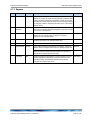
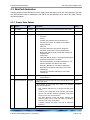
4.4.2 Approve
Step
Action
User
Description
Status
1.
Click Button
Approver
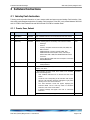
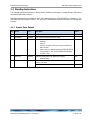
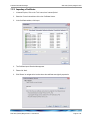
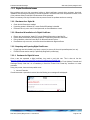
Click ‘Standing Instructions’ link on the left hand side of the screen.
The system will show all standing instructions and order according to
‘Instruction ID’.
Submitted
2.
Locate
Instruction
Approver
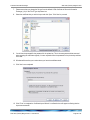
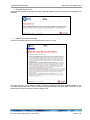
Locate the row corresponding to the instruction that requires
approval. The instruction becomes high-lighted in grey when hovering
over it. Click on the instruction.
Submitted
3.
View Data
Approver
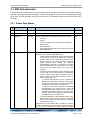
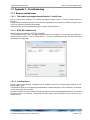
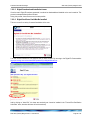
The ‘View Instruction’ screen will appear displaying the instruction
details. This is a read only screen. To approve or reject the
instruction, click on the ‘Edit’ button.
Submitted
4.
Data Entry
Approver
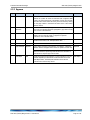
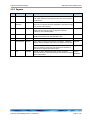
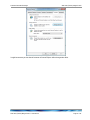
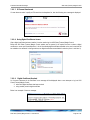
The ‘Edit Instruction’ screen will appear, enabling the approver to add
additional information in the ‘Participant Notes’ field.
Submitted
5.
Review
Approver
Review the standing instruction details.
Submitted
6.
Approve/Reject
Approver
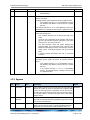
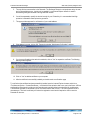
If any data is erroneous in the instruction, click ‘Reject’. A ‘Rejection
Reason’ text box will appear. Enter reason for rejection and click ‘OK’.
Rejected
If all information is correct, click ‘Approve’. The instruction has now
been sent to ASX for processing. Note that this is the final status of
the instruction, subject to approval from ASX.
Approved
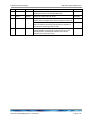
Should you wish to edit the Excess Cash Limit for an existing
standing instruction, simply locate the approved instruction and repeat
above outlined steps.
Saved /
Submitted
7.
Edit
Submitter
ASX Clear (Futures) Margin Control – User Manual
Page 17 of 37