1
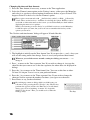
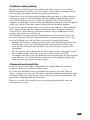
If you choose 'As normal', and you have entries which repeat 'Forever' and have
every occurrence shown, this may slow the List view down.
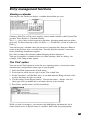
The Year view
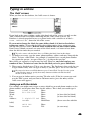
The Year view displays symbols for selected entries of any type. Anniversaries are the
only entries which automatically appear in the Year view (with the symbol A). For all
other entry types you must set a year symbol for each individual entry.
You can set a different year symbol for each individual anniversary when you enter
it. Choose the symbol in the 'Year symbol' line in the 'Anniversary details' dialog. If
you don't want them at all, use 'Set preferences' and its suboption 'Anniversary
defaults', and set the Year symbol to be off by default.
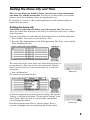
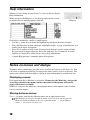
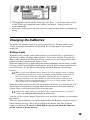
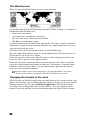
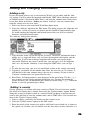
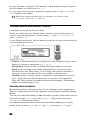
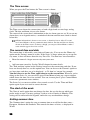
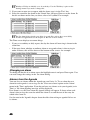
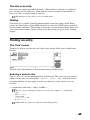
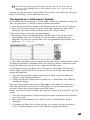
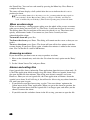
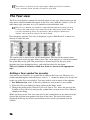
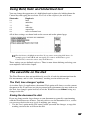
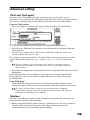
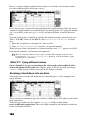
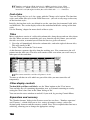
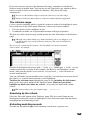
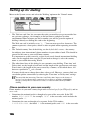
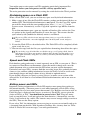
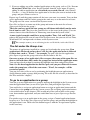
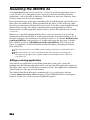
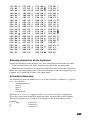
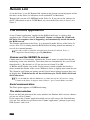
Press the ♦ key until the Year view is displayed, or press Shift-Psion-Y to move to it
directly. It looks like this:
The current year is shown in the lop left-hand comer. The date of the current cursor
position is given on the top line of the screen. The cursor appears as a black box around
one of the dates in the grid. The grid of days is drawn in grey for the past (with
diagonal grey lines through the days), and with black lines for the future.
The year symbols of all entries which have them are shown on the appropriate
days.
Setting a Year symbol for an entry
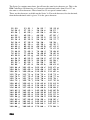
You can use any character as a symbol for an entry in the Year view. However, it is
worth remembering that some characters, such as # , cannot be shown very clearly due
to the size of the Year view display. You may wish to stick to letters of the alphabet.
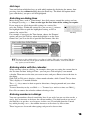
1. In a different view, move to the entry which you want to have a year symbol.
2. Select the 'Set year symbol for entry' option on the 'Entry' menu.
3. Change the setting on the 'Show in Year view' line to 'Yes', move the cursor to the
'Symbol in Year view' line and type the symbol that you want to use. Press Enter to
complete the dialog.
When you move to the Year view you will see the symbol that you just entered, in the
date on the grid that corresponds to the date of the entry. The text for the entry is
displayed on the top line of the screen whenever the cursor is positioned over the
symbol.
76