1
5
Designing a badge layout in Badge Creator
Having created the project you can now design a badge layout in Badge Creator (BC). BC is
a tool for designing card layouts and incorporates a number of useful features.
5.1 Badge Creator essentials
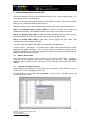
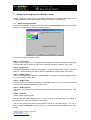
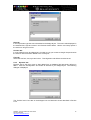
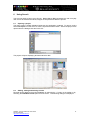
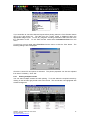
To enter BC and begin creating a new layout select File>New Badge option from the main
screen. You are presented with the following dialogue.
Click ‘Next’ to continue with the wizard.
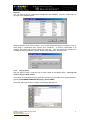
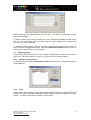
Step 1 – Layout Type
Select the type of layout to be created, choose ‘Badge’ to design a card layout. Un-tick the
‘Use Template’ option unless you wish to be restricted to existing templates. Click ‘Next’.
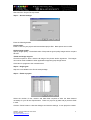
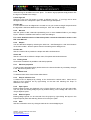
Step 2 – Badge Type
Choose a badge name for the new card design. Accept the default type value of ‘ISO-Card
86/54.5’. Choose whether you wish to design in landscape or portrait mode. Click ‘Next’.
Step 3 – Badge Layout
This stage is largely redundant apart from the ability to specify an overall background colour
to your card design. Click ‘Next’.
Step 4 – Badge Fields
Select the fields you wish to be included on your badge design. You can choose not to select
any and to add them individually later. Click ‘Next’.
Step 5 – Badge Options
This option is of limited use in Securit 4400 and in most instances it can be ignored. Click
‘Next’.
Step 6 – Finished
Click ‘Finish’ to exit the wizard.
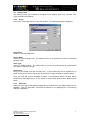
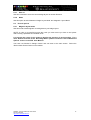
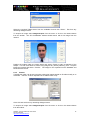
You will now see a blank badge layout. You can zoom in or out of the layout by clicking on
the ‘Zoom In’ or ‘Zoom Out’ buttons on the toolbar.
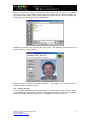
You are now ready to add design items (graphics & text) to your badge layout. You can do
this by selecting Edit>Add from the menu or by using the individual buttons on the main
toolbar.
QSG003 - Securit 4400 Quick Start Guide
Technical Support
http://www.securitworld.com/
8