1
How to use AVR Studio 4 to program the ATmega128
5. If you want to have Studio automatically open a new file for you to begin typing your
code, check the box labeled, ‘Create initial file’. Similarly, if you would like to create a
folder in which to put the project files, check the box labeled, ‘Create folder’.
6. In the box labeled, ‘Location’, either enter the location you wish the new file and folder
to be put, or click the browse button (with three dots) to browse to the location.
7. Click on Next to go to the next screen.
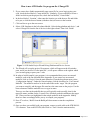
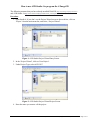
8. Select AVR Simulator in the left column labeled, ‘Select debug platform and device’, and
select ATmega128 from the list of devices in the right column. Then click ‘Finish’
Figure 3. AVR Studio Project Wizard Debug Platform and Device Screen.
9. The Wizard will set up the project file structure, which will appear on the left window
pane, and if you checked ‘Create initial file’, it will open a window to the right in which
you can start typing or paste your C code.
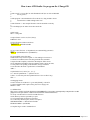
10. In order to build (compile) your program, it is recommended that you use an external
makefile, such as the one included in the Appendix. If you want to use an external
makefile, click on ‘Project’ from the main menu bar. From the drop-down menu, select,
‘Configuration Options’. Under the General option, click the checkbox for ‘Use External
Makefile’. The makefile needs to be in the same folder as the ‘target’ file (the program
you want to compile), and the target file must have the same name as the project. Use the
browse button to find the makefile to use or type its name.
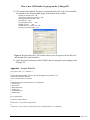
There are two lines in the makefile that you will typically need to modify, that for the
target file name, and that for the C source files, which are needed in addition to the target
file. (These two lines are highlighted in the sample makefile in the Appendix. Modify
these two lines accordingly before you try to compile your program).
11. Press F7 or select, ‘Build’ from the Build pull-down menu to start the compilation
process.
12. Once you have successfully built your program, connect a serial cable to the STK500 RS232 connector. Turn on the STK500, then click on ‘Tools’ from the main menu bar,
BJ Furman | ME 106 Intro to Mechatronics | Using AVRStudio 4.doc | 24FEB2007
Page 2 of 11