1
How to use AVR Studio 4 to program the ATmega128
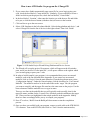
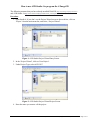
select ‘Program AVR’ from the drop-down menu, then select, ‘Connect’ (or just click on
the ‘Connect’ icon on the toolbar. You should then see the ‘Select AVR Programmer’
dialog box as shown in Figure 4. The selection on the left side should be STK500 or
AVRISP and that on the right should be Auto (to auto-detect for an available COM port
on your PC). Make sure these selections have been made, and click on ‘Connect’.
Figure 4. Select AVR Programmer dialog box. This window allows you to choose the
platform and COM port with which to program the ATmega 128. The selection on the
left side should be STK500 or AVRISP and that on the right should be Auto (to autodetect for an available COM port on your PC).
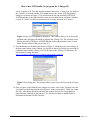
13. You should then see the dialog box shown in Figure 5, which shows the fuse settings. In
the pane at the bottom of the window, you should see that AVR Studio was successful in
communicating with the ATmega 128. See the Intro to the ATmega 128 laboratory for
information on setting the fuses
(http://www.engr.sjsu.edu/bjfurman/courses/ME106/ME106pdf/intro-atmel.pdf).
Figure 5. Fuse dialog box. This window allows you to select the fuses on the ATmega
128.
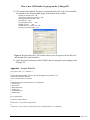
14. Once you have verified that the fuse settings are correct, click on the ‘Program’ tab, and
you should see the dialog box shown in Figure 6. In the section titled, ‘Flash’, the ‘Input
Hex File’ radio button should be checked and a path to the hex file corresponding to
target filename should be in the path box. You can also navigate to another folder to
download an alternate hex file if desired.
BJ Furman | ME 106 Intro to Mechatronics | Using AVRStudio 4.doc | 24FEB2007
Page 3 of 11