1
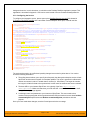
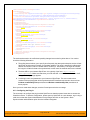
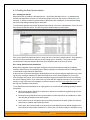
9. Using SpiraTeam with IBM RTC This section outlines how to use SpiraTest, SpiraPlan or SpiraTeam (hereafter referred to as SpiraTeam) in conjunction with the IBM Rational Team Concert (hereafter referred to as RTC) work item tracking system. The built-in integration service allows the quality assurance team to manage their requirements and test cases in SpiraTeam, execute test runs in SpiraTest, and then have the new incidents generated during the run be automatically loaded into RTC. Once the incidents are loaded into RTC as work items, the development team can then manage the lifecycle of these work items in RTC, and have the status changes in RTC be reflected back in SpiraTeam. In addition, any issues logged directly into RTC will get imported into SpiraTeam so that they can be linked to test cases and requirements. 9.1. Configuring the Integration Service This section outlines how to configure the integration service to export incidents into RTC and pick up subsequent status changes in RTC and have them be updated in SpiraTeam. It assumes that you already have a working installation of SpiraTest, SpiraPlan or SpiraTeam (v3.0 or higher) and a working installation of RTC 2.0 or higher. If you have an earlier version of SpiraTeam, you will need to upgrade to at least v3.0 before trying to integrate with RTC. The steps that need to be performed to configure integration with RTC are as follows: Download the latest RTC Data-Sync plug-in for SpiraTeam from our website Setup the plug-in in SpiraTeam to point to the RTC application server. Configure the data field mappings between SpiraTeam and RTC Start the service and verify data transfer 9.1.1. Download the RTC Plug-In Go to the Inflectra website and open up the page that lists the various downloads available for SpiraTeam (http://www.inflectra.com/SpiraTeam/Downloads.aspx). Listed on this page will be the RTC Plug-In for SpiraTeam. Right-click on this link and save the Zip compressed folder to the hard-drive of the server where SpiraTeam is installed. Open up the compressed folder and extract the RtcDataSync.dll file and place it in the C:\Program Files\SpiraTeam\Bin folder (it may be SpiraTest or SpiraPlan depending on which product you’re running). This folder should already contain the DataSyncService.exe and DataSyncService.exe.config files that are the primary files used for managing the data synchronization between SpiraTeam and other systems. If you do not have an on-premise installation of SpiraTeam, but instead are using a hosted subscription provided by Inflectra (or a third party company) you will not have access to the DataSyncService background service. In such situations, you should use the Desktop DataSync application instead. This application is described in Appendix 1 and can be used instead of the server-based DataSyncService. 9.1.2. Configuring the Service To configure the integration service, please open up the DataSyncService.exe.config file located in C:\Program Files\SpiraTeam\Bin with a text editor such as Notepad. Once open, it should look like: <?xml version="1.0" encoding="utf-8"?> <configuration> <configSections> <sectionGroup name="applicationSettings" type="System.Configuration.ApplicationSettingsGroup, System, Version=2.0.0.0, Culture=neutral, PublicKeyToken=b77a5c561934e089" > © Copyright 2006-2015, Inflectra Corporation Page 117 of 168 This document contains Inflectra proprietary information