1
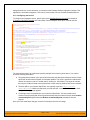
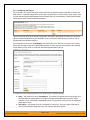
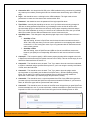
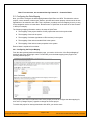
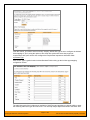
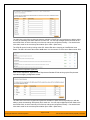
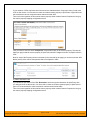
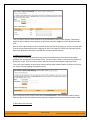
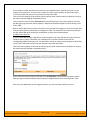
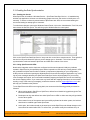
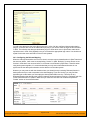
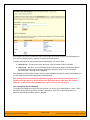
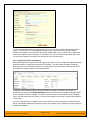
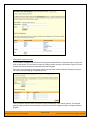
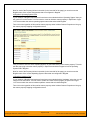
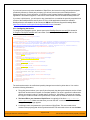
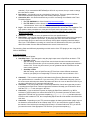
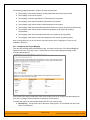
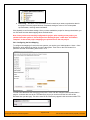
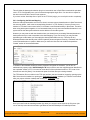
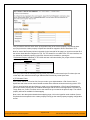
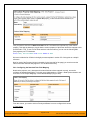
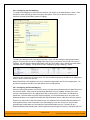
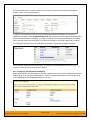
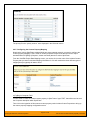
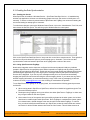
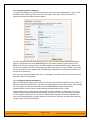
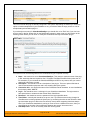
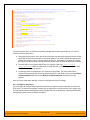
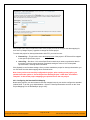
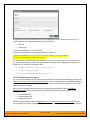
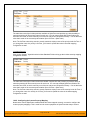
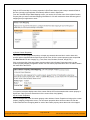
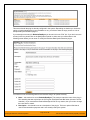
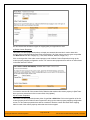
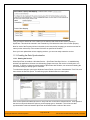
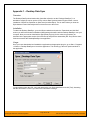
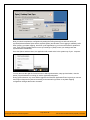
This screen lists all the plug-ins already configured in the system. Depending on whether you chose the option to include sample data in your installation or not, you will see either an empty screen or a list of sample data-synchronization plug-ins. If you already see an entry for RedmineDataSync you should click on its “Edit” link. If you don’t see such an entry in the list, please click on the [Add] button instead. In either case you will be taken to the following screen where you can enter or modify the Redmine Data-Synchronization plug-in: You need to fill out the following fields for the Redmine Plug-in to operate correctly: Name – this needs to be set to RedmineDataSync. This needs to match the name of the plug-in DLL assembly that was copied into the C:\Program Files\SpiraTeam\Bin folder (minus the .dll file extension). If you renamed the RedmineDataSync.dll file for any reason, then you need to change the name here to match. Description – this should be set to a description of the plug-in. This is an optional field that is used for documentation purposes and is not actually used by the system. © Copyright 2006-2015, Inflectra Corporation Page 142 of 168 This document contains Inflectra proprietary information