1
6 LIVE VIEWER
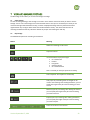
In Live Viewer, you can view in real time what the camera is recording.
The main screen of Live Viewer displays an overview of the cameras that have been added in the left-hand column.
The large right-hand field shows images from the selected cameras.
To watch the live footage, drag the camera to the middle of the Live Viewer. If the Live Viewer is set to ‘Single
view’, you can watch one camera. Select ‘Multiview’ to watch multiple cameras simultaneously.
After selecting a camera, functions to control the camera are displayed on the screen. Top left you will see the
name of the opened camera, the number of frames per second displayed and the bandwidth the camera is
currently using.
If you set the viewing mode to ‘Single view’, arrows will appear when you move the cursor over the camera’s
image. With these arrows, you can control the camera’s angle: move the camera up and down, from left to right
and zoom in and out. In case of ‘Quad view’, ‘Panorama ceiling view’ and ‘Panorama wall view’, you can control
every screen separately by clicking on the screens in the direction you want to move the image. This means that
when you click on the left side of a small screen, the small screen will move to the left.
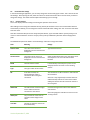
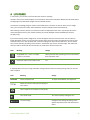
Field
Meaning
Change
Single/Multi view - view 1 or multiple
cameras in the viewer
Select preferred view by clicking on the icon and choose
from drop down menu.
Expand the viewer to the whole screen
N.a.
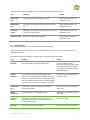
In the drop-down menu you can adjust the 360° viewing mode and other live-viewing settings. Here you can also
take a snapshot.
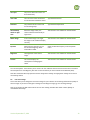
Field
Meaning
Change
Bandwidth
Shows bandwidth used
To adjust the bandwidth, see chapter 4.4
Shows the current Frames per Second (fps) of
your camera
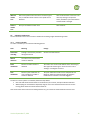
Take a snapshot. The snapshot is saved locally.
Turn sound on/off
Turn sound on/off by clicking the icon
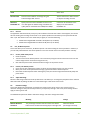
Live view setting
Change live view settings by clicking on the
specific drop-down menus and select item of
choice.
Version September 17, 2014
21









![User Manual BS 15 [ASL]](http://vs1.manualzilla.com/store/data/005675346_1-422b291500c6ff99ebe2f8b515793259-150x150.png)