1
revocation functionality of the software and the system. This feature is not available in the EPlex FIPS General version (Lite) of the software. If you are using the HIGH ASSURANCE
version, you must first configure the “CoreStreet Path Builder Server Validation Extension”
settings accurately for this OCSP dynamic checking to work correctly.
Important: Please check with your local IT personnel to set up properly the FIPS-201 card’s
root certificate, the card issuer’s info, the OCSP responder’s info and other associated info
required to connect to the OCSP properly. This info must be obtained from your facility’s IT or
security personnel who issued your FIPS-201 credentials since Kaba does not have this
proprietary info.
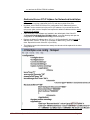
Here is an example and example only on how to configure this, using CoreStreet’s demo
sample root certificates – “EntrustCA.cer”, “PIVCA.cer” and “signature.cer” and CoreStreet’s
demo OCSP responder - ”ocsp.corestreet.com”. You must do a similar setup with your FIPS
ID cards’ actual root certificates and related responder info.
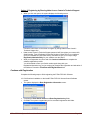
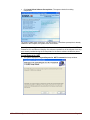
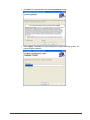
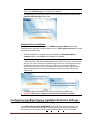
Complete the following steps to configure the CoreStreet Validation Extension Settings for
this example.
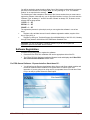
Certificate Installation
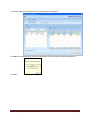
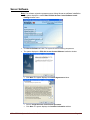
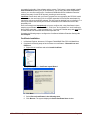
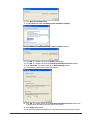
1. In Windows Explorer, browse to C:\Program Files\KABA\E-Plex FIPS-201\MainClient.
2. Complete the following steps of each of these root certificates – EntrustCA.cer and
PIVCA.cer.
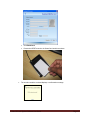
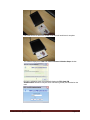
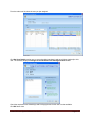
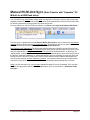
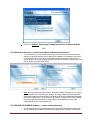
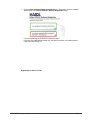
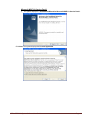
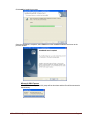
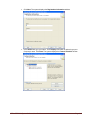
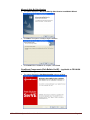
3. Right-click the certificate and select Install Certificate.
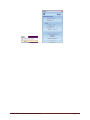
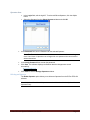
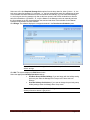
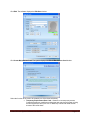
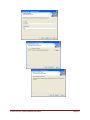
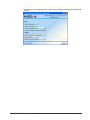
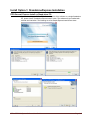
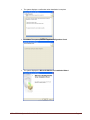
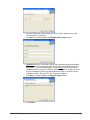
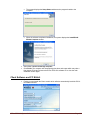
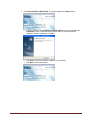
The system displays the Certificate Import Wizard.
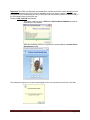
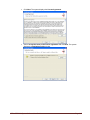
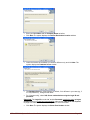
4. Click Next.
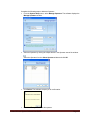
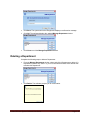
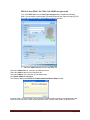
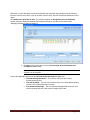
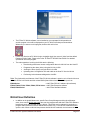
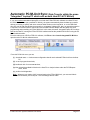
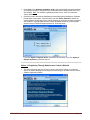
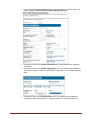
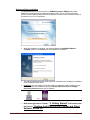
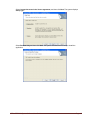
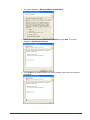
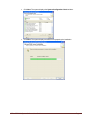
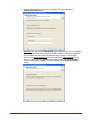
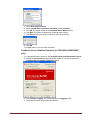
5. Select Place all certificates in the following store.
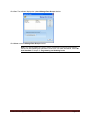
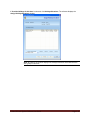
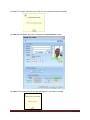
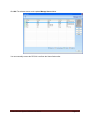
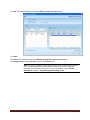
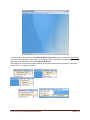
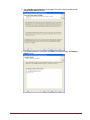
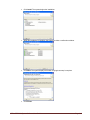
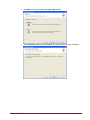
6. Click Browse. The system displays the Select Certificate Store window.
E-Plex FIPS-201 System Software User Guide
Page 6-27