1
Report Definitions
____________________________________Mass Spectra Data Extraction [Integration and QNT-Editor Views]
7. Report Definitions
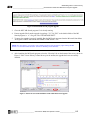
There are limitless options for arranging the data in the printer layout screen. It may be easiest to start
with the Dionex template.
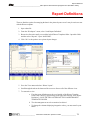
1. Open a data file.
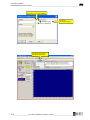
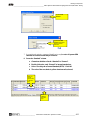
2. From the “Workspace” menu, select “Load Report Definition”.
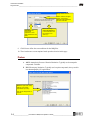
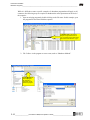
3. Browse the directories until you reach the locked Dionex Templates folder. Open this folder
and then select “Reports”. Open “defltLCMS”.
4. Click “No” to the option to save printer layout changes.
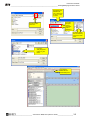
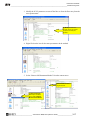
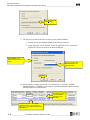
5. Go to the View menu and select “Printer Layout”.
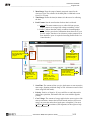
6. Scroll through the tabs at the bottom of the screen to discover all of the different views.
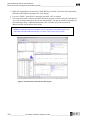
7. To customize a view:
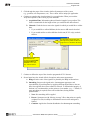
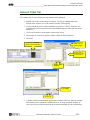
a. First the report definition must be saved outside of the Dionex Template
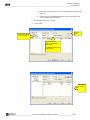
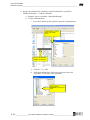
folder. This is done by right clicking on the page and selecting “Save Report
Definition”. SAVE THE FILE OUTSIDE OF THE LOCKED DIONEX
TEMPLATE FOLDER.
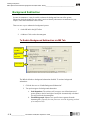
b. The chromatogram can now be customized as desired.
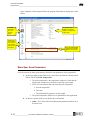
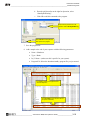
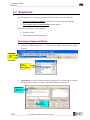
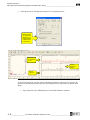
c. To change the columns displaying integration values, you must enter Layout
Mode.
_____________________ Chromeleon / MSQ Plus Operator’s Guide ____________________
7-1