1
Workflow: FEM-Design to Revit
| Import FEM-Design model to Revit
4.4.4. Floor types mapping
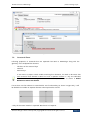
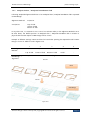
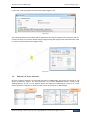
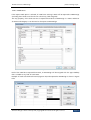
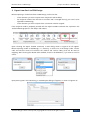
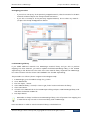
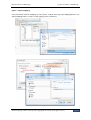
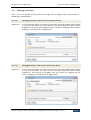
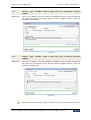
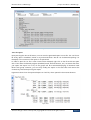
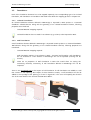
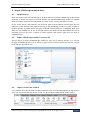
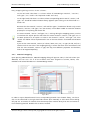
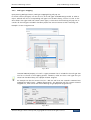
Floor types mapping is equivalent to the Wall types mapping procedure. In this dialog profiled
panels can also be mapped into corresponding floor types.
Structural Material property of a floor is a type parameter that is included in the floor type that
one has to choose in the mapping process. Therefore, make sure that a floor type that you
chose from the Revit library has a proper material assigned.
4.4.5. Foundations mapping
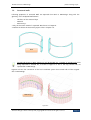
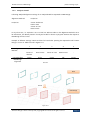
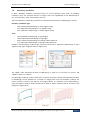
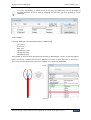
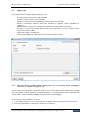
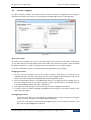
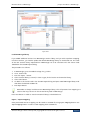
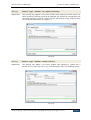
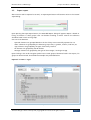
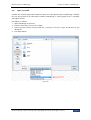
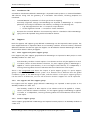
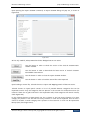
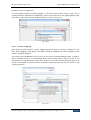
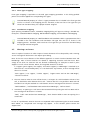
Upon pressing Foundations button, Foundation mapping dialog will pop out. Dialog is divided into
three parts: Isolated foundations mapping, Wall foundation mapping, and Foundations slab mapping.
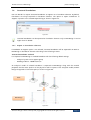
Structural Material property of a Wall foundation and Foundation slab is a type parameter that is
included in the wall foundation and foundation slab type that one has to choose in the
mapping process. Therefore, make sure that a floor type that you chose from the Revit library
has a proper material assigned.
4.5.
Warnings and errors
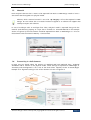
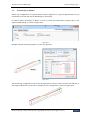
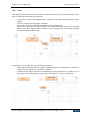
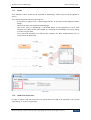
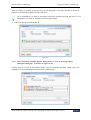
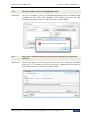
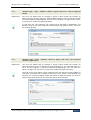
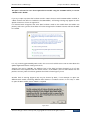
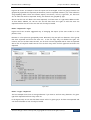
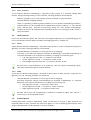
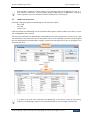
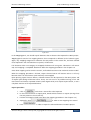
There is couple of situations in which import of certain elements will not be possible, and a warning
or error message will be thrown in the Import report dialog:
Most of the error occurs because of the different approach to certain situation between Revit and
FEM-Design. Most of those situations are related to supporting structures and their hosts. Revit
simply do not allow for situations that are allowed in FEM-Design, for example to attach a point
support to a wall or floor element. Below, all recognized situations are listed:
1.
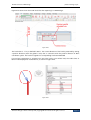
if a support (point support, line support, and surface support) in FEM-Design is attached to an
element that is not allowed by Revit, or is not attached to any element, an error message will be
thrown in a format:
“Point support / Line support / Surface support”, “support name and ID from FEM-Design”,
“reference not found”
2. The next situation when an error will be thrown, is an import of a wall foundation without a host
wall, or attached to other element than a wall – situation like this is not possible in Revit and wall
foundation can only be attached to a wall element. An error message will be thrown in a format:
“Wall foundation”, “wall foundation name and ID from FEM-Design”, “wall not found”
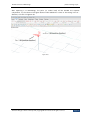
3. Sometimes, an opening in a wall cannot be recreated while importing the wall into Revit and an
error message will be thrown in a format:
“Wall”, “wall’s name and ID from FEM-Design”, “Revit function failed to create an opening for a
certain wall”
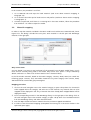
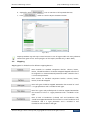
In case of a problematic situation that was not expected while implementing the StruSoft StruXML
Revit Add-In, an “unexpected error” message may appear. In this situation, please contact the
support team.
Structural Design Software in Europe AB | Copyright© 2014 StruSoft. All rights reserved.
Page 50