1
Global Search
193
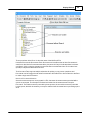
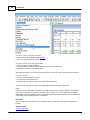
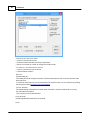
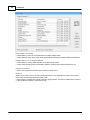
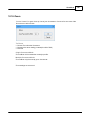
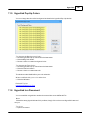
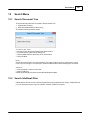
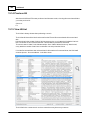
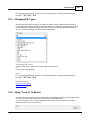
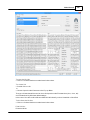
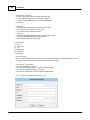
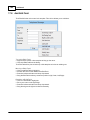
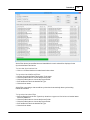
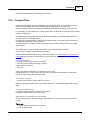
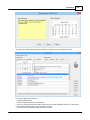
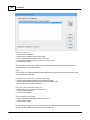
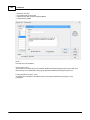
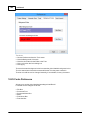
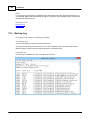
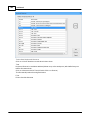
T o s o rt the H it Lis t:
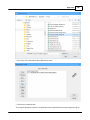
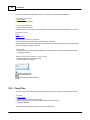
· Click on a Column Header to sort the items in that column.
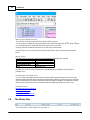
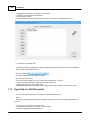
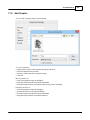
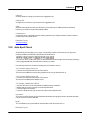
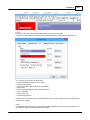
T o v ie w a H it:
· Double click on a hit
or
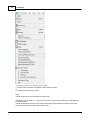
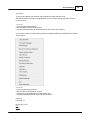
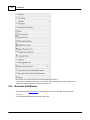
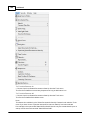
· Choose Open from the View menu or the Pop-up Menu.
The type of viewer that will be used to view a hit depends on the File extensions (.doc, .docx, .wri)
and is determined by Windows default settings.
In the case of .doc this could be Microsoft Word for Windows if you have it installed or Word Pad.
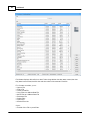
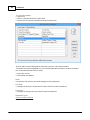
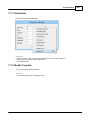
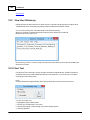
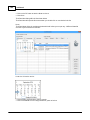
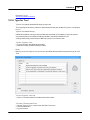
T o the S o rt the H it Lis t:
· Click on a Column Header to sort the items in that column.
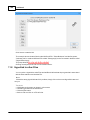
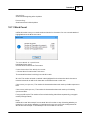
P rint H it Lis t:
Prints the Hit List.
© 1994-2016 Phantech Software Inc.