1
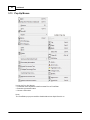
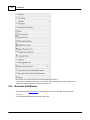
File Menu
·
·
·
·
6.22
75
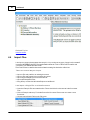
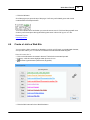
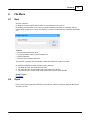
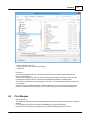
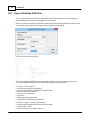
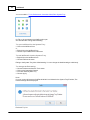
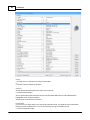
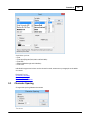
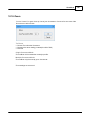
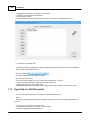
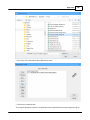
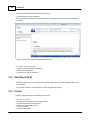
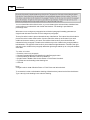
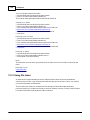
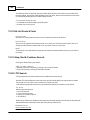
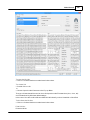
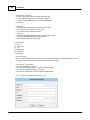
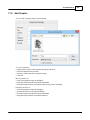
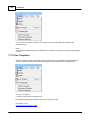
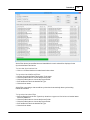
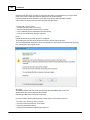
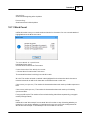
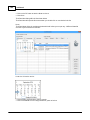
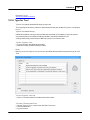
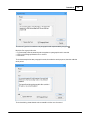
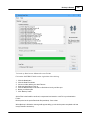
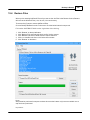
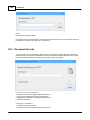
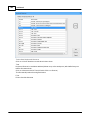
Type in a name for the File.
Click Save.
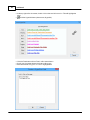
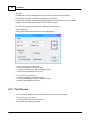
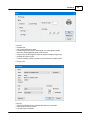
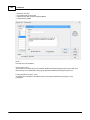
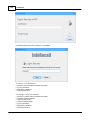
Enter the delimiters/separators.
Click Export to start the export procedure.
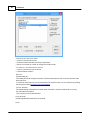
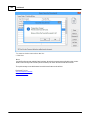
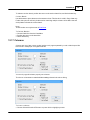
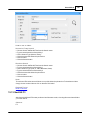
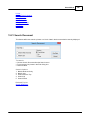
File Information
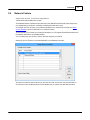
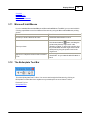
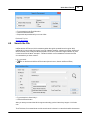
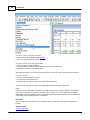
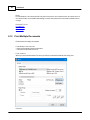
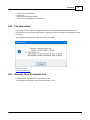
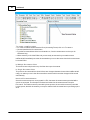
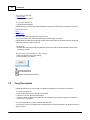
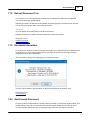
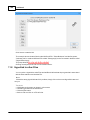
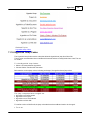
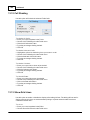
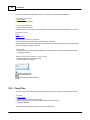
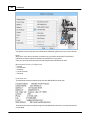
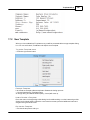
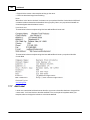
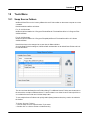
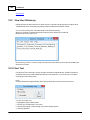
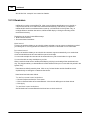
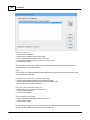
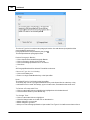
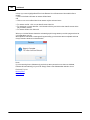
Every time a File is created or changes are made to one, InfoRecall saves the date and time it
happened. You can check that information by opening a File and choosing File Information from the
File menu.
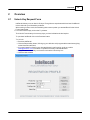
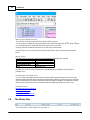
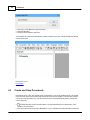
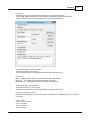
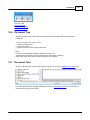
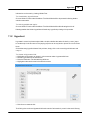
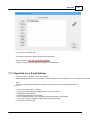
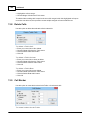
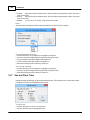
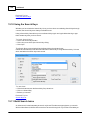
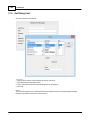
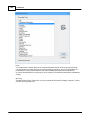
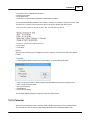
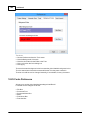
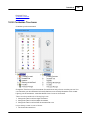
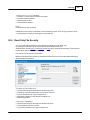
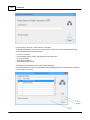
The below dialog will appear displaying the File information.
R e la te d T o p ic s
Document Information
6.23
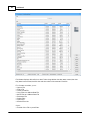
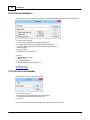
Recently Used Documents List
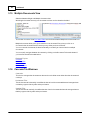
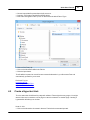
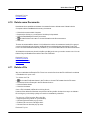
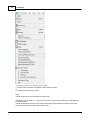
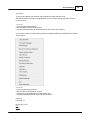
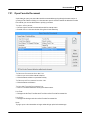
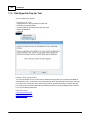
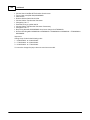
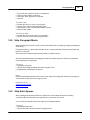
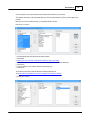
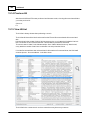
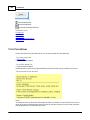
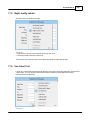
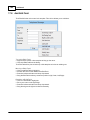
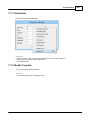
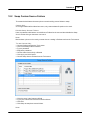
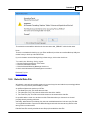
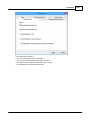
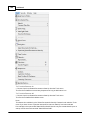
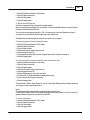
Lists the last four documents you've recently opened.
You'll find them at the bottom of the File menu narked 1, 2, 3, 4
© 1994-2016 Phantech Software Inc.