1
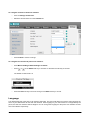
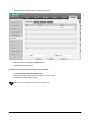
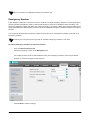
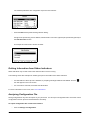
To capture packets using the Ethernet software:
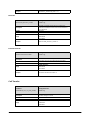
Connect the Internet port of the IP phone and the PC to the same HUB, and then use Sniffer, Ethereal or Wireshark
software to capture the signal traffic.
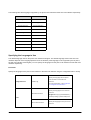
Enabling WatchDog Feature
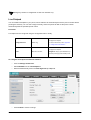
The IP phone provides a troubleshooting feature called “WatchDog”, which helps you monitor the IP phone status
and provides the ability to get stack traces from the last time the IP phone failed. If WatchDog feature is enabled,
the IP phone will automatically reboot when it detects a fatal failure. This feature can be configured using the
configuration files or via web user interface.
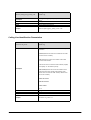
You can use the “watch_dog.enable” parameter to configure watchdog feature in the configuration files. For more
information, refer “Appendix D - Configuration Parameters”.
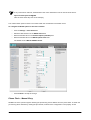
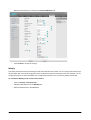
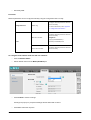
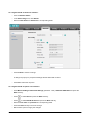
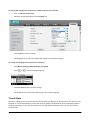
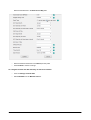
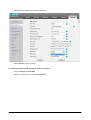
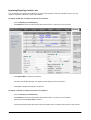
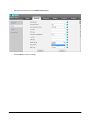
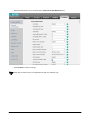
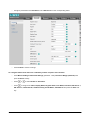
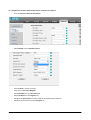
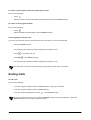
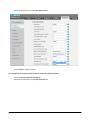
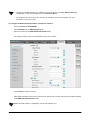
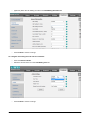
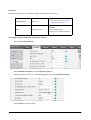
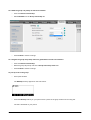
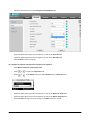
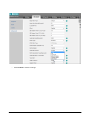
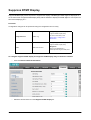
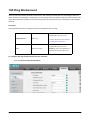
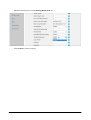
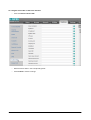
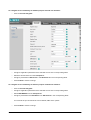
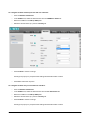
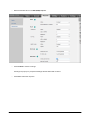
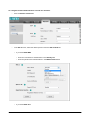
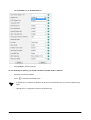
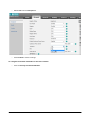
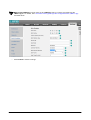
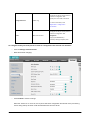
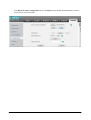
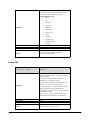
To configure watchdog feature via web user interface:
•
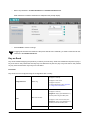
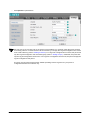
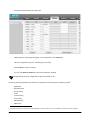
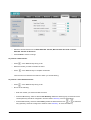
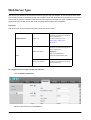
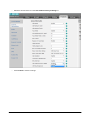
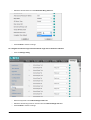
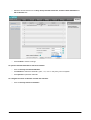
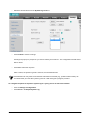
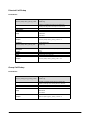
Click on Settings->Preference.
•
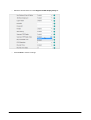
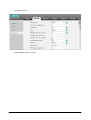
Select the desired value from the WatchDog list.
•
Click Confirm to save the change.
Zero Touch
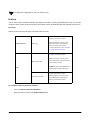
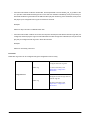
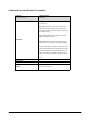
Zero Touch allows you to configure the network parameters and provisioning server address via phone user
interface during startup. This feature is helpful when there is a system failure on the phone. To use Zero Touch,
make sure this feature is enabled.
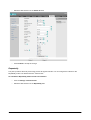
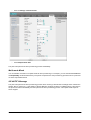
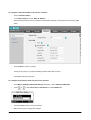
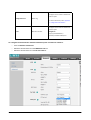
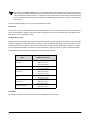
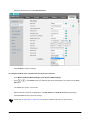
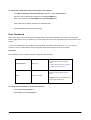
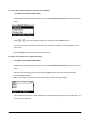
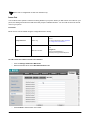
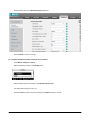
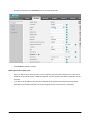
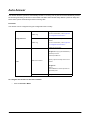
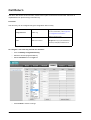
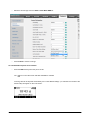
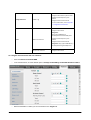
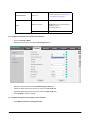
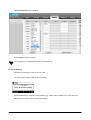
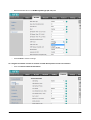
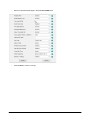
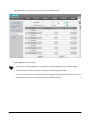
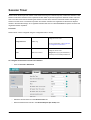
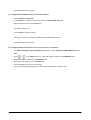
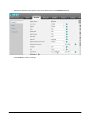
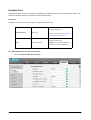
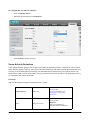
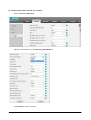
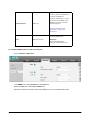
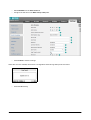
To configure the Zero Touch via web user interface:
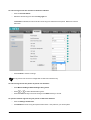
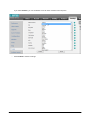
•
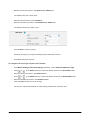
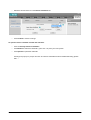
Click on Settings->Auto Provision.
Matrix SPARSH VP110 User Guide
323