1
4.Inbox
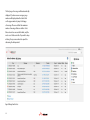
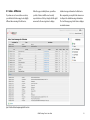
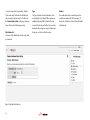
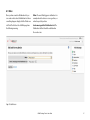
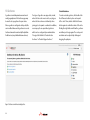
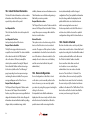
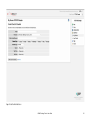
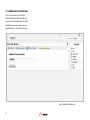
The Inbox page shows messages received
from the device in reverse chronological order.
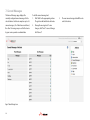
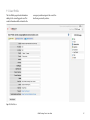
The icons displayed against each row have the
following meanings:
Emergency Message
This is a message indicating that the emergency
function of the device was activated.
Position report
This is the position of the device at the time the
message is sent.
Cancel Emergency Message
This is an emergency cancellation message.
Standard Message
This is a text message.
All other messages
Hovering over the icon will let you know the
type of message.
Canned Messages
This is a canned message.
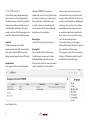
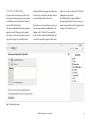
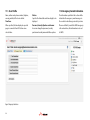
Columns in the grid have the following meaning:
Time
The time the device reported (UTC or user local
time when set on the User Profile page). When
hovered over, this column displays a popup with
the time in standard UTC format.
Message
The body of the message.
System Message
This is a system message (System Test,
Diagnostics Response, Request Device Identifier
Response, or Synchronising Data over the Air).
BEAM Tracking Portal - User Guide
Recipient
The address to which the message was
destined. This is typically an address book entry.
Hovering the mouse over this field will show the
expanded address book entry.
Position
The position of device at the time of the report.
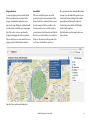
For messages with a valid location, clicking on
the position jumps to the location of the device
on the Map page.
Speed
The velocity of the device at the time of the
report (km per hour).
Heading
The course over ground.
Altitude
The elevation in meters.
Source
Indicates the source of the position (For most
devices this is the in-built GPS. Some devices
support other location technologies e.g. Doppler).
Note that some columns will appear blank for
some messages. For example, the position,
heading, altitude, and source columns will be
blank when viewing a text message without a
position.
11