1
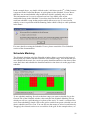
allow you to Jump to a specific Cart Number whilst the “F” Key or the F button will
allow you to search the Audio Wall for a specific Cart name.
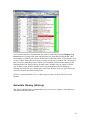
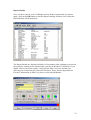
Tip: You can use Cart Ranges to narrow the resu lts of your Reports. Say for example
you want to look for uncompressed Adverts on the system, if you limit the Cart Range
to just the area of the Audio Wall where your adverts are stored (and select the
Compressed Carts only option) then you will get the R eport that you want.
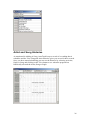
Compression Options
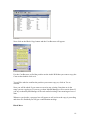
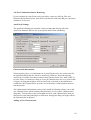
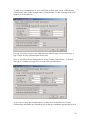
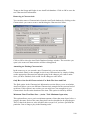
You can use the Compression Options to prepare Cart Reports based on whether
Carts are compressed (for instance, using IMA ADPCM 4:1 compression) or linear
(un-compressed or PCM).
Show all Carts regardless of compression: lists all the Carts in the Cart Range
regardless of whether they are compressed or not.
Only show Carts that are compressed: only list Carts in the Cart Range that are
compressed.
Only show Carts that are linear (non compressed): will only list Carts in the Cart
Range that have no compression at all.
Only show Carts that aren’t 44100 Stereo: will only show Carts that are not of the
audio quality and format that you specify.
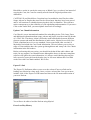
Cart Length Options
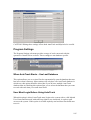
Only show Carts with Extro lengths greater than XX seconds: This option allows
you to list all the Carts in the Cart Range that have an Extro length greater than the
time you set. This is really useful when you want to check the Audio Wall for Carts
that have overly long Extros that you feel will not sound great ‘on air’. Long Extros
usually make for sloppy sounding automation so it is useful to be able to keep on top
of it with this report.
77