1
03. Setting Up the Wireless Network
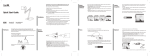
Accessing Open Wireless Networks
Before you can make Skype calls, you need to connect to a wireless
network through a WiFi access point in your network environment.
By default the phone will automatically search and connect to the first
available open network. To connect to a specific network, cancel the
search with the Right Soft Key (Cancel) and go to Settings > Network >
Networks in range to connect to the network of your choice.
Accessing Secure Wireless Networks
Network that requires a security key will cause a prompt to appear for
user input. To enter information on the phone:
• Use the Input mode button to change between digits and letters on
your alphanumeric keypad.
• Use the *a/A button to change to lowercase, uppercase, or numeric
entry when entering a network key.
• Use the Symbol button to enter common symbols and signs.
All your network profiles are stored in the phone’s memory (under
Settings > Network > Preferred networks) so you can easily switch
between different networks depending on your location.
There are a number of configurable options for the WiFi phone under the
Settings > Network menu to add and delete wireless network profile in
your Preferred networks list, change the order and priority of network
connections, configuring network proxy host or port, as well as to view
the current network status.
Once you have successfully connected to the wireless network, you should
see the network connectivity and signal strength symbol displayed on
your screen. Now you can sign into your Skype account and start making
calls.
Creating a New Skype Account
Press the Left soft key (Select) on this option and enter your Skype name
and password.
Enter the Skype name and account password of your choice*, then
choose to Accept the terms and conditions. If the name is available, a
new account will be created and you will be signed into the account.
Otherwise you will be prompted to enter another name.
You can use your Skype account to call other people with Skype accounts
for free. In addition, Skype offers other free and paid features, including:
SkypeOut™ - make calls to traditional landline and mobile phones.
SkypeIn™ - a subscription feature that provides you with a phone
number to receiving Skype calls to your Skype account from traditional
landlines and mobile phones.
Skype Voicemail™ - send and receive voicemail messages and record a
greeting.
For more information about Skype and its features, please visit
www.skype.com
* The stipulations for the Skype name and password are as follows:
• Skype names can be between 6–32 characters, consisting of any combination of upper and
lowercase characters, numbers, and punctuation marks. However, you cannot use spaces or prefix
your name with a number or punctuation mark.
• Passwords can be between 4–20 characters, consisting of any combination of upper and lowercase
characters, numbers, and punctuation marks. However, you cannot use spaces, prefix your
password with a number or punctuation mark, or use your Skype name as a password.
05. Basic Operations
After signing into your Skype account, you can manage and configure
your account using the various screen elements and options displayed
on the phone’s LCD screen. The main screen also provides you with a
range of status indicators and access to the features and functions via
the menu interface.
04. Signing into Your Skype Account
2
After the wireless connection is established, a Skype sign in prompt
appears. You can choose to sign into an existing Skype account or create
a new user account. To enter input information at the prompt:
1
3
4
• Use the Input mode button to change between digits and letters on
your alphanumeric keypad.
• Use the *a/A button to change to lowercase, uppercase, or numeric
entry when entering a network key.
• Use the Symbol button to enter common symbols and signs.
5
6
7
8
Signing into an Existing Skype Account
Press the Left soft key (Select) on this option and enter your Skype name
and password.
By default your Skype ID and password will be saved, and you will be
automatically signed into the same account next time unless you switch
this feature off (Menu > Settings > General > Auto sign in). To automatically sign into a specified account, just switch this feature on when you
are logged into that account.
Since your account information is stored on-line, your contact list will be
automatically loaded/updated each time you sign into your account. If
you are signing into an existing account for the first time, it may take a
little while to load all your contact list information, especially if you have
a very large list of contacts. Please be patient while the information is
being processed.
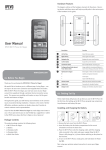
Description
Notifications
1
Battery Level
Ringer Off
2
Network Signal Status/Strength
3
Notifications
4
Skype Status
5
Current Time
6
Call Timer
7
Left Soft Key Action
8
Right Soft Key Action
Mute
New Missed Calll
Skype Network Alert
New Request
New Voicemail