1
Calendar
Adding a personal item
You can add personal items at any time and include them on the Calendar Report for any date
range you wish. For any personal item you can enter a date, time, subject, and reminder notes.
1. Click on the date on which you want to add the item.
The Calendar highlights that date.
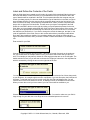
2. Click the ‘Add an item’ icon on the toolbar.
The Calendar Item dialog box appears. The Date field defaults to the highlighted date while
the Time field defaults to either the current time (if the selected date is today) or to 8:00:00
AM.
3. Complete the fields in the dialog box and click the ‘OK’ button.
The Calendar adds the new item, displaying it in the Summary area for the date.
Viewing calendar items
You can view the Keller-Soft® and personal items for any day at any time. Dates with items
contain the appropriate icon. Dates without icons do not contain any items.
1. Click the ‘Refresh’ icon on the toolbar to ensure that all recently added Keller-Soft® items
appear on the Calendar.
2. If necessary, change the month or year.
3. Click on the date that you wish to view.
The Calendar highlights that date and displays all the items for that date in the Summary area
of the Calendar window.
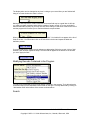
4. For more information about an item, double-click on the item in the Summary area:
•
If it is a Keller-Soft® item, the Keller-Soft® Calendar starts or activates the appropriate
application and takes you to information about the item.
•
If it is a personal item, the Calendar Item dialog box appears.
Keller-Soft® E-Z Access Recordkeeper
Copyright © 2003 J. J. Keller & Associates, Inc., Neenah, Wisconsin, USA
7