
1
Actions (for Windows users)
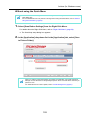
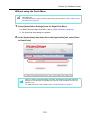
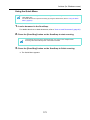
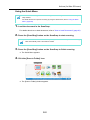
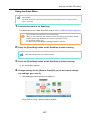
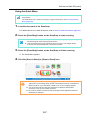
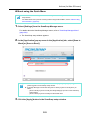
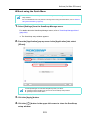
Using the Quick Menu
To use the Quick Menu, you need to select the [Use Quick Menu] check box in the ScanSnap
setup dialog box.
For details about how to perform scanning by using the Quick Menu, refer to "Using the Quick
Menu" (page 63).
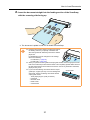
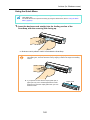
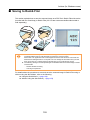
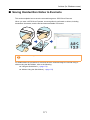
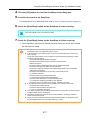
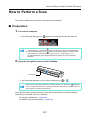
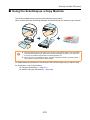
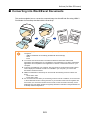
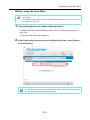
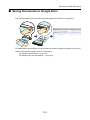
1. Load the document in the ScanSnap.
For details about how to load documents, refer to "How to Load Documents" (page 30).
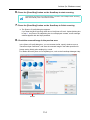
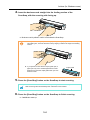
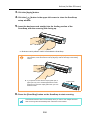
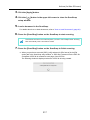
2. Press the [Scan/Stop] button on the ScanSnap to start scanning.
Load another document in the ScanSnap when you want to scan multiple sheets. Scanning
starts automatically when a document is loaded.
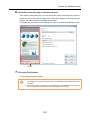
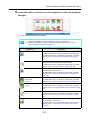
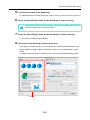
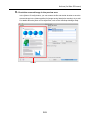
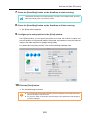
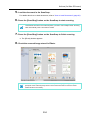
3. Press the [Scan/Stop] button on the ScanSnap to finish scanning.
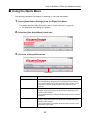
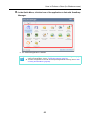
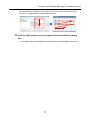
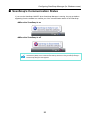
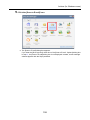
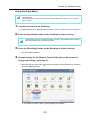
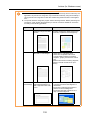
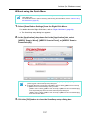
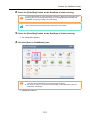
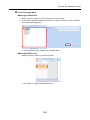
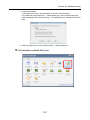
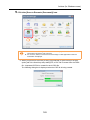
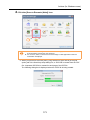
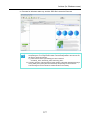
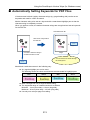
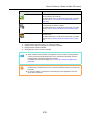
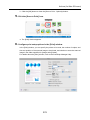
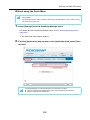
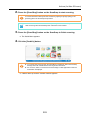
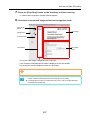
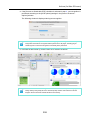
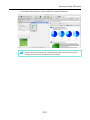
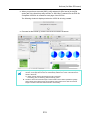
The Quick Menu appears.
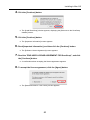
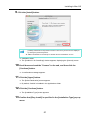
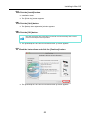
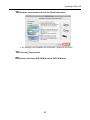
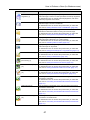
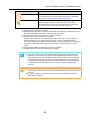
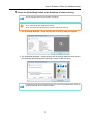
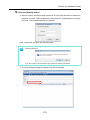
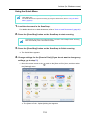
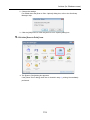
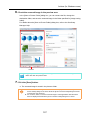
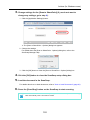
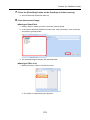
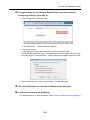
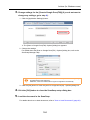
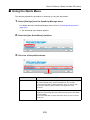
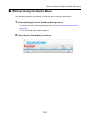
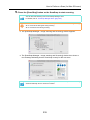
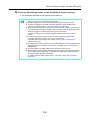
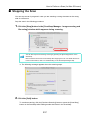
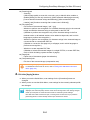
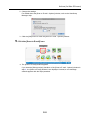
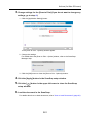
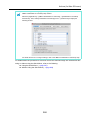
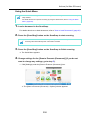
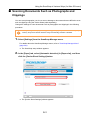
4. Change settings for the [Scan to Print] (If you do not want to change any
settings, go to step 5.).
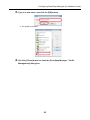
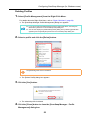
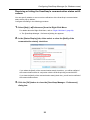
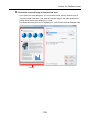
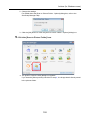
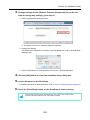
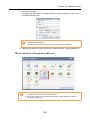
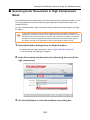
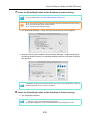
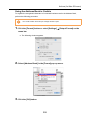
1. Move the mouse cursor to the
the [Settings] menu.
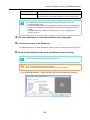
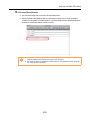
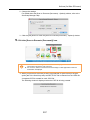
mark on the [Scan to Print] icon, and then select
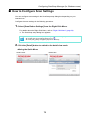
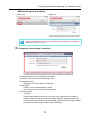
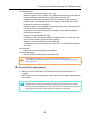
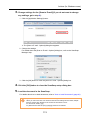
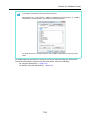
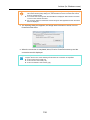
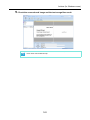
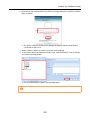
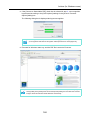
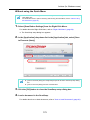
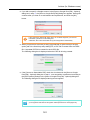
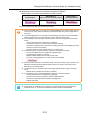
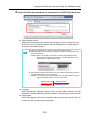
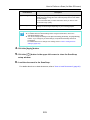
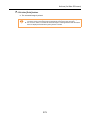
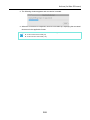
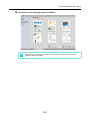
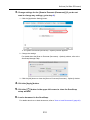
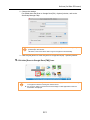
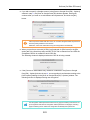
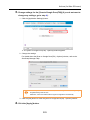
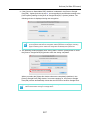
The [Scan to Print - Options] dialog box appears.
118
























































































































![6.Premere il tasto [Scan] di ScanSnap.](http://vs1.manualzilla.com/store/data/006124509_1-c373424b04faf23db72c3ba5efd11184-150x150.png)
![[Scan] button on the ScanSnap.](http://vs1.manualzilla.com/store/data/005658366_1-513fc66afaf683e0c3b25d8948918383-150x150.png)
![3. Clique no botão [Aplicar]](http://vs1.manualzilla.com/store/data/006085959_1-abc442ce88b6545b36fcdec1f957320c-150x150.png)