
1
Configuring ScanSnap Manager (for Windows users)
■ Automatic Linkage with Applications
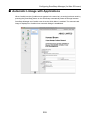
When one of the applications which can automatically link with ScanSnap Manager is running
and you perform scanning, ScanSnap Manager will automatically link with the corresponding
application regardless of the current scan settings or whether you are using the Quick Menu.
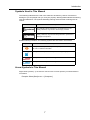
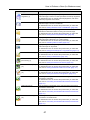
Applications that can automatically link with ScanSnap Manager are as follows:
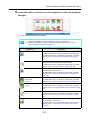
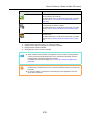
z ScanSnap Organizer
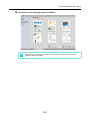
Scanned image is displayed in ScanSnap Organizer.
z CardMinder
Scanned image is displayed in CardMinder.
z Rack2-Filer trial version (bundled with the ScanSnap) and Rack2-Filer (V5.0 or later
recommended/bundled model or sold separately)
Scanned image is saved in a binder in Rack2-Filer.
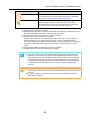
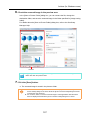
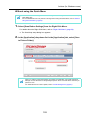
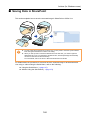
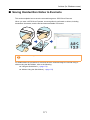
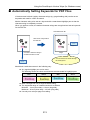
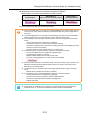
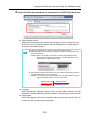
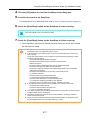
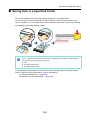
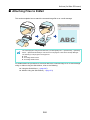
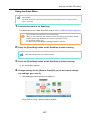
There are two modes for automatic linkage.
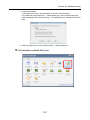
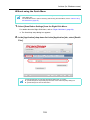
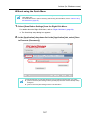
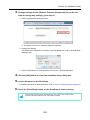
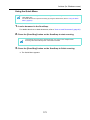
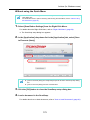
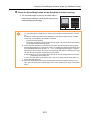
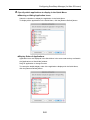
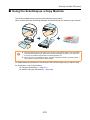
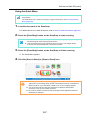
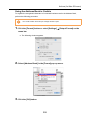
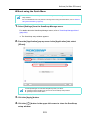
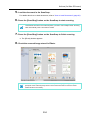
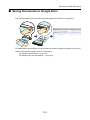
zLink when one of the above applications is active (recommended)
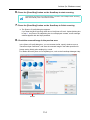
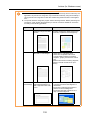
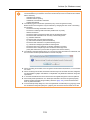
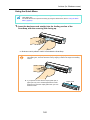
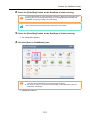
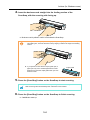
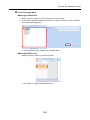
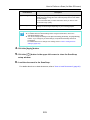
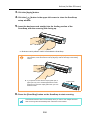
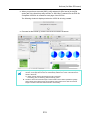
When ScanSnap Organizer, CardMinder or Rack2-Filer becomes active (with the
application’s dialog box brought to front and selected on taskbar), performing a scan by
pressing the [Scan/Stop] button automatically starts the linkage between ScanSnap
Manager and the active application.
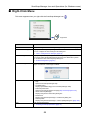
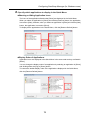
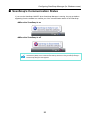
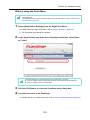
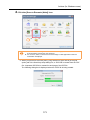
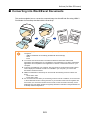
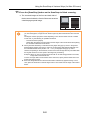
Not active
Active
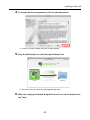
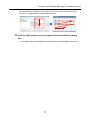
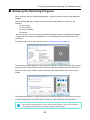
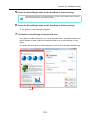
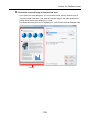
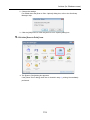
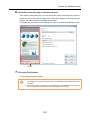
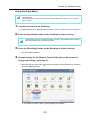
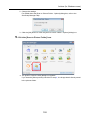
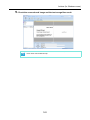
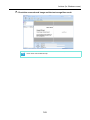
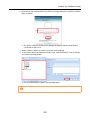
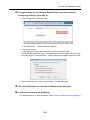
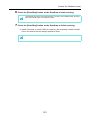
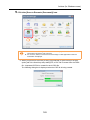
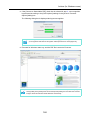
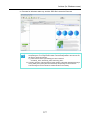
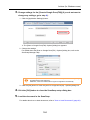
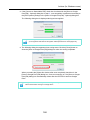
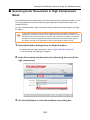
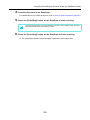
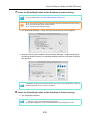
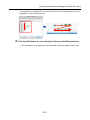
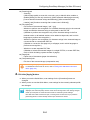
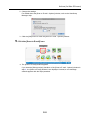
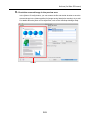
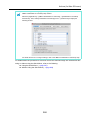
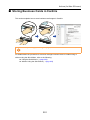
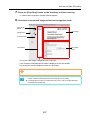
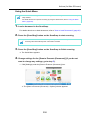
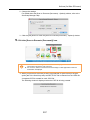
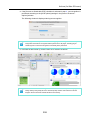
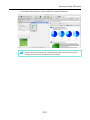
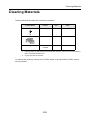
The example above shows ScanSnap Manager automatically linking with CardMinder
when CardMinder dialog box is in front (active).
90
























































































































![6.Premere il tasto [Scan] di ScanSnap.](http://vs1.manualzilla.com/store/data/006124509_1-c373424b04faf23db72c3ba5efd11184-150x150.png)
![[Scan] button on the ScanSnap.](http://vs1.manualzilla.com/store/data/005658366_1-513fc66afaf683e0c3b25d8948918383-150x150.png)
![3. Clique no botão [Aplicar]](http://vs1.manualzilla.com/store/data/006085959_1-abc442ce88b6545b36fcdec1f957320c-150x150.png)