1
System Setup
of three keys.
The three function keys along the bottom are for saving the state of often
used test configurations. Once saved, subsequently pressing that key will
display the test exactly as it was saved. While there are only three keys, the
2nd F key provides for saving up to six test configurations (see Program
Key).
Disconnecting the Smart Device from the AT-20P
application
The AT-20P software only allows a single Smart Device connection at a
time. You may however, like to allow other clinicians access to the charts
when you are not using them. To do this you will need to disconnect your
Smart Device from the AT -20 PC software. In the case when you are still
within Wi-Fi range this can be done manually. Otherwise, if your Smart
Device goes outside Wi-Fi range it will be disconnected automatically.
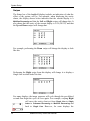
To disconnect manually you will need to navigate to the task menu. To do
this touch the
icon at the bottom right-hand corner of an Apple device;
or press the menu button located underneath the main display of an
Android device. In either case touch on the Disconnect button now
displayed.
26
Medmont Acuity Tester User Manual