1
Settings in System Manager
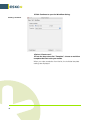
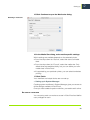
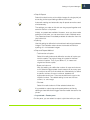
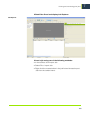
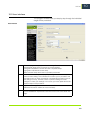
• Step & Repeat
Select this check box to print multiple images of a single print job
according to the layout settings defined on this tab.
Automatic nesting and automatic step & repeat cannot be used
simultaneously.
The settings you make on this tab can be grouped together and
saved in the form of a preset.
Initially, no presets are available. However, once you have made
settings on this pane, you can save them under a defined name.
The preset becomes immediately available for selection from the
drop-down list.
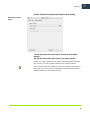
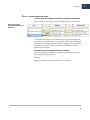
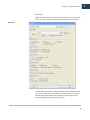
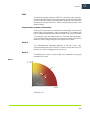
• Spacing
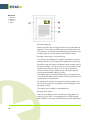
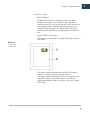
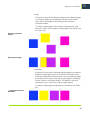
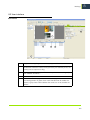
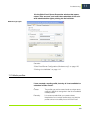
Use this setting to define the horizontal and vertical gap between
images. The illustration above shows horizontal and vertical
spacing of 1 mm between images.
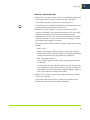
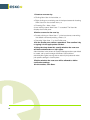
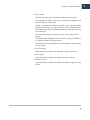
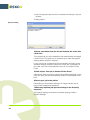
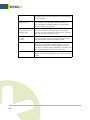
• Step and Repeat Method
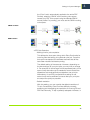
- Total number of copies
Select this radio button and define the number of copies you
want to create. The original image is included in the total
number of copies. Thus, if you define “8”, it means one
original and seven copies.
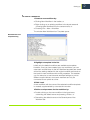
- Rows and columns
With this setting you define the number of rows and columns
to fill. Select the appropriate check boxes to fill as many rows
or columns as will fit on the sheet size. Alternatively, to define
a specific number of rows or columns, deselect the
appropriate check box. Then use the edit box to type in the
required number. The default setting is one row and one
column, i.e. one image.
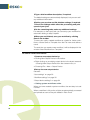
- Fill sheet
Select this radio button to fill the selected sheet size.
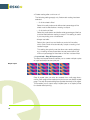
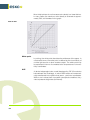
It is possible to output step and repeat patterns as tiles by
defining a sheet size that is bigger than the media size set for the
printer.
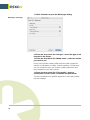
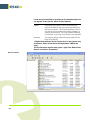
• Layout tab > Footer pane
On this pane, you can select to output a job ticket with your jobs.
55
4