1
On-Net Surveillance Systems, Inc.
Monitor Application
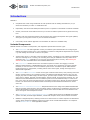
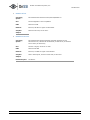
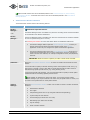
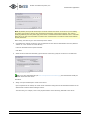
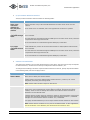
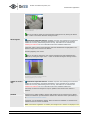
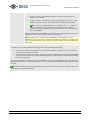
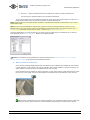
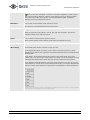
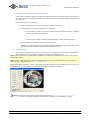
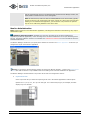
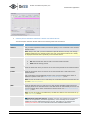
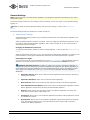
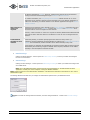
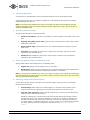
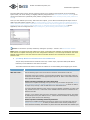
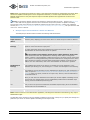
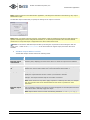
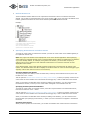
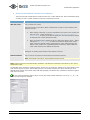
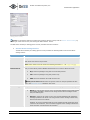
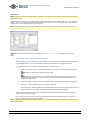
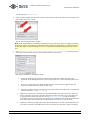
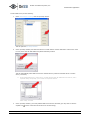
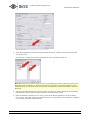
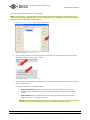
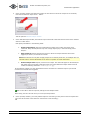
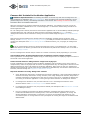
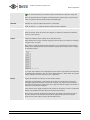
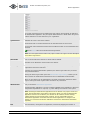
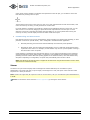
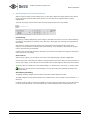
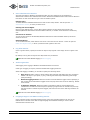
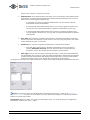
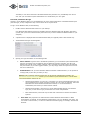
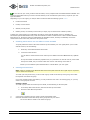
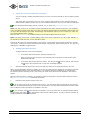
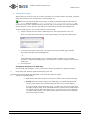
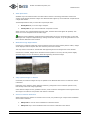
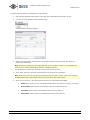
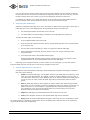
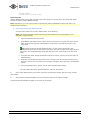
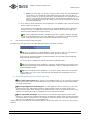
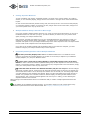
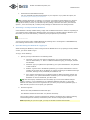
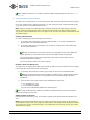
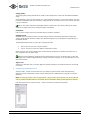
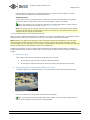
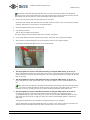
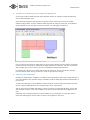
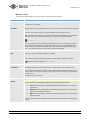
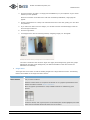
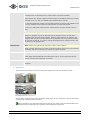
The Print control panel
3.
Fill in the Operator’s Note, Company, and Operator fields.
4.
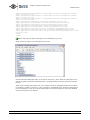
Click the Print button to print the evidence on your default Windows printer.
The printed surveillance report will contain the selected image, information about camera name, image
capture time and report print time as well as the specified operator's name and operator's note.
To send evidence from the Viewer via e-mail, use the following procedure:
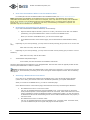
Note: The e-mail feature must be set up by the surveillance system administrator before you can use it. Ask if in
doubt.
1.
Select the required camera in the camera layout (see Using the Viewer), and browse to the image you
want to send via e-mail.
2.
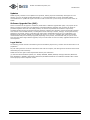
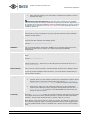
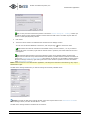
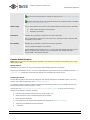
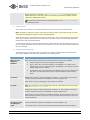
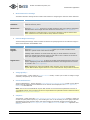
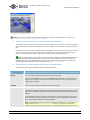
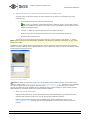
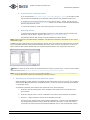
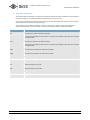
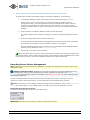
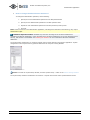
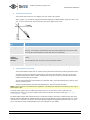
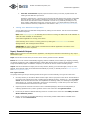
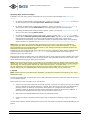
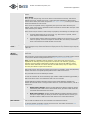
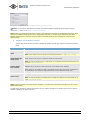
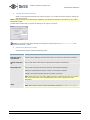
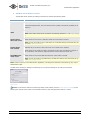
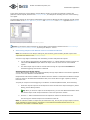
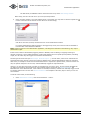
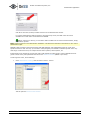
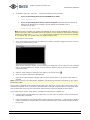
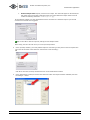
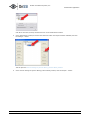
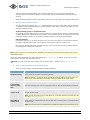
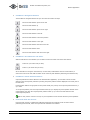
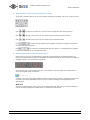
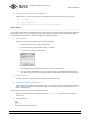
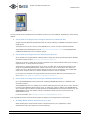
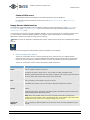
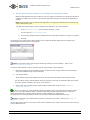
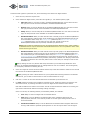
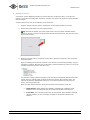
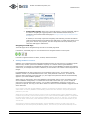
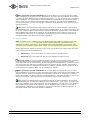
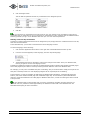
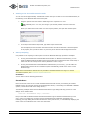
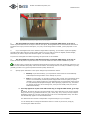
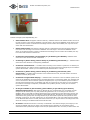
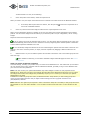
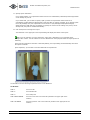
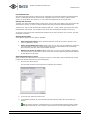
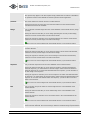
Click the Send E-mail Report icon:
The Send E-mail Report icon
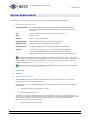
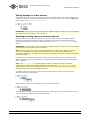
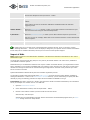
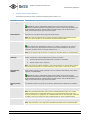
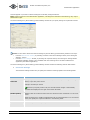
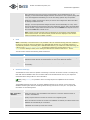
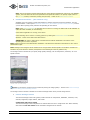
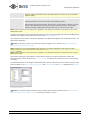
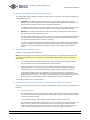
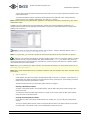
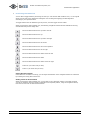
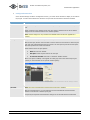
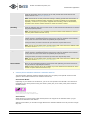
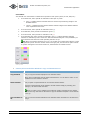
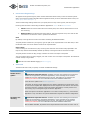
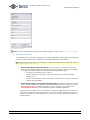
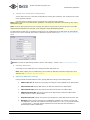
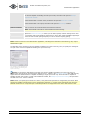
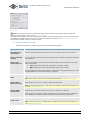
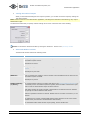
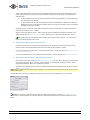
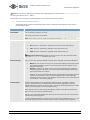
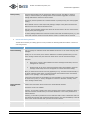
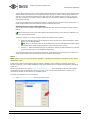
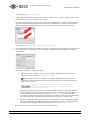
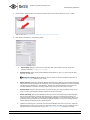
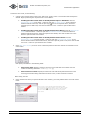
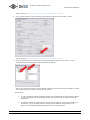
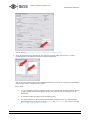
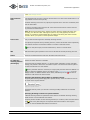
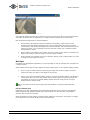
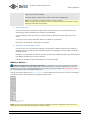
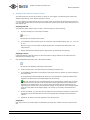
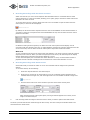
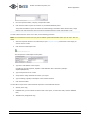
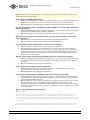
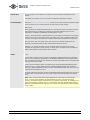
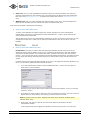
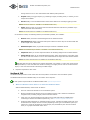
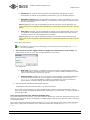
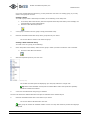
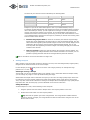
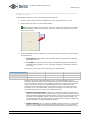
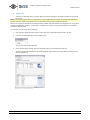
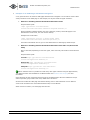
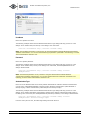
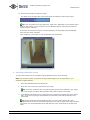
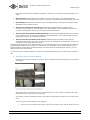
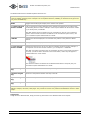
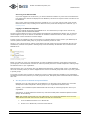
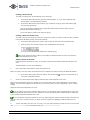
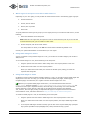
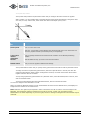
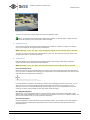
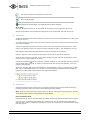
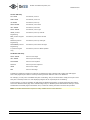
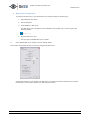
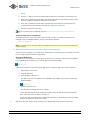
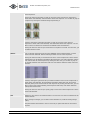
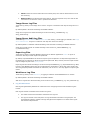
This will open the E-mail Report control panel:
The E-mail Report control panel
3.
Type the e-mail address of the recipient.
If sending to several recipients, separate e-mail addresses with a semicolon (example:
[email protected];[email protected]).
4.
Type a subject text for the e-mail.
5.
Verify that the Image field lists the camera you require.
6.
Type a message, typically a description of the recorded incident.
7.
Click the Send button.
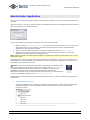
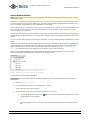
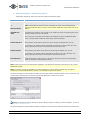
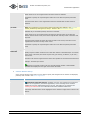
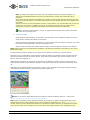
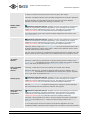
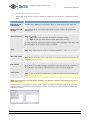
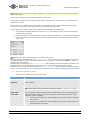
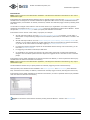
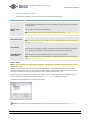
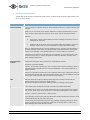
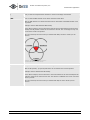
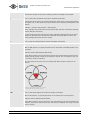
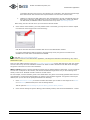
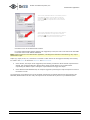
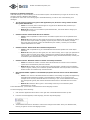
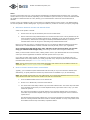
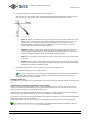
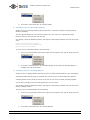
You are able to export entire video and audio sequences in three different formats:
•
AVI file (movie clip)
•
Database files (you can include the Viewer itself in the export, so others can easily view the database
files)
•
JPG/WAV files (image/audio clip)
222 Route 59, Suite 303, Suffern, NY 10901 | Tel: 845-369-6400 | Fax: 845-369-8711 | www.onssi.com | [email protected] | page 140