1
4 The VarioConnect System Menu
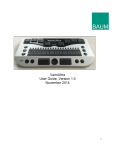
As soon as VarioConnect is switched on the first lines of the System Menu appear
on the Braille cells. This menu contains information relating to the Braille display. This
information includes device name, serial number, battery status etc. If necessary, the
settings can be changed on the advanced System Menu. The settings you can
change include interfaces, protocols, sounds and auto power off timer.
Usually you will pay no attention to the System Menu, as it disappears as soon as
data are transferred from your mobile device to the Braille display.
The basic System Menu consists of six lines giving the name of the device, status, its
serial number, battery status and Bluetooth name.
It will often prove necessary to install special settings or values, which must be done
on the advanced System Menu which can be accessed directly with its own key
combination.
The lines in the System Menu can be accessed upwards with D1 (top left), and
downwards with D3 (bottom left). Whenever the System Menu is called up the first
line will be displayed. Items can be selected in the advanced System Menu by
pressing one of the cursor routing keys above the display. The active or selected item
is indicated with Braille dots 7 and 8.
The lines of the System Menu will be described below.
To quit the advanced menu, browse through to the “Menu off” option and press a
cursor routing key over the word “off”; this is done automatically as soon as data has
been exchanged between the PC and the Braille display.
All settings are automatically saved when quitting the System Menu and remain
active until next amended.
After you left the system menu, you may want to re-enter it. This can be
accomplished by turning the device off and on again or even simpler by double
clicking the power button.
8