1
2.2
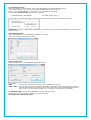
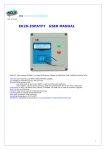
SETTINGS AREA
Use
to scroll the items.
Pressing OK the cursor move on the selection and memorize its value.
Pressing ESC the cursor move to the begin of the current item and enables the use of arrows.
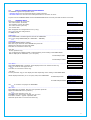
CONNECTION TO PC------------------------------------------------------------------------------------------------------------This item permits the RADIO connection to the PC.
Connessione a PC
Pressing OK the communication is Active.
If appear the R char means that a data exchange is running.
Connessione a PC
Attivata------ R
When all Logs has been transferred appear End Log.
Connessione a PC
Fine Log------ R
UNIQUE--------------------------------------------------------------------------------------------------------------------------Permits to set the CODE format compatible with most used readers (SOKYMAT mode).
Unique: SOKY INV
SOKY set the SOKYMAT MODE, INV set the INOUT MODE.
UHF ASCII-HEX------------------------------------------------------------------------------------------------------------------Permits to display the EPC CODE and the USER AREA in ASCII or HEX format.
UHF: ASCII HEX
UHF USER E+USER-------------------------------------------------------------------------------------------------------------Permits to display only the USER AREA or the EPC CODE+USER AREA.
UHF: USER E+U
UHF POWER----------------------------------------------------------------------------------------------------------------------Permits to set 4 growing power levels on the READER ANTENNA .
UHFpower: 1 2 3 4
SID-CH---------------------------------------------------------------------------------------------------------------------------Permit to set the RADIO System IDentifier(SID) and theRF Channel(CH).
Sid-Ch: 001 007
Use
to increment or decrement the value from 0 to 9.
Press OK to pass to the next digit.
Pressing OK on the last digit the set values are memorized into the READER RADIO.
---------------------------------------------------------------------------------------------
3.0
IDONE-R FIRST INSTALL
The first install is very important because creates the correct environment need by the system.
So we have made a simplified procedure to start the first install.
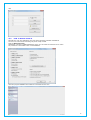
INSTALL IDONE-R ON YOUR PC
Connect to the web site: www.zetanetweb.com/download/zetanet.htm
Download the file “IDONE-R_5xx_Setup.exe”.
Exec the file and follow the instructions to the end of install.
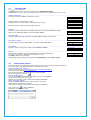
An icon will appear on your PC.
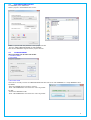
USB COM PORT INSTALL
Turn off the READER. Connect the USB cable and turn on the READER.
The PC begin to install the new device.
Wait for the completion of the install of the assigned COM PORT.
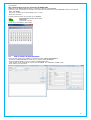
RADIO COM PORT INSTALL
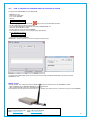
Insert the RADIO PEN UHF into an USB connector on your PC.
The PC begin to install the new device.
Wait for the completion of the install of the assigned COM PORT.
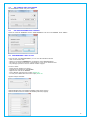
Click on the icon
to launch IDONE-R.
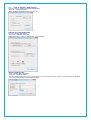
Will appear a request. Press OK.
5