1
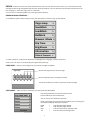
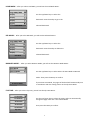
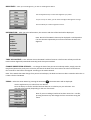
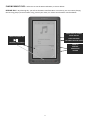
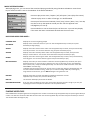
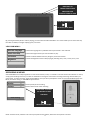
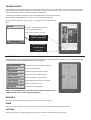
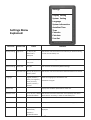
VIEWING PHOTOS Select PHOTO from the Opening Menu to view all the photos you have stored on the unit. Scroll to the “Photos” folder using the Up/ Down keys and press the M key to show the list of photos stored. To view a photo, scroll to it using Up /Down keys and press the M key to confirm. The photo will then be displayed. To change the photo being displayed, press the Left/ Right keys to move forward or back. While a photo is being displayed, you can zoom in or out using the Zoom key. While a photo is displayed, you can press the M key to reveal the Photo Sub-‐ Menu. Browse > Select this to choose the time taken to auto change the photos: 5 sec / 10 sec / 20 sec / Turn off. PRESS M KEY TO REVEAL THE PHOTO SUB-‐MENU Record Setting PRESS THE ZOOM KEY TO ZOOM IN/OUT OF PHOTO USING THE RADIO Select Radio from the Opening Menu. First, check if the unit is set to the correct region. You can use Europe or USA. To select this and other Radio Functions, press the M Key: Search Manually Auto Search Preset Mode Save Channel > Delete Channel > Stereo Switch > Receive Area > FM Record Press this to manually search for channels. Use Auto Search feature. Choose this to select saved channels. Use this to save a “found” channel. Use this to Delete a saved channel. Switch between stereo and mono sound. Select the region you are in. Use this to record the station. NOTE:-‐ For the radio function to work at its best, make sure you use the earphones and are in an area with good reception. EXPLORER Select this item from the Opening Menu to view ALL files stored on the unit. GAME Select this to play the games on the unit. There are no instructions available for these games at this time. SETTINGS Select this to adjust or change the global settings on the unit. Please see the reference chart below. 14