1
Understanding Adobe DRM
A Digital Rights Management (DRM) eBook is a copy-protected eBook. There is no simple way to check if
your eBook has DRM or not. But most of the time, if you paid for the book, it’s most likely a DRM file. If the
book was free, it is probably not a DRM file.
Authorizing Your Device for Adobe DRM
1. Download the free Adobe Digital Editions eBook reader software and create an Adobe Account at
http://www.adobe.com/products/digitaleditions
To learn more, please go to http://www.adobe.com/products/digital editions/faq
2. After installing the software, open Adobe Digital Editions and sign in with your Adobe ID.
3. Plug your EB104 into the computer using the USB cable.
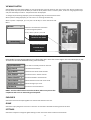
4. Adobe Digital Editions will ask if you would like to authorize the device with your Adobe ID. Click Authorize
Device.
*Books transferred with Adobe Digital Editions desktop software must use the same Adobe ID on the both
the computer and the eBook Reader.
Transfer Non-DRM eBooks, Music, and Video
To transfer non-DRM eBooks, music, or video files to the unit, simply use Windows Explorer to copy from
your PC to the drive you want, either directly to the memory of the unit, or to a memory card that is inserted
into your computer.
Transferring DRM eBooks with Adobe Digital Editions
1. Download the free Adobe Digital Editions eBook reader software from
http://www.adobe.com/products/digitaleditions
To learn more, please go to http://www.adobe.com/products/digital editions/faq
2. After installing the software, you can use it to view eBooks in the PDF and ePUB formats. Simply
download an eBook to your computer, and then open it with Adobe Digital Editions.
3. Connect your unit to your computer via the USB cable, and open Adobe Digital Editions software.
4. Tap on “All Items”, and choose the files or eBooks you want to transfer. Then drag them over to your unit.
You will find your unit on the left hand side, and it will be called “EB104.”
5. After you’ve finished transferring your files, please tap on the “Safely Remove Hardware” icon from your
computer’s taskbar. Choose “removable disk,” and when your computer says “It’s safe to remove the
device,” unplug the USB cable.
2