1
Advanced
recording
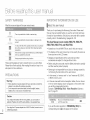
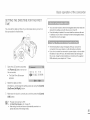
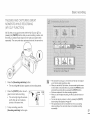
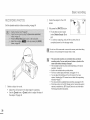
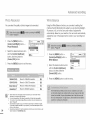
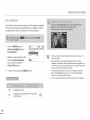
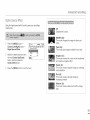
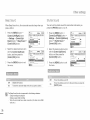
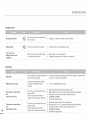
Photo Resolution
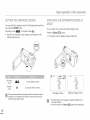
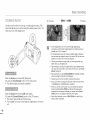
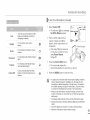
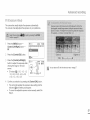
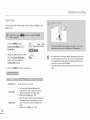
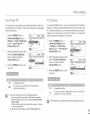
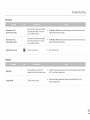
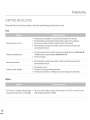
White Balance
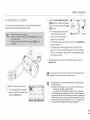
You can select the quality of photo images to be recorded.
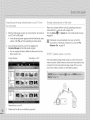
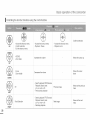
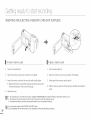
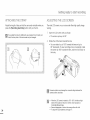
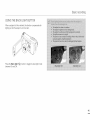
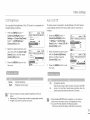
Using the White Balance function, you can select a setting that
matches the light illuminating the subject you are shooting (Daylight,
Fluorescent, etc.) or let the camcorder make all adjustments
automatically. Based on your selection, the camcorder automatically
adjusts the color of the subject so the colors in your recording look
natural.
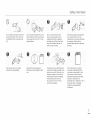
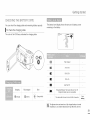
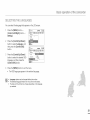
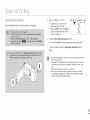
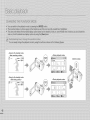
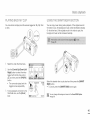
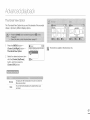
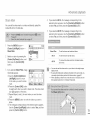
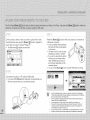
Press the [MENU] button
[Control (Left/Right)] button
Photo Resolution.
2
Select the desired submenu item
with the [Control (Up/Down)]
button, and then press the
[Control (OK)] button.
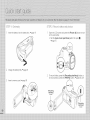
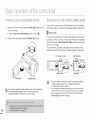
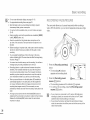
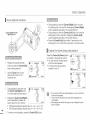
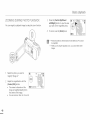
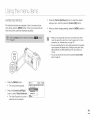
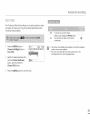
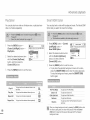
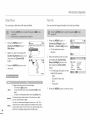
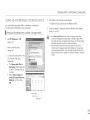
Press the [MENU] button
[Control (Left/Right)] button
White Balance.
i"3 Press the [MENU] button to exit the menu.
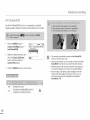
Select the desired submenu item
with the [Control (Up/Down)]
button, and then press the
[Control (OK}] button.
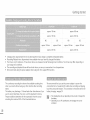
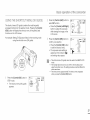
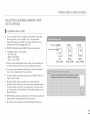
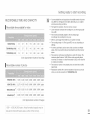
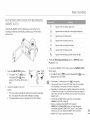
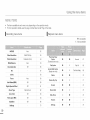
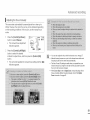
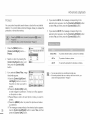
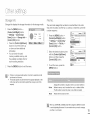
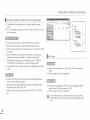
1696x954(16:9)
Record in 1696x954
resolution.
1280x720(16:9)
Record in 1280x720
resolution.
1600xl 200(4:3) _
Record in 1600xl 200 resolution.
800x600(4:3) _
•
•
•
•
•
3
_qJ
Record in 800x600 resolution.
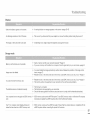
Other devices
not display
photos recorded by your carncorder if those
devices
do not may
support
high resoJution.
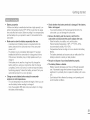
For photo development,
the higher the resolution, the finer the image qualEty.
The number of recordabb images differs according to the photo resoJution you
sebot. _page 33
High resolution images occupy more memory space than low resolution images.
If you select a higher resoJution for your photos, you will have less space to store
photos in the memory.
Resolutions marked with _ are the resolutions of photos your record when you set
video resolution to 720X480/60p
(4:3).
Press the [MENU] button to exit the menu.