1
•
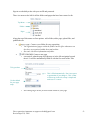
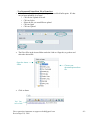
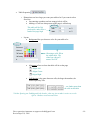
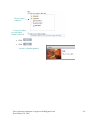
: allows you to choose documents from your computer to upload to
the site. They all go to the Assets folder.
These are very
o Assets are all the pictures, documents, etc. that have been uploaded and
important to
are used somehow in the site.
note and I
o Do not use spaces or punctuation in the file name.
cannot stress
o All pictures, pdf files, word documents, etc. linked to from/used in the site
how much
MUST be uploaded to the assets folder in order to work properly.
frustration they
o *Just because a picture/document works in the editor or preview
can prevent if
when it is copied and pasted from another location does NOT mean it
heeded.
will work when the page goes live! Upload the file and replace it!
•
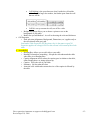
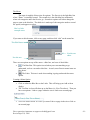
: Makes the pages/changes available on the actual world-wide web
when you are finished.
o If your page is not “live” yet, publishing won’t do anything. To get your
site live, talk to Logan Smith ([email protected]) or Ken
Millard (ken_millard.byu.edu).
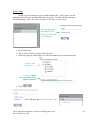
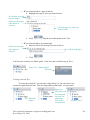
Every page (when selected) also has a
button in the top right corner. If you
hit this, it will give you a better idea of what your site will look like on the actual web.
NOTE: some functionality does not work in the preview. The site must be published to
view accurately.
Uploading Files
•
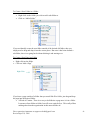
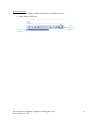
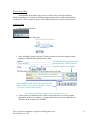
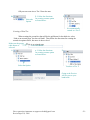
Click on the Blue Upload Files Arrow
•
•
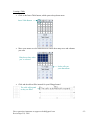
Click on
This opens a File Upload window.
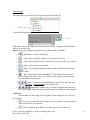
Select the file from your computer you would like to upload.
•
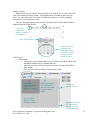
Click
o
Allows you to upload up to 10 files at once.
o You can select a ZIP file and check the
multiple files at once
•
box to upload
Uploads the selected files to the Assets folder.
Direct questions/comments to [email protected]
Revised April 18, 2008
-3-