1
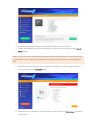
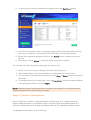
The Ignore List tab allows you to add specific registry keys to the Ignore List. This will
prevent Easy PC Optimizer from removing these keys.
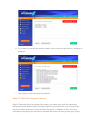
You can also automate Easy PC Optimizer by using the Scheduling tab. Simply enable
scheduling, specify when you want Easy PC Optimizer to perform scheduled scan and
optimization, and save your settings. From that moment on Easy PC Optimizer will perform
registry maintenance automatically.
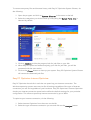
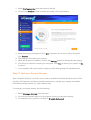
The About tab contains your license information and the program’s version number. From
there you can easily check your license key expiration date and see which version of the
program you have installed.
Updating Easy PC Optimizer
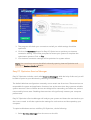
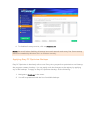
Easy PC Optimizer checks for updates automatically every time you launch the program.
However, you can check for updates manually by clicking on Updates.
Uninstalling Easy PC Optimizer
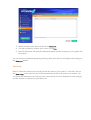
You can uninstall Easy PC Optimizer from the Control Panel, just like any other program. To
uninstall Easy PC Optimizer from the Control Panel, do the following:
1. Click on Start and go to the Control Panel
2. Open Add or Remove a Program (Windows XP) or go to Programs and Features
(Windows 7)
3. Locate Easy PC Optimizer, highlight it and click on Uninstall
4. Easy PC Optimizer will be uninstalled from your computer. Reboot your PC for the
changes to take effect