1
ZN-R1000E
Installation Manual
Webpage User's Manual
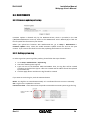
5.2. Display Mode
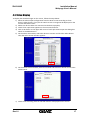
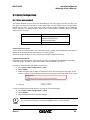
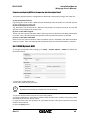
The device supports quad view, single view, and PIP view. The default view mode is quad view. 5.2.1. Quad View
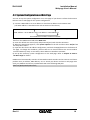
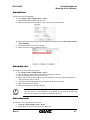
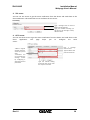
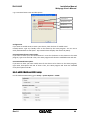
In the Quad View mode, the evenly split four‐windows appear on the screen. On the quad view mode, you can change the view to the single view mode only. To change the display mode on this default view mode, move your mouse point to the right top of the desired channel. Then image icons appear as shown below. If you click the Display Mode icon, the selected split view is displayed in a single view. 2 1
○
○
Enable audio 5.2.2. Single View
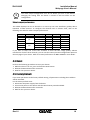
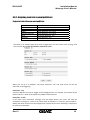
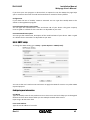
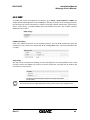
In the Single View mode, only one video is displayed on the screen. You can change the view either to a different channel or to different splits. To change the display mode to different views, move your mouse point to the right top of the view. Then image icons appear as shown below. Select the desired view mod. 2 1 ○
○
3 ○
4
○
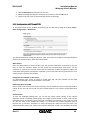
Enable audio Enable quad view Switch the channel Enable PIP mode 5.2.3. PIP View
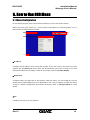
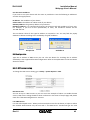
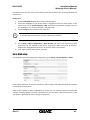
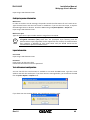
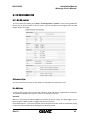
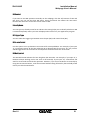
In the PIP View mode, you can see one other video with a small split in a full single view. You can switch the full image with the small inset image or change the view with different splits. To switch the image that is displayed in the sub‐window with the full screen image, click below. To switch the channel in the sub‐window to a different channel, click the desired channel from . If you want to change the view mode from PIP to a different one, move your mouse point to Rev1.0
21