1
Displaying multiple results for one sample
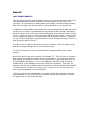
In some cases, there may be more than one set of results for a single sample, i.e.,
there are multiple runs for one sample. Because GWIS keys off of unique sample
id’s, multiple runs for one sample can only be captured in the database if the PREP
CODE and/or the REQNUM are unique. Tabular reports display only one sample id,
and an associated line of data, at a time. If there is more than one set of results for
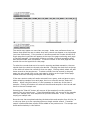
a single sample, the parameter box with multiple results will be highlighted in the
tabular report results.
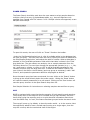
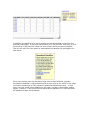
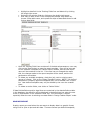
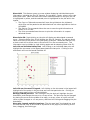
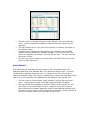
The color of the parameter box is determined by the standard deviation of the
multiple values. For example, if there are four available d13Csat values for one
sample, the d13Csat column will be highlighted either red or yellow. Red indicates
that the range of available values is broad, and yellow indicates that the range of
available values is fairly narrow. The user controls how broad the range of values is
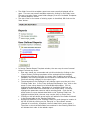
by selecting ‘Preferences’ in the main left-hand menu.
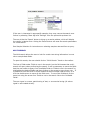
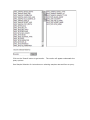
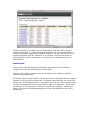
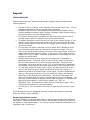
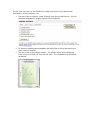
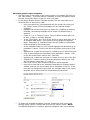
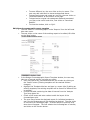
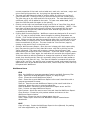
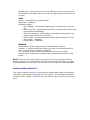
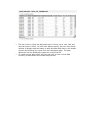
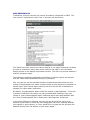
To view the multiple values, the user clicks on the colored box. A pop-up box will
appear with a list of all the records for that field\sample.
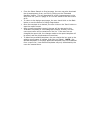
If the user is logged into GWIS with an account that has update permissions to the
GWIS database, then this box will allow the user to select a record or set of records
that he or she wishes to view in the report in place of the summed average that
otherwise appears in red (or yellow). The user may choose which available values
will be displayed in the Tabular Report by clicking on the values of interest. If the
user clicks on only one value, then hits the “this sample” button, the value will be
shown in the tabular report. If the user clicks on more than one available value,
then clicks the “this sample” button, the average of the selected values will be
calculated, and that average will then be displayed in the tabular report.
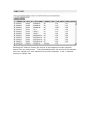
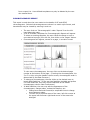
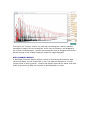
Once a value or average value for multiple runs has been chosen (checked ‘on’), the
parameter box color will change to green, indicating that the user has chosen to
display the ‘best’ value for that particular sample parameter in the tabular report.
If the user wants to pick the record for one or more values, all data displayed that
comes from the same analytical table will also be picked. The parameter box color
for all data fields coming from the same table will turn green. Other data displayed
which come from other tables, must be picked separately.
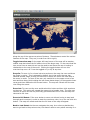
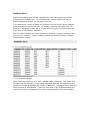
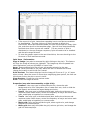
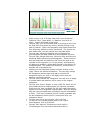
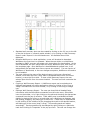
The user can click on a parameter box to bring up the ‘Pick the record’ box, and then
click on the ‘This Page’ button to highlight in green all of the results for samples
which have exactly the same Request number and Prep code as the original sample
selected. This feature is useful if the user wants to quickly find all of the samples
that were grouped together by request number in a particular job. Clicking on the
‘All Samples in This Report’ button will highlight all of the samples in the entire
report with the same Request number and Prep code as the original sample selected.