1
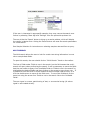
values into the list to add ranges. A combination of both ranges and specific sample
values can be queried at the same time, or even a combination of different ranges.
Any sample Ids in the Sample List window, whether specific and/or ranges will be
queried once the Search button is selected.
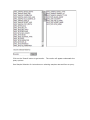
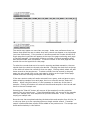
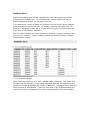
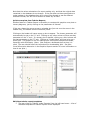
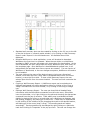
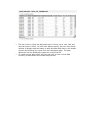
The results will appear underneath the sample list input boxes. To clear out the
sample list and begin typing a new one, hit the clear button.
See Sample Selection for instructions on selecting samples returned from a query.
SITE/SAMPLE SEARCH
Site/Sample search is useful when the user wants to narrow the search results by
location or descriptive sample information based upon commonly used site and/or
sample information.
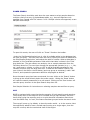
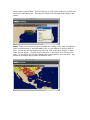
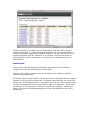
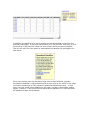
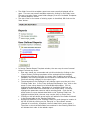
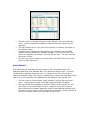
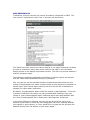
Select “Site/Sample” from the toolbar and then select parameters from the
dropdown lists of different site or sample parameters under ‘Field.’ Once the
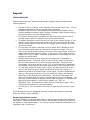
appropriate selections are made, the dropdown menu under ‘Value’ to the right of
that box will then populate with a list of valuable values that match the selected
parameter.
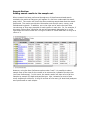
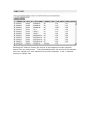
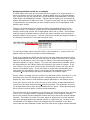
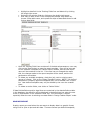
If the user wishes to filter the first parameter by an additional parameter they can go
to the second row and choose the second parameter in the left hand side of the
menu. Once again, the dropdown on the right hand side of the menu will populate
with available values, but this time it will be filtered by the top result. So, for
example, if in the first row Country and United States were selected, and in the
second row (in the left hand dropdown box) State was selected then the right hand
dropdown box will populate with a list of states from the United States that are
available in the database. This can be done with up to three rows.