1
•
•
•
•
•
•
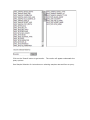
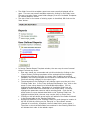
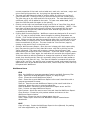
Highlight a data field in the ‘Existing Fields’ box and delete it by clicking
the single right arrow.
Delete all the existing fields by clicking on the double right arrow.
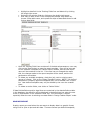
User may go back to the ‘From Analysis/Site/Sample’ drop down list,
choose a new table name, and repeat the steps as described above to add
further data fields.
Once the ‘Existing Fields’ box contains all of the desired parameters, user may
click on the ‘Save’ button to save the report template. User will be returned
to the ‘Available Templates for Tabular Report’ window, and the new report
name will be contained in the list. If the user has not changed the report
title, the changes made to the report template will be saved, and the old
parameters overwritten.
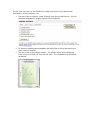
To delete any available templates, check box (es) next to existing report
names of interest. Click on the ‘Delete Template’ button. NOTE: Pre-defined
templates or company-approved templates may not be deleted from a report
list. User-defined templates may only be deleted by the user who created
them.
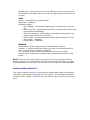
To delete an entire folder, user clicks on ‘Delete Folder’.
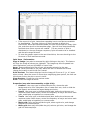
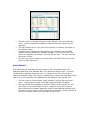
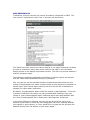
If data field definitions and/or algorithms are contained in the data definitions table
in the database, the definition will be displayed in the definitions box when the user
clicks on a parameter in the ‘Available Fields’ box. This information is helpful
especially when the user is selecting new data fields in ‘Design Tabular Report’ mode.
GRAPHIC REPORT
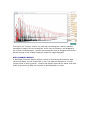
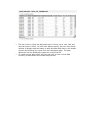
Graphic reports are used when the user wants to display data in a graphic format,
using Excel or Iplot to plot and edit data. There are several pre-defined templates,