1
FUNCTIONS
Searches
The first step in using GWIS is to find the site and/or sample that the user wishes to
view or extract data from. There are a number of ways to perform a search,
depending on the user’s desired result and/or preference.
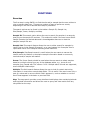
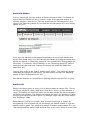
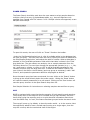
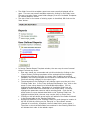
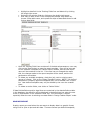
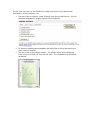
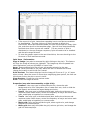
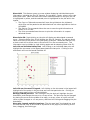
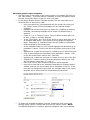
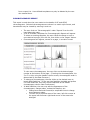
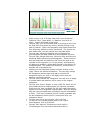
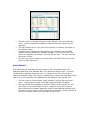
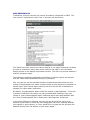
The search options can be found in the toolbar: Sample ID, Sample List,
Site/Sample, Power, Multiple, and Map.
Sample ID: This search option allows the user to search for samples in a range by
querying on the sample ID numbers. This method is useful if the user knows which
sample contains the desired data and is knowledgeable about as to what the
samples’ sample IDs are.
Sample List: This search feature allows the user to either search for samples by
range (just as in the Sample ID search), or to copy\paste a list of samples from a
report and view a list of samples matching those exact IDs.
Site/Sample: Site/Sample search is useful when the user wants to narrow the
search results by location or descriptive sample information based on commonly
used site and/or sample information.
Power: The Power Search should be used when the user wants to select samples
based on multiple criteria from any of the database tables, e.g., show all rock
samples from Canada with TOC values >2.0%. Multiple search criteria are supported,
as are AND/OR relationships.
Multiple: The Multi-search feature allows the user to look for certain text string
information in most site or sample data fields. This is useful if the user knows only a
part of a value and is not sure which field it appears in, such as whether or not the
word Texas appears in the basin or province field.
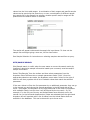
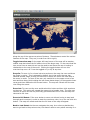
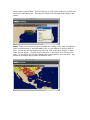
Map: The map search provides a map interface that displays sites containing latitude
and longitude information and allows the user to query and view results from any
site plotted on the map.