1
DVSINFO’s Link Quality Analyst 1.0
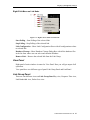
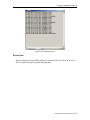
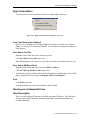
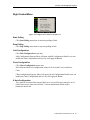
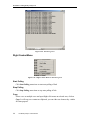
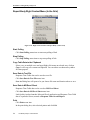
Report Body Right Context Menu (In the Grid)
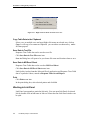
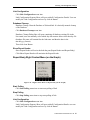
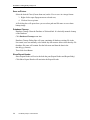
Figure 4-30. Right Context Menu on Report Body (on the Grid)
Start Polling
Click Start Polling menu item to start auto polling of link.
Stop Polling
Click Stop Polling menu item to stop auto polling of link.
Copy Table Data to the Clipboard
Select a row or multiple rows and open Right click menu on selected area, click on
Copy. It will copy row content on clipboard. You can either use shortcut key ctrl+c
for same purpose.
Save Data in Text File
Response Time Table data can be saved as text file.
Click Save Data in Text File menu item.
Save As Dialog box will open to let you choose file name and location where to save.
Save Data in MS Excel Sheet
Response Time Table data can be saved as MS Excel Sheet.
Click Save Data in MS Excel Sheet menu item.
Link Quality Analyst launches Microsoft Excel application and Response Time Table
data is exported to sheets, named as Response Time Overall Report.
Print
Click Print menu item.
In the print dialog box, select desired printer and click Ok.
54
Link Quality Analyst 1.0 User Manual