1
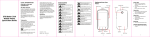
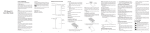
Power Key
• Press and hold to turn on or off airplane mode, enable
silent mode, vibration mode or sound, reboot, or to
power off.
• Press to switch your phone to sleep mode or wake it
up.
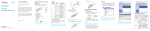
1. Using the thimble take out the card holder.
Installing the microSDHC Card
1. Using the thimble take out the card holder.
2. Hold the micro-SIM card with the cut corner oriented as
shown and slip it into the card holder.
Back Key
Touch to go to the previous screen.
Menu Key
• Touch to open launcher menu.
• Touch and hold to see recently used applications.
Before Getting Started
Installing the micro-SIM Card
Switch off your phone before installing the micro-SIM card.
Powering On/Off Your Phone
Make sure the battery is charged before powering on.
• Press and hold the Power Key to turn on your phone.
• To turn it off, press and hold the Power Key to open
the options menu. Touch Power off.
Waking Up Your Phone
Volume Key
• Press and hold to turn the volume up or down.
Home Key
• Touch to return to the home screen from any
application or screen.
• Touch and hold to start Google Search.
Charging the Battery
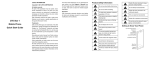
CAUTION: To avoid damage to the phone, please do
not use other kinds of SIM cards, and do not use a nonstandard micro-SIM card cut from a SIM card. You can get
the standard micro-SIM card from your service provider.
2. Hold the microSDHC card with the cut corner oriented
as shown and slip it into the card holder.
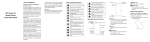
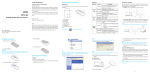
When you first get your new phone you’ll need to charge
the battery like this:
1. Connect the adapter to the charging jack.
2. Connect the charger to a standard AC power outlet.
3. Disconnect the charger when the battery is fully
charged.
WARNING! Use only ZTE-approved chargers and cables.
The use of unapproved accessories could damage your
phone or cause the battery to explode.
CAUTION: Do not change the built-in rechargeable battery
in your phone by yourself. The battery can only be changed
by ZTE or ZTE authorised service provider.
NOTE: If the battery is extremely low, you may be unable
to power on the phone even when it is being charged. In
this case, try again after charging the phone for at least 10
minutes. Contact customer service if you still cannot power
on the phone after prolonged charging.
1. Press the Power Key to activate your screen display.
2. Swipe from the bottom to up to unlock.
NOTE:
If you have set an ‘unlock pattern’, or a PIN/password for
your phone, you’ll need to draw the pattern or enter the
PIN/password to unlock your screen.
Using the Touch Screen
Your phone’s touch screen lets you control actions through
a variety of touch gestures.
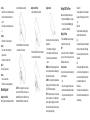
• Touch
When you want to type using the onscreen keyboard,
select items onscreen such as application and settings
icons, or press onscreen buttons, simply touch them
with your finger.
•
•
•
•
•
Touch and Hold
To open the available options for an item (for example,
a message or link in a Web page), touch and hold the
item.
Swipe or Slide
To swipe or slide means to quickly drag your finger
vertically or horizontally across the screen.
Drag
To drag, press and hold your finger with some pressure
before you start to move your finger. While dragging,
do not release your finger until you have reached the
target position.
Pinch
In some apps (such as Maps, Browser, and Gallery),
you can zoom in and out by placing two fingers on the
screen at once and pinching them together (to zoom
out) or spreading them apart (to zoom in).
Rotate the screen
For most screens, you can automatically change the
screen orientation from portrait to landscape by turning
the phone sideways.